Applies to JCself, Gipfel version · As of 26 October 2026 (Update 103)
JCself speaks German. Its window, buttons and messages are in German. This manual names every control exactly as it appears on screen, followed by an English translation in grey, for example Erzeugen (generate). The menu Optionen › Sprachen switches only older parts of the program to English, so we recommend leaving it on German.
Guiding idea
Melodies become real.
Like virtual particles, notes appear and vanish again. Only what gains energy becomes real – in JCself: weight. No melody is fixed in advance: every note that sounds strengthens its region and makes the next ones more likely. A melody that gathers weight stays; one that gathers none fades away.
So the composer does not prescribe every note, but sets the conditions under which the music develops: the range, the note lengths, how much chance is involved, the sound. The same settings produce a different piece every time.
Since autumn 2026 JCself goes one step further: a piece shapes its own form. The regions that are played fade away, and the piece dies down when nothing grows back (“Verwehen und Ausklang”); it tips between dense and relaxed phases, takes a breath after every phrase, a listener listens along and steers it with his surprise and his boredom, and if you wish, a text sets its course with the prosody of its sentences. Time breathes with the liveliness of the music, the sound moves near or far with the weight, orchestral instruments and the gong from Peter Heeren’s own recordings play from the same values, fields in the ensemble listen to one another – a following voice, too, is a fellow player the main voice hears –, a field can become a swarm, and on request JCself sets the fields of the ensemble itself: the line-up is then a JCself piece, and next time the fields that carry stay (Fields by JCself). Every piece can be saved as sheet music. None of this is a rule someone prescribes; they are processes that follow from the composition – all in the tab “Form”.
One sound exists nowhere else: the composer’s own gong sound bank. Peter Heeren recorded a good two and a half octaves of his tuned gongs with the friction mallet – not struck, but drawn along the rim until the tone rises out of the bronze and stands for fourteen to thirty seconds. 54 recordings, chromatic from great C to f♯³, prepared for JCself. And JCself does not simply play them back like a sampler: it chooses the recording for each note, damps or lets it ring, accents the peak and holds back the Neuland – by the synergy of the piece.
This manual begins with a first piece to try out. After that come the installation, a tour of the window and an explanation of how JCself composes. The rest is for reference: it lists every setting together with what it does musically.
A first piece
Try JCself out first – the explanations come afterwards. If JCself is not set up yet, read the section Installation first.
- Start JCself. At the top of the window is the display, still empty. Below it are three tabs: Komposition (composition) for what is created, Form for how it takes shape, and Klang (sound) for how it sounds. Leave the tab “Form” as it is for the first piece.
- In the tab “Komposition”, enter: Durchläufe (runs) 60, Tiefste Frequenz (lowest frequency) 110, Höchste Frequenz (highest frequency) 880, Kürzeste Dauer (shortest duration) 0.5, Längste Dauer (longest duration) 2. Tick Tonsystem verwenden (use tuning system) and Akkord · synergetisch (synergetic chord), and set the Lautstärke (loudness) from p to ff. Write decimals with a point: 0.5, not 0,5. A value takes effect as soon as you press Enter.
- In the tab “Klang”, choose the card MIDI · Instrumente. It plays without any other program. If Csound is installed, you can take the card Csound and the sound “Klavier” (piano) instead.
- Click Erzeugen (generate). The first time, JCself asks for a name for the piece, for example
First-piece.csd. Now you can watch at the top how JCself chooses note after note: where notes are chosen often, an area grows. At the end, confirm the message “Csound-Datei gespeichert” (Csound file saved) with OK. - Click Anhören (listen). Abbruch (cancel) stops.
- If you like the piece, save it: with MIDI via MIDI speichern (save MIDI) – the file is then placed next to the Csound file – and with Csound via WAV speichern (save WAV).

Click “Erzeugen” once more: the same settings produce a new, different piece. Then change a single value, for example the Auswahlmenge (selection size) to 3 – the music then circles around a few notes – or to 40 – it becomes more varied. This is the quickest way to get to know JCself.
JCself writes every new piece into the same file and asks “Diese Datei ersetzen?” (replace this file?) beforehand. If you want to keep a piece, choose Csound-Datei wählen … (choose Csound file) in the menu “Datei” (file) before the next “Erzeugen” and enter a new name; the old piece is then kept. You save your settings as a template.
Installation
JCself is a Java program. The same program package runs on Windows and on the Mac – tried out on the Mac (MacBook Pro with an Intel processor under macOS Sonoma, Java 21, Csound 6.18).
What you need
- Java
- Java 8 or newer, free of charge. A current long-term support version (LTS) is recommended, for example Eclipse Temurin (the “JRE” is enough). Whether Java is already installed is shown by the command
java -versionin the Command Prompt (Windows) or in Terminal (Mac). - Csound (recommended)
- The free sound synthesis program from csound.com. With it you hear the exact pitches and the sounds built specially for JCself, and you can save WAV files. JCself has been tested with Csound 6.18. Without Csound, MIDI, the own WAV sound and SWAM/VSCO still work; JCself writes Csound files all the same.
- VSCO 2 Community Edition (for the orchestral instruments)
- A free collection of orchestral recordings (versilian-studios.com, SFZ edition 1.1.0). Unpacked it gives the folder
VSCO-2-CE-1.1.0, which you show JCself once. From it Csound plays piccolo, flute, clarinet, horn, trombone, timpani, bass drum, violin and the cello ensemble – without sforzando and without a MIDI connection, see Instruments from the VSCO library. - The Gong folder (for the sound “Gong”)
- Peter Heeren’s own gong recordings, prepared for JCself:
jcself-gong.zipfrom the download page (118 MB, unpacked 260 MB). Unpacked it gives the folderGong, which you show JCself once (tab “Klang” › Gong › “Gong-Ordner wählen …”), see Gong. Without it you have all the other sounds. - SWAM or sforzando (only if needed)
- External instruments that JCself controls via MIDI, plus a virtual MIDI connection: loopMIDI on Windows, the IAC driver on the Mac. See SWAM / VSCO.
The program package jcself-gipfel-en.zip from the download page contains the folder JCself with the program jcself-gipfel.jar, a start file for Windows (JCself-start.bat), one for the Mac (JCself-start.command), this manual as a PDF and a file README.txt.
Windows
- Install Java if it is missing.
- Unzip
jcself-gipfel-en.zip(right-click › “Extract All …”). Put the folderJCselfsomewhere you are allowed to write, for example in “Documents” or atC:\JCself. Not in “C:\Program Files”. - Start JCself by double-clicking
JCself-start.bat. If Windows shows a security warning the first time, confirm with “Run”; at “Windows protected your PC”, click “More info” and “Run anyway”. A small black window shows messages from Java; leave it open while JCself is running. - For Csound: install the “64bit Full Installer” from csound.com. JCself finds Csound in the Program Files folder by itself. Otherwise choose it once in the tab “Klang” under “Csound” with “Csound auswählen …” (choose Csound): the file
csound.exein the subfolderbin.
A shortcut on the desktop: right-click JCself-start.bat › “Send to” › “Desktop (create shortcut)”.
Mac
JCself runs on the Mac (tried out on a MacBook Pro with an Intel processor under macOS Sonoma, with Java 21 and Csound 6.18.1). We are grateful for further feedback, especially from Macs with Apple silicon (contact).
- Install Java, for example Eclipse Temurin as a
.pkg: for Macs with Apple silicon the “aarch64” version, for Intel Macs “x64”. - Unzip
jcself-gipfel-en.zipwith a double-click and put the folderJCselfin “Documents”, for example. - Start JCself by double-clicking
JCself-start.command. A Terminal window opens; leave it open while JCself is running. The first time, macOS usually stops the file because it comes from the internet. Then right-click the file › “Open”. If macOS does not offer this, open “System Settings” › “Privacy & Security” and click “Open Anyway” there. - For Csound: install the macOS package from csound.com (the “universal” .dmg runs on Intel Macs and Macs with Apple silicon), or with Homebrew
brew install csound. JCself finds Csound by itself, in/usr/local/bin,/opt/homebrew/binand the CsoundLib64 framework, among other places. If it does not find Csound, choose the filecsoundunder “Csound auswählen …”; the file dialog is Java’s, not the Mac’s – type the path into the name field at the bottom, such as/usr/local/bin/csound, and click “Öffnen”. The same goes for the Gong folder, such as/Users/name/Gong.
You can also start without the start file, in Terminal:
cd ~/Documents/JCself
java -Xmx600M -jar jcself-gipfel.jar
Particularities on the Mac: the menu bar is inside the program window, not at the top of the screen. Csound plays through the output device chosen in “System Settings” › “Sound”; Bluetooth headphones must be in stereo mode for that (see Questions and solutions). The sound quality “Hoch · Rubber Band” for the own WAV sound exists only on Windows; on the Mac JCself automatically uses “Einfach” (simple). For SWAM and VSCO the IAC driver serves as the MIDI connection (program “Audio MIDI Setup” › “Window” › “Show MIDI Studio” › “IAC Driver” › “Device is online”). ⌘Q asks for confirmation like “Datei › Beenden” (file › quit) and saves the settings.
The working folder “Gipfel-Daten”
On the first start, JCself creates the folder Gipfel-Daten next to jcself-gipfel.jar. It holds all settings, the logs and temporary working files. If the program folder is not writable, JCself uses %LOCALAPPDATA%\JcSelf-Gipfel (Windows) or the folder JcSelf-Gipfel in your home folder (Mac) instead. Your pieces, on the other hand, you save wherever you like.
- New version
- Close JCself, copy the new
jcself-gipfel.jarover the old one, start again. The folderGipfel-Datenand all settings are kept. - Removing
- Delete the folder
JCself. JCself writes nothing into the system settings. - Older JCself
- The Gipfel version is independent of earlier versions (folder
PHS, start filejcself.bat); both can exist side by side. If an oldjcself.savis in the program folder, JCself takes over its settings on the first start.
The window
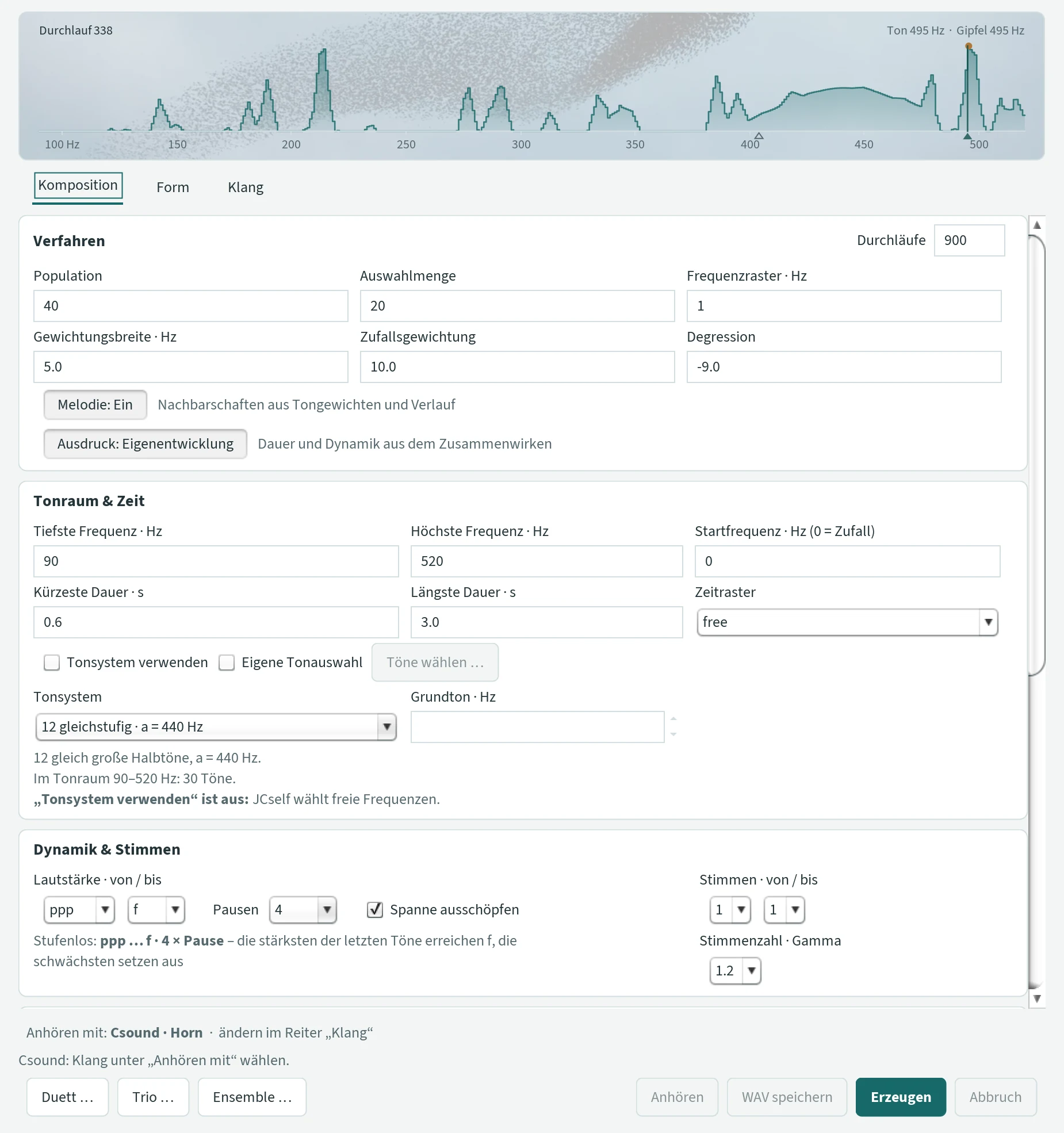
From top to bottom, the window has four parts:
- Menu bar
- “Datei” (file) and “Optionen” (options), see Menus and templates.
- Display
- Shows which notes JCself has chosen often. It grows while generating and runs along while listening, see The display.
- Tabs
- Komposition (composition): what is created – range, note lengths, time, loudness, voices, chords, sheet music. Form: how it takes shape – the course view, fading and ending, phases, phrases, sentences, the listener, the breathing of time, the reaction at the peak, following voices. Klang (sound): how it sounds – with MIDI, Csound, a recording of your own or external instruments. All three tabs can be scrolled down.
- Bar at the bottom
- The line “Anhören mit …” (listen with) says what you are currently listening with; clicking it opens the tab “Klang”. Below it are the latest message, on the left the buttons Duett …, Trio … and Ensemble …, on the right Anhören (listen), MIDI speichern or WAV speichern (save), Erzeugen (generate) and Abbruch (cancel).

What applies everywhere
- Input: a value takes effect after Enter or when you leave the field. JCself does not accept invalid input; the field then shows the old value again. Write whole numbers without point or comma, decimals with a point.
- Tooltips: if you rest the mouse briefly on a control, a short hint says what it does (in German). What lies behind it is in this manual.
- While JCself is working (generating, listening, saving) all settings are locked; only “Abbruch” is available.
- Generate or just listen? Changes in the tabs “Komposition” and “Form” take effect at the next “Erzeugen”. Changes in the tab “Klang” already take effect at the next “Anhören” – the same notes then sound different. Exceptions are listed under Listening and saving.
- Settings are kept, even across a restart, see Settings and files.
How JCself composes
In short: JCself remembers which notes it has already chosen. What has been chosen often becomes more likely. In this way centres of gravity form that nobody determined – and they can shift again. If you know the following terms, you understand almost every setting.
The weight distribution
Imagine the range – from the lowest to the highest frequency – as a row of narrow compartments. How wide a compartment is, is set by the Frequenzraster (frequency grid). Each compartment collects weight: when a note is chosen from it, the compartment becomes heavier, and the neighbouring compartments get a share (Gewichtungsbreite (weighting width)). The heavier a compartment, the more likely it is to be chosen again. This weight distribution is empty at the beginning; it only arises while composing. The display at the top of the window shows it as an area.
A run
JCself composes in runs (Durchläufe). Each run yields a new note of the main voice (Hauptstimme):
- JCself draws a number of random candidate notes – as many as the Population says.
- It rates each candidate by the weight of its compartment, with a little chance added (Zufallsgewichtung (random weighting)).
- From the best candidates – as many as the Auswahlmenge (selection size) specifies – it picks one at random. This is the new note.
- The note makes its compartment heavier.
- Weight and position of the note give its duration, loudness, place in the stereo image and number of voices. Further voices, chord notes and a melody voice can be added.
Before the first run, JCself places a first weight on the Startfrequenz (start frequency). It gives the development a beginning but does not sound itself.
The peak
The heaviest compartment is called the Gipfel (peak); in the display it is the ochre dot. The peak moves when other compartments become heavier. When the main voice reaches a peak for the first time, JCself can react – with a sequence of notes, a repetition, a transposition or a tempo change (reaction at the peak) – and the additional melody voice changes its note. A peak already reached does not trigger again; new peaks become rarer as the piece goes on. With “erst bei jedem … Gipfel” JCself reacts only at every second, third … peak reached.
Fading away (Verwehen)
Weight does not only grow, it also fades: where music is played, the mountains of the weight distribution lose a little at every entry; a region that has not been played for a long time regains its strength; and the longer the piece lasts, the less grows back. So a piece gets an ending of its own: when the mountains have faded, the piece dies down. The settings are under Verwehen und Ausklang; the display at the top always shows the mountains so that the highest one has full height – you do not see the fading in the height, but in other regions coming up. The course view in the tab “Form” shows the height of the mountains as a curve.
The form: excitation, phases, phrases
From the values of the synergy (see below) JCself forms an excitation (Erregung) at every entry: the smoothed liveliness of the music – leap, shortness, loudness. On it the piece tips between two states, dense (verdichtet) and relaxed (gelöst): when the excitation lies clearly above what is usual in the state, or clearly below, or when the state has tired, it tips. Dense, the music circles with a small selection set, short durations, louder and with chord; relaxed, it reaches out, with a large selection set, long durations, quieter, without chord. These are the phases. Shorter are the phrases: every entry charges the phrase by its liveliness, and when the charge is reached, it discharges – the note becomes long, a breath follows. None of this is counted or planned; how long a phase or a phrase becomes follows from the music. You can steer the phases with an excitation landscape: a drawn curve, or the prosody of a text whose sentences then also give the time, the accents and the breath of the piece. And a listener listens along: his surprise enters the excitation, his boredom tips the phases, and his expectation of a line lets the piece go on in steps more often.
The values of the synergy: Neuland, Gipfel, Überraschung, Lebendigkeit
While composing, JCself records for every entry of the main voice the situation it arose in. Four values recur throughout this manual, because the sounds, the room, the time and the zapping follow them:
- Weight and peak (Gewicht, Gipfel)
- How heavy the compartment of the note is compared with the heaviest. A note on the peak stands in the middle of events; a note in a light region lies at the edge.
- Neuland (new territory)
- A note in a region that has no weight yet – above all at the beginning of a piece, or when the music sets out into a new region. “No peak in sight”: Neuland notes never become rests, sound quieter or more reserved in the instruments and appear in the sheet music with the word “Neuland”.
- Überraschung (surprise)
- An entry that falls out of line with the last eight notes – a larger leap, an unusually heavy weight, an unusual duration. Measured from 0 to 1 (100 %). The instruments set an accent from an adjustable threshold (mostly 0.5), a strong one from 0.8; zapping switches to where the surprise is.
- Lebendigkeit (liveliness)
- How animated the music is at the moment: the leap to the new note, the shortness of its step and its loudness, smoothed over the last entries. Calm or lively decides how strongly notes swell, how the vibrato turns out and how the time breathes.
If a composition did not arise in the window – a loaded Csound file, say – JCself forms these values from its notes.
From weight to note
| Property | Where it comes from |
|---|---|
| Pitch | from the weight distribution, as described above |
| Duration and loudness | with “Ausdruck: Eigenentwicklung” (expression: self-development) from how much neighbouring notes support each other and how tired a region already is; with “Ausdruck: Direkt” from the weight: chosen often = short and loud, chosen rarely = long and quiet. Always within your limits; with “Spanne ausschöpfen” the loudness is stretched to your whole range in comparison with the last notes. With phases, the state of the piece shapes both: dense short and louder, relaxed long and quieter. The closing note of a phrase becomes longer; the sentence accent of a text and the notes of a reprise become louder. |
| Rests | from the same interplay: a note that would be weakest falls silent (with “Pausen” or “pause” as the lowest loudness). Never notes in new territory – and never a note in a line that the listener’s ear is following. |
| Place in the stereo image | from the distance to the peak: above it on the right, below it on the left, at the peak in the centre |
| Number of voices | from the distance to the peak, within “Stimmen · von / bis” (voices from / to) |
| Chord notes | from a tension of their own: loudness, height of the note compared with the notes shortly before, a new peak |
| Sounding duration with “Pedal” | from the shadow sequence (see below) |
| Distance to the next entry | from the duration – and with “Zeit atmen lassen” from the liveliness: stretched when calm, pressed when lively; after a phrase a breath, at a break of the text the breath of the sentence |
| End of the piece | from the fading: when the mountains have faded, the piece dies down; “Durchläufe” is only the upper limit. With a text it ends with the last sentence |
| Nearness and distance of the sound | from the weight: near at the peak, far in the Neuland (“Raum und Ferne nach der Synergie”) |
The shadow sequence
Alongside the audible sequence of notes, JCself always calculates a second, silent sequence with the same settings. Because chance is involved, it runs differently. It determines how long a note sounds with “Pedal” and when the tempo changes with the “Laufender Tempoverlauf” (running tempo curve). A shadow sequence of its own steers the additional melody voice.
Where the guiding idea lives in the program
- In the weight distribution: what sounds becomes more likely. Other regions can grow and take over.
- In “Melodie: Ein” (melody on): neighbouring notes that have already sounded make small steps more likely. If this support is missing, the bond loosens again.
- In “Ausdruck: Eigenentwicklung”: how long and how loud a note sounds depends on how much its neighbours carry it and how tired its region already is. The rests arise from this too.
- In the synergetic chord: possible chord notes support and displace each other until some prevail.
- In the fading: what sounds also fades away again, and the piece finds its ending when nothing grows back.
- In the phases and phrases: the piece tips between dense and relaxed on its own excitation and takes a breath when its phrase is charged – nobody counts bars or plans an arc.
- In the listener: a listener who knows nothing but this piece measures surprise and boredom, recognises returning motifs, and the piece reacts to him – also with lines, because his ear expects a line to go on.
- In the sentences: a text gives only its prosody – length, stress, breath –, no pitches; the notes are chosen by JCself as always.
- In the following voices: an echo or a canon carries the main voice on without composing along – but the main voice hears it, as a field in the ensemble hears the others, and it comes and goes with the form.
- In the gong and the orchestral instruments: what an instrument makes of the notes – damping or letting ring, breathing, accenting – follows the same values that arose while composing. Interpretation, not composition.
- In the mountain sounds Vettafof, Ecofof and Montefofia and in the Autofonie: the mountains of the weight distribution become the timbre – sound and picture arise from the same development.
- In the instruments: breath, accent, mute, roll and glissando follow the values of the synergy – peak, Neuland, surprise, liveliness – not a score.
- In room and distance and in the breathing of time: the sound moves nearer or farther with the weight, time stretches where the music is calm.
- In duet, trio and ensemble: several sequences of notes develop side by side and listen to one another – every note heard leaves a trace, entries coincide, a note falls as an echo onto one that was heard – to be heard together or zapped.
JCself does not recognise melodies, nor does it pick the most beautiful one. What we hear as a line only arises from the sequence of notes.
Three terms that are easily confused
- Main voice (Hauptstimme)
- The note that each run chooses. Only it changes the weight distribution. MIDI channel 1.
- “Melodie: Ein” (melody on)
- A switch for the main voice: it favours small steps to neighbouring notes that have already sounded.
- Additional melody voice (Zusätzliche Melodiestimme)
- A voice of its own high above the composition (c''–b''), which changes its note at new peaks. MIDI channel 8.
Tab “Komposition”
Here you decide what is created. The tab has six sections; what concerns the form of the piece – fading and ending, phases, phrases, sentences, the listener, the breathing of time, the reaction at the peak and following voices – is in the tab “Form”. A change takes effect at the next “Erzeugen” unless stated otherwise. “Default” is the value JCself starts with on its very first start.
Verfahren (method)
These values determine how JCself chooses its notes: how much chance is involved and how strongly what has been chosen prevails.
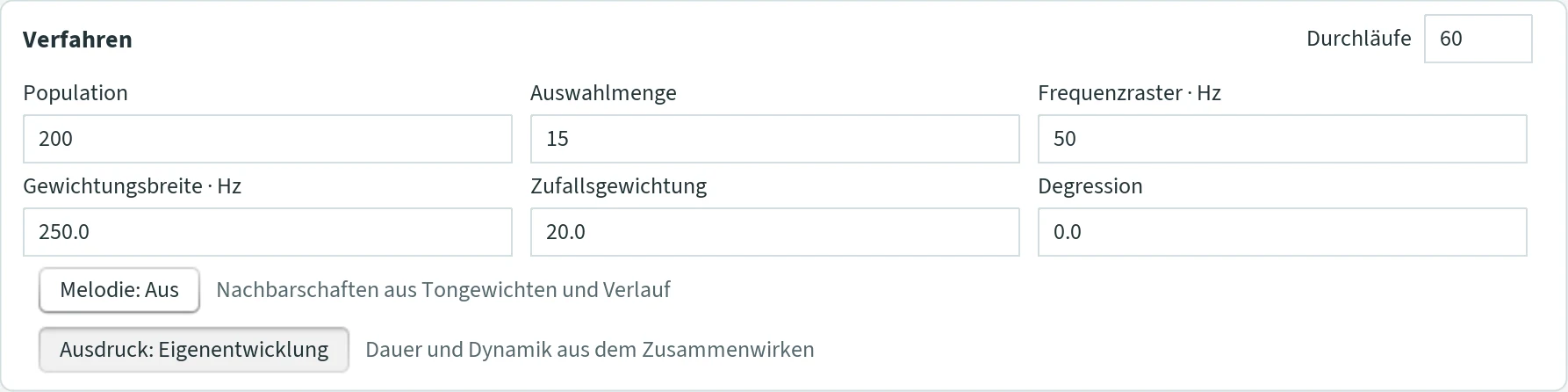
- Durchläufe (runs)
- How long the piece becomes: the number of notes of the main voice. In total more notes can sound (further voices, chords, melody voice) or fewer (rests). The display counts along. Default 50.
- Population
- How many notes JCself looks at to choose from in each step. Many: there is almost always a frequently chosen note among them – the music stays with its centres of gravity. Few: more chance. Default 200.
- Auswahlmenge (selection size)
- From how many of the best notes JCself takes one at random. Small (1 to 3): almost always the strongest region – the music quickly circles around a few notes. Large: more variety. The selection size cannot be larger than the population. It also determines how often the tempo changes with the tempo curve. Default 15.
- Frequenzraster · Hz (frequency grid)
- How finely JCself distinguishes pitches when it counts what has been chosen often – the width of the “compartments”. Coarse (about 50 Hz): nearby notes count together, centres of gravity become broad. Fine (about 5 Hz): every pitch counts on its own. The pitches themselves are not rounded. Default 50.
- Gewichtungsbreite · Hz (weighting width)
- How far a chosen note pulls its neighbours along, measured to each side. Wide: whole regions of notes become more likely together. Narrow: only the note itself. The neighbours are only reached when the value is at least twice the frequency grid. Default 250.
- Zufallsgewichtung (random weighting)
- How much chance plays a part in the choice. More: more surprise. Less: JCself follows more faithfully what has already been chosen often. Good to know: at the start and when a template is loaded, the same value also sets how much weight a chosen note receives; the two are then equal. A change during work therefore acts as “more” or “less” chance only until the next restart. Decimal greater than 0. Default 20.
- Degression
- Whether frequently chosen notes become ever stronger or wear out. 0: every choice counts the same. Positive: what is chosen often becomes ever stronger – the music freezes. Negative: frequently chosen notes gradually lose strength and recover later; the tonal centre wanders. Decimal, also negative. Default 0.
- Melodie: Aus / Ein (melody off / on)
- Favours small steps in the main voice – but only where neighbouring notes have already sounded. More precisely: if at least two different neighbouring notes (up to a major second) have carried a region, small steps there become more likely for a while. If this support is missing, the bond loosens. Note repetitions do not count, leaps remain possible. With other tuning systems, a small step is the largest step between neighbouring notes, at least a major second. Applies to all pieces and is not stored in templates. Default Aus (off).
- Ausdruck: Eigenentwicklung / Direkt (expression: self-development / direct)
- Where duration and loudness come from. Eigenentwicklung: every region of notes has a liveliness that grows and tires. Neighbours up to a major second support each other, distant regions slow each other down; sounding makes tired, rest restores. This gives how long a note sounds and how loudly it enters – always within your limits for duration and loudness. All voices of one entry get the same duration and loudness. Direkt: a frequently chosen note sounds short and loud, a rarely chosen one long and quiet; the loudness jumps in steps. Applies to all pieces, also in the duet. Default Eigenentwicklung.
Tonraum & Zeit (range & time)
Which notes may occur and how long they are.
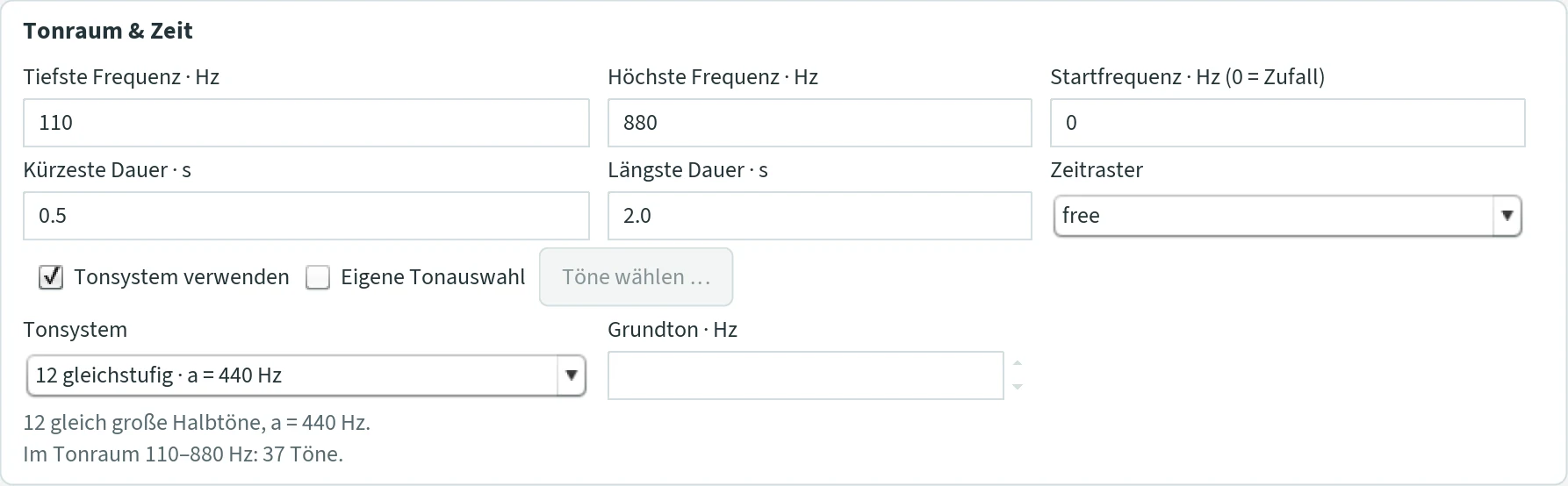
- Tiefste / Höchste Frequenz · Hz (lowest / highest frequency)
- The range in whole hertz (a' = 440 Hz). The main voice and the further voices lie within it. Chord notes may leave it; the additional melody voice always lies between c'' and b''. Default 20 and 20 000 – for a start, a smaller range is better, such as 110 to 880.
- Startfrequenz · Hz (0 = Zufall) (start frequency, 0 = random)
- Where the development begins: JCself places a first weight here. The note does not sound itself. At 0 or a value up to the lowest frequency, JCself takes a random start, and always when “Tonsystem verwenden” is switched on. In the display it is an open triangle. Default 0.
- Kürzeste / Längste Dauer · s (shortest / longest duration)
- The limits for every note length, in seconds with a point. Without “Pedal” and without a tempo curve the notes follow each other without gaps: the duration is then also the distance to the next note. Both values also determine how quickly “Ausdruck: Eigenentwicklung” reacts, and the latest point at which the offset melody voice enters. Default 0.5 and 1.
- Zeitraster (time grid)
- Rounds durations and entries to note values, always within the duration range. A quarter note is one second: 1/16 = 0.25 s, 1/8 = 0.5 s, 1/4 = 1 s, 1/2 = 2 s, 1 = 4 s, 2 = 8 s; “free” does not round. Example: durations from 4 to 5 s with 1/16 give 4.00, 4.25, 4.50, 4.75 or 5.00 s. If no note value fits between the shortest and longest duration, JCself reports “Zeitraster und Tondauer” (time grid and note length) when generating. Default free.
- Tonsystem verwenden (use tuning system)
- Off: JCself chooses any frequencies in whole hertz. On: only notes of the tuning system chosen below, for example the twelve semitones. Switching it on clears an own selection of notes. Default off.
- Eigene Tonauswahl · Töne wählen … (own selection of notes · choose notes)
- Allows only notes you pick. “Töne wählen …” opens a window with two lists: on the left all notes of the tuning system within the range, on the right your selection, in between arrow buttons to move them across. “Schließen” (close) accepts the selection, the window’s close button discards it. Notes outside the range are removed by JCself when generating (after asking). Another tuning system resets the selection.
- Tonsystem (tuning system)
- 12 gleichstufig · a = 440 Hz (12-tone equal temperament): the usual twelve semitones.
- Pythagoreisch · reine Quinten (Pythagorean · pure fifths): twelve notes from pure fifths above the reference note.
- Mitteltönig · ¼-Komma, mit Wolf (meantone · ¼ comma, with wolf): pure major thirds, in exchange for one badly mistuned fifth, the “wolf”.
- Gleichstufig · freie Stufenzahl (equal · free number of steps): the octave divided into equal steps, for example 5, 7 or 19.
- Eigene Frequenzen · Hz (own frequencies): only frequencies you type in.
- Grundton · Hz (reference note)
- The note on which Pythagorean, meantone and the free number of steps are built in all octaves – for example the note of a gong. 8 to 20 000 Hz, default 261.626 Hz (c').
- Stufen je Oktave (steps per octave)
- Only with “Gleichstufig · freie Stufenzahl”: 1 to 96, default 5. With 12 you get semitones from your reference note.
- Eigene Frequenzen · Hz (own frequencies)
- Only with “Eigene Frequenzen”: frequencies separated by spaces or semicolons, here also with a decimal comma, for example
110; 164,8; 220. Confirm with Enter. auch in allen Oktaven (also in all octaves) adds every frequency in all octaves of the range as well.
Tuning systems other than “12 gleichstufig” can only be heard exactly with Csound, with the own WAV sound, or via SWAM/VSCO with “Zwischentöne per Pitch Bend”. MIDI rounds to semitones.
Noten (sheet music)
Every piece can be saved as sheet music – as a MusicXML file (.musicxml), the exchange format of notation programs: MuseScore (free, musescore.org) opens it directly, Finale imports it (File › Import › MusicXML), Sibelius and Dorico likewise. There you can view, print and edit the music.

- Noten speichern (MusicXML) … (save sheet music)
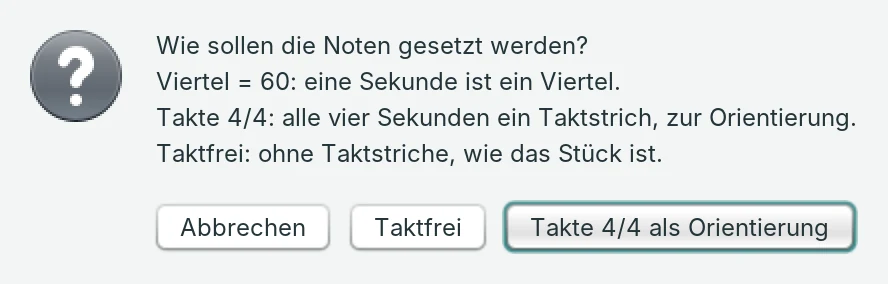
- Available as soon as a piece exists – after “Erzeugen”, not while JCself is composing. JCself first asks how the music is to be set (picture below), then for the location; suggested
JCself-Noten.musicxmlin the JCself folder. The line below then says what was written: voices, notes, bars, grid and how many notes lie outside the tuning system. - Takte 4/4 als Orientierung (4/4 bars for orientation)
- Quarter = 60: every second is a quarter note, every four seconds a bar line. A JCself piece has no metre, but this way you can find your place (“bar 37” is at 2:24), and notation programs show it in the familiar way. Notes across the bar line are tied.
- Taktfrei (without bars)
- The same time without bar lines and without a time signature (senza misura): the notes stand freely one after the other, as the piece is.
This is how the music is set:
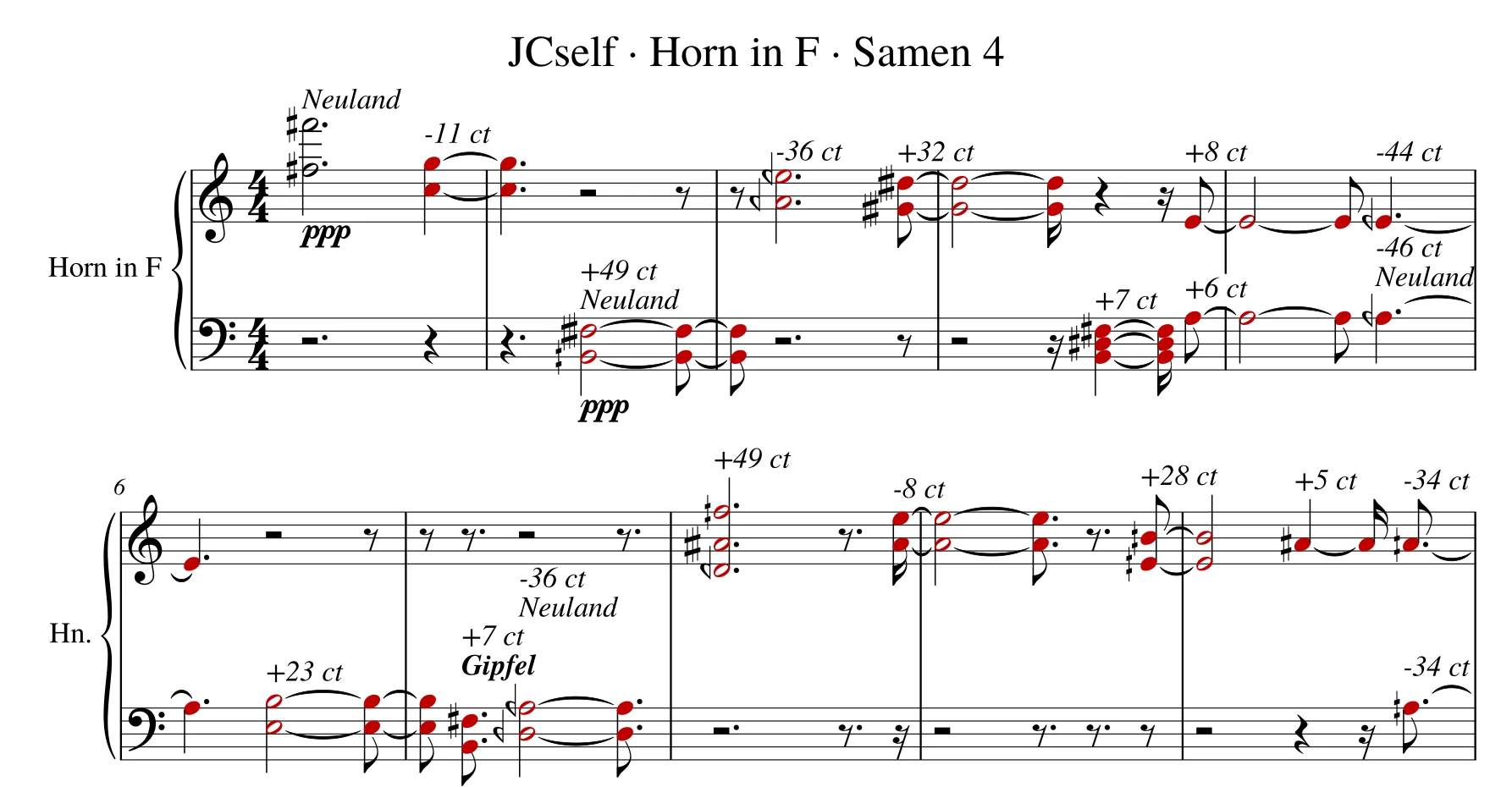
- Time: quarter = 60. The grid is your Zeitraster if one is set (down to the thirty-second note), otherwise the sixteenth (0.25 s). Entries and durations are rounded to it; a note that reaches into the next entry of its voice ends there (one voice per staff); gaps are rests; a note with loudness 0 – a rest from “Pausen” – is a rest.
- Pitch: every note stands on the nearest semitone, with sharps. If it is closer to the quarter tone (25 to 50 cents away), it gets a quarter-tone accidental (MuseScore and Dorico show them; Finale depending on the version). From 5 cents deviation from the semitone, the exact deviation stands above the note: “+37 ct”, “−12 ct”. So every frequency of the piece can be read from the music.
- Red noteheads: notes outside the tuning system. With “Tonsystem verwenden” these are the notes not in the table of the system (more than 1 cent away); the notes of the system stay black even if they lie beside the semitone – with a just or a 19-step system that is all of them. Without “Tonsystem verwenden” JCself chooses free frequencies; then the notes more than 5 cents from the semitone are red (that is almost all – the colour then says: not tempered), the semitones hit exactly black.
- Transposing instruments are written transposed, with the transposition in the file: horn in F (written a fifth higher), clarinet in B flat (a whole tone higher), piccolo (an octave lower). The notation program can show them at concert pitch. All other sounds at concert pitch.
- Staff: a treble or bass clef according to the register; if the notes lie on both sides of middle C – with chord notes an octave lower, say – a grand staff as for piano, every note on the staff of its register.
- Dynamics from the loudness of the note (ppp … fff by JCself’s levels, whenever they change), chord notes as a chord, a new peak as “Gipfel” above the note, the first note of a Neuland stretch as “Neuland”.
- Parts: the main voice with its further voices and chord notes as one part; the additional melody voice as a second part. It holds every note until its next one – that is how it sounds, too – so there are long, tied notes. All parts have the same number of bars.
Not yet in the sheet music are the playing styles of the instruments – tongued, muted, roll, harmonics – as articulation. In duet, trio and ensemble you save the sheet music via “Speichern …”, every field as a part of its own, see Duet, trio and ensemble.
Dynamik & Stimmen (dynamics & voices)
How loud it gets and how many notes sound at the same time.

- Lautstärke · von / bis (loudness from / to)
- The loudness range: ppp, pp, p, mp, mf, f, ff, fff, and below them “pause”. If “von” is set to “pause”, the rest is the lowest level: notes of the main voice that would be weakest stay silent. To get rests with any other range, say mf to f, add them with “Pausen”. Chord notes sound a little quieter than their note and may lie below “von”. Default pause to fff.
- Pausen (rests)
- The rest as the lowest level of loudness, in any range – for example Pause · mf · f. Each rest counts like one more level below “von”: the more there are, the wider the lowest band and the more rests. There is no fixed quota; where rests come is decided by the composition. With “Ausdruck: Eigenentwicklung” a note falls silent when the interplay does not carry it – its region is exhausted, has little support or strong competition. During the rest its region recovers, and all voices of that entry are silent together. With “Ausdruck: Direkt” the rest comes where the weight is weakest. A note in new territory (Neuland), where the composition has no weight yet (mostly at the beginning), never becomes a rest: it sounds as softly as “von”. The line below shows the levels, for example “Stufen: Pause · mf · f”. The choices are “keine” (none) and 1 to 10; default “keine”.
- Spanne ausschöpfen (use the full range)
- Loudness without steps and in comparison with the last 16 notes: the strongest reach “bis”, the weakest “von”, and with “Pausen” the comparatively weakest fall silent. The piece thus uses the whole range without making the loudness evenly distributed – the differences are only stretched to the whole range, even with “Ausdruck: Direkt” without rounding to the levels. So that it does not sound choppy, a note enters at most about one level louder than the previous one; loudness grows over several notes, and freely again after a rest. With “Ausdruck: Eigenentwicklung” the liveliness of the interplay counts, with “Direkt” the weight. The line below then reads, for example, “Stufenlos: pp … f · Pause – die stärksten der letzten Töne erreichen f, die schwächsten setzen aus” (stepless … the strongest of the last notes reach f, the weakest fall silent). Off: loudness from liveliness or weight alone, with “Direkt” in steps. With the VSCO cello it sounds softest together with “Bogenführung” (tab “Klang”). Default on.
- Stimmen · von / bis (voices from / to)
- How many notes begin at the same time per entry, 1 up to the selection size. Each further voice is another note from the same selection, with the same duration and its own place in the stereo image; if it would be the same note as another voice, it is dropped – so there can never be more different voices than the selection size, and the lists “von” and “bis” follow the selection size (and the population that bounds it), also when a template is loaded. How many there are depends on the distance to the peak: most at the peak (and at the farthest edge of the range), fewest at half the distance. If the selection narrows along the way – in the phases of the form, or when the listener follows a line – only that many different voices sound, however many are set. With Csound every voice is one more note, with the orchestral instruments one more player with a breath or bow of its own; over MIDI the voices 1 to 7 each have a channel of their own, further voices share them. From four voices on, no chord notes are added. Default 1 to 1.
- Stimmenzahl · Gamma (number of voices · gamma)
- How quickly the number of voices decreases as a note moves away from the peak. The most voices come with values between 1 and 2. Smaller values (like the default 0.6) and values above 2 make the number of voices fall off earlier: there are then many voices only close to the peak. Only has an effect when “von” and “bis” differ. Values from 0.2 to 6.
Akkord, Lage & Raum (chord, register & space)
Chord notes, the register of the notes and their place between the left and right loudspeaker.

- Akkord · synergetisch (synergetic chord)
- For every entry, up to three justly tuned chord notes form by themselves. When the music is calm, these are octave, fifth and third; as it becomes more tense, sixths are added, at high tension sevenths, the tritone and the major second. The fourth appears only as a suspension. Tension rises when a note is louder, lies higher than the notes shortly before or reaches a new peak. “Synergetic” means: the possible chord notes support and displace each other until some prevail. If further voices are already present, fewer chord notes are added, from four voices on none. Chord notes arise between 65 and 1000 Hz and sound a little quieter and slightly offset to the side. With a tuning system other than “12 gleichstufig” they follow the system. The same composition always gives the same chords. Default off.
- Akkordlage (chord spacing)
- eng (close): the chord notes as they arise. weit · gespreizt (wide · spread): chord notes that lie too low or too close to other notes move up by octaves; a note that would then only double another is dropped. This sounds clearer, especially with the Csound sound “Sinus – weich”. Only with “Akkord · synergetisch”; applies to all pieces. Default eng.
- Tiefere Töne bevorzugen (prefer lower notes)
- Only has an effect with “Tonsystem verwenden”. On: every note of the system has the same chance, low as well as high. Off: high registers occur much more often, because a high octave spans more hertz than a low one. Default on.
- Stereo
- On: notes above the peak sound on the right, below it on the left, at the peak in the centre – the farther away, the farther out. Off: everything in the centre, chord notes only slightly spread. The additional melody voice gets its place from its shadow sequence, without “Stereo” the centre. Default on.
Pedal & Tondauern (pedal & note lengths)
How long the notes sound and whether they merge into each other.
- Pedal
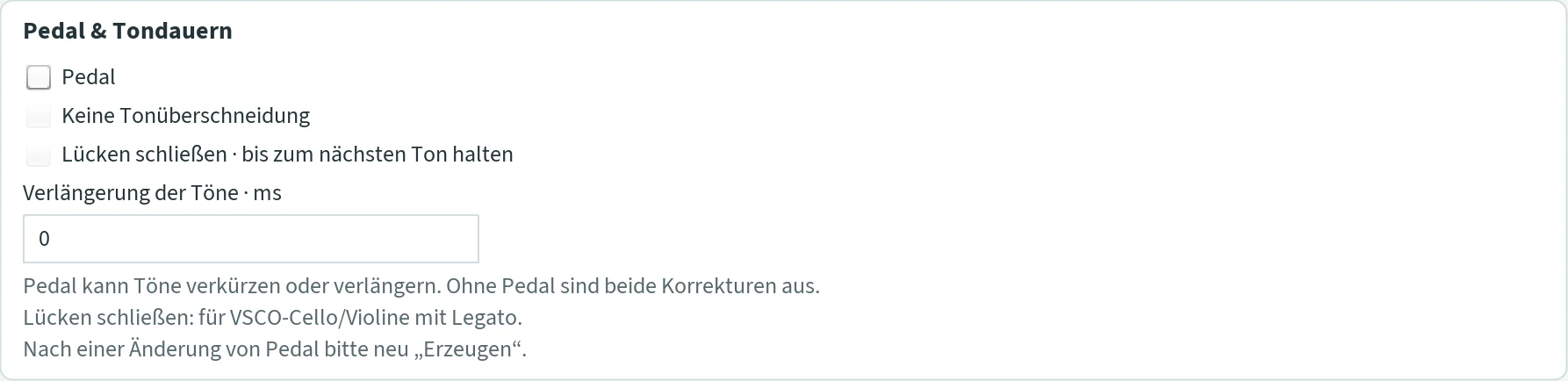
- On: how long a note sounds is determined by the shadow sequence; when the next one begins stays the same. So some notes ring into the following ones, others end earlier, and rests arise – much like the piano pedal. Chord notes sound as long as their note. Off: the notes follow each other without gaps. Switching it off also switches off the two following ticks. Default off.
- Keine Tonüberschneidung (no overlapping notes)
- Only with “Pedal”. Ends every note at the latest when the next one begins; entries, pitches and chords stay. The own WAV sound gets soft transitions; with Csound, switch on “Legato” for this. Takes effect at the next listening, without generating again, and applies to all pieces.
- Lücken schließen · bis zum nächsten Ton halten (close gaps · hold until the next note)
- Only with “Pedal” and the VSCO strings with “Legato”: holds string sounds until the next entry, also across composed rests. See VSCO.
- Verlängerung der Töne · ms (note extension)
- Makes every note longer by this many milliseconds, in all voices; the entries stay. This gives reverberation and legato. With MIDI, the own WAV sound and SWAM/VSCO a change takes effect at the next listening, with Csound only after generating again. In Csound, identical notes that overlap become louder. 0 means: no extension. Default 0.
Tab “Form”
Here the piece takes its form – beyond the choice of single notes: whether it dies down, in which phases it is dense or relaxed, where it takes a breath, whether a listener listens along and whether a text sets its course. None of this is a rule someone prescribes: all of it are processes that follow from the piece itself, which you switch on and off and set in their measure. The tab has nine sections, ordered by the span of time they act on – from the whole piece down to the single entry: Verlauf, Verwehen und Ausklang, Phasen, Phrasen, Sätze, Zuhörer, Zeit atmen lassen, Reaktion am Gipfel & Tempo and Folgen. All changes take effect at the next “Erzeugen”. With the defaults, fading, phases, phrases and the listener are on – this is how the pieces have been meant since autumn 2026. Every section ends with a line that says what the generated piece made of it.
Verlauf (course)
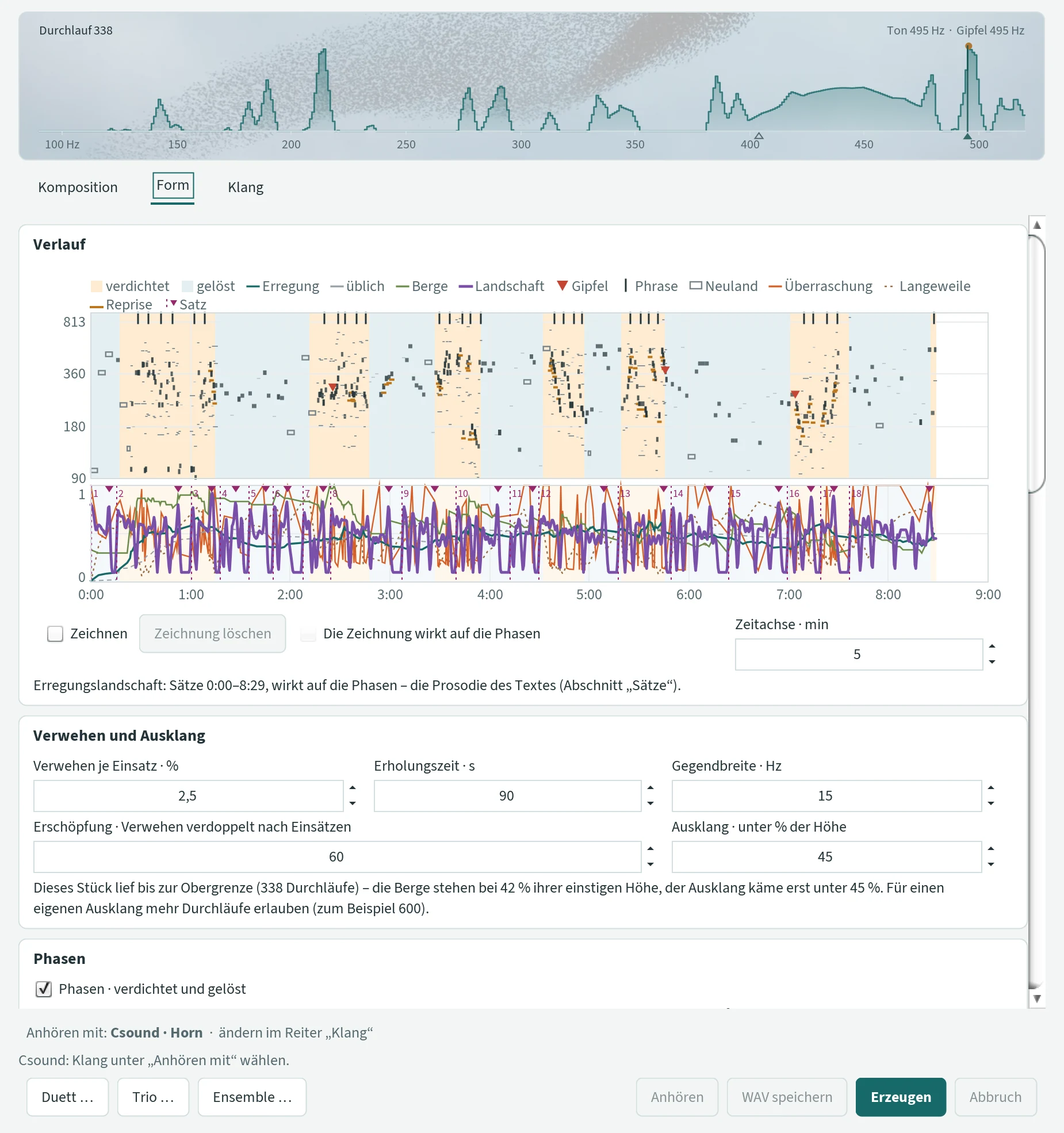
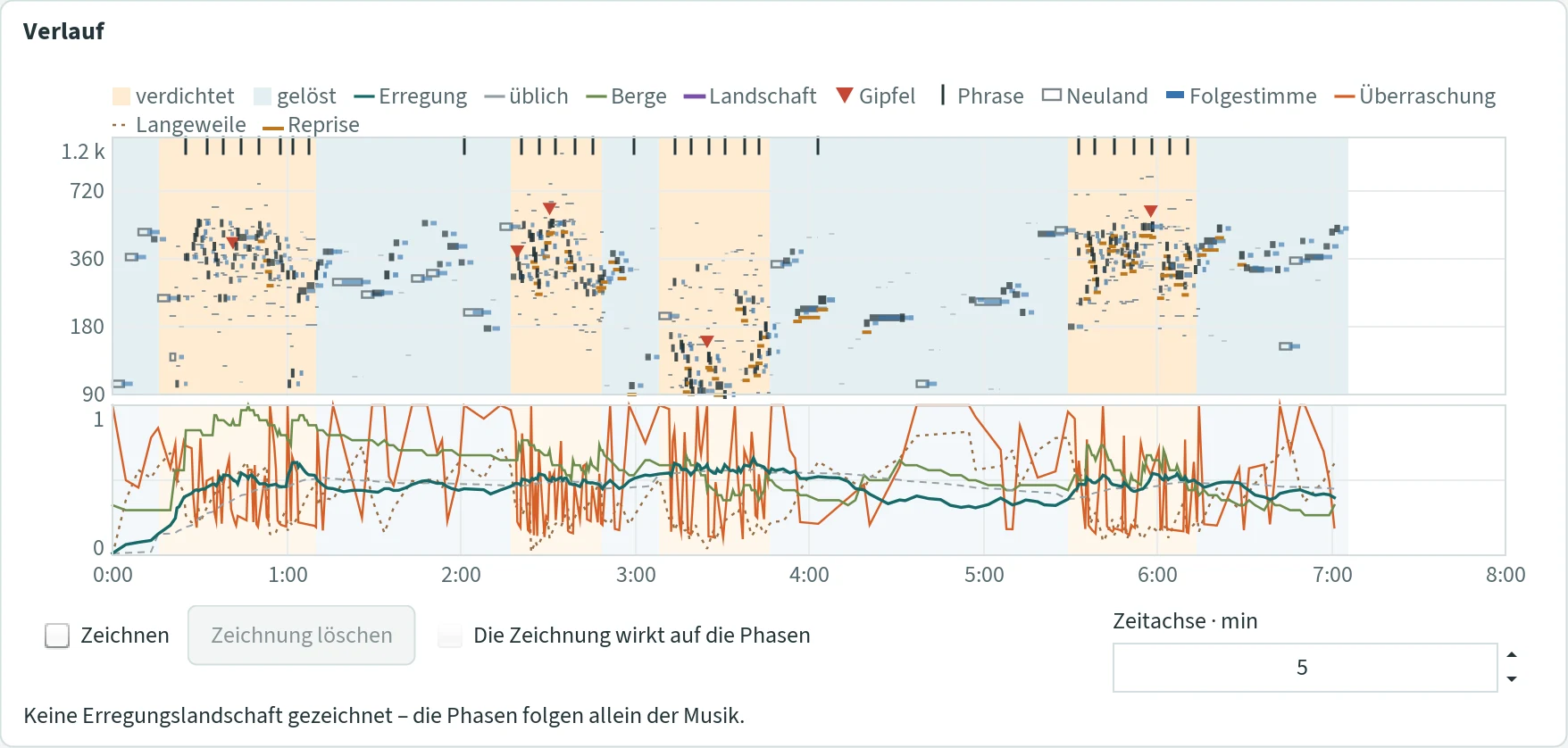
The course view shows the whole piece in time – running along while generating, complete afterwards. At the top the notes of the main voice as bars: the louder, the thicker; hollow when the note arose in new territory; dashed for a rest; thin for chord notes and the melody voice; blue for the following voice; a red triangle where the main voice reaches a new peak; a stroke at the upper edge where a phrase ends; an ochre stroke under the notes of a reprise. The coloured bands behind them are the phases: orange dense (verdichtet), blue relaxed (gelöst). Below, the curves from 0 to 1: the Erregung (excitation – the smoothed liveliness) and the Übliche (the usual level of the state), the height of the Berge (mountains – the state of the fading), the Landschaft (landscape, purple: the drawn curve or the prosody of a text), the Überraschung (surprise) and Langeweile (boredom) of the listener, and with a text a dotted line with the number at every sentence start and a small triangle at the accent. The legend names only what occurs in the piece.
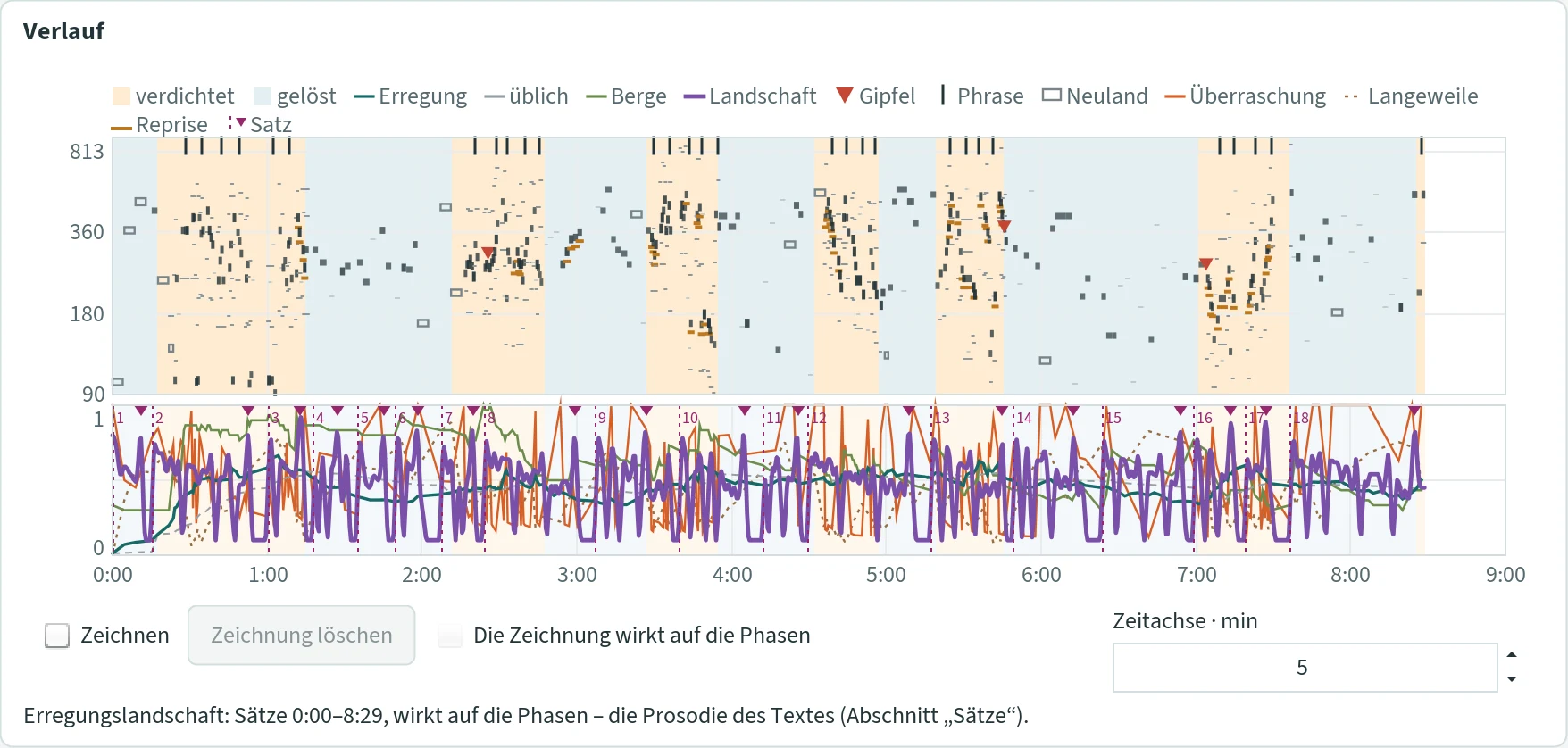
In the lower field you can draw an Erregungslandschaft (excitation landscape) – a course that steers the phases of the next piece: where the curve is high, it urges the piece into the dense state and keeps it there; where it is low, into the relaxed state. The music keeps its own excitation, its fatigue and its inertia; the drawing is an inclination, not a timetable. Beyond the drawn end nothing acts.
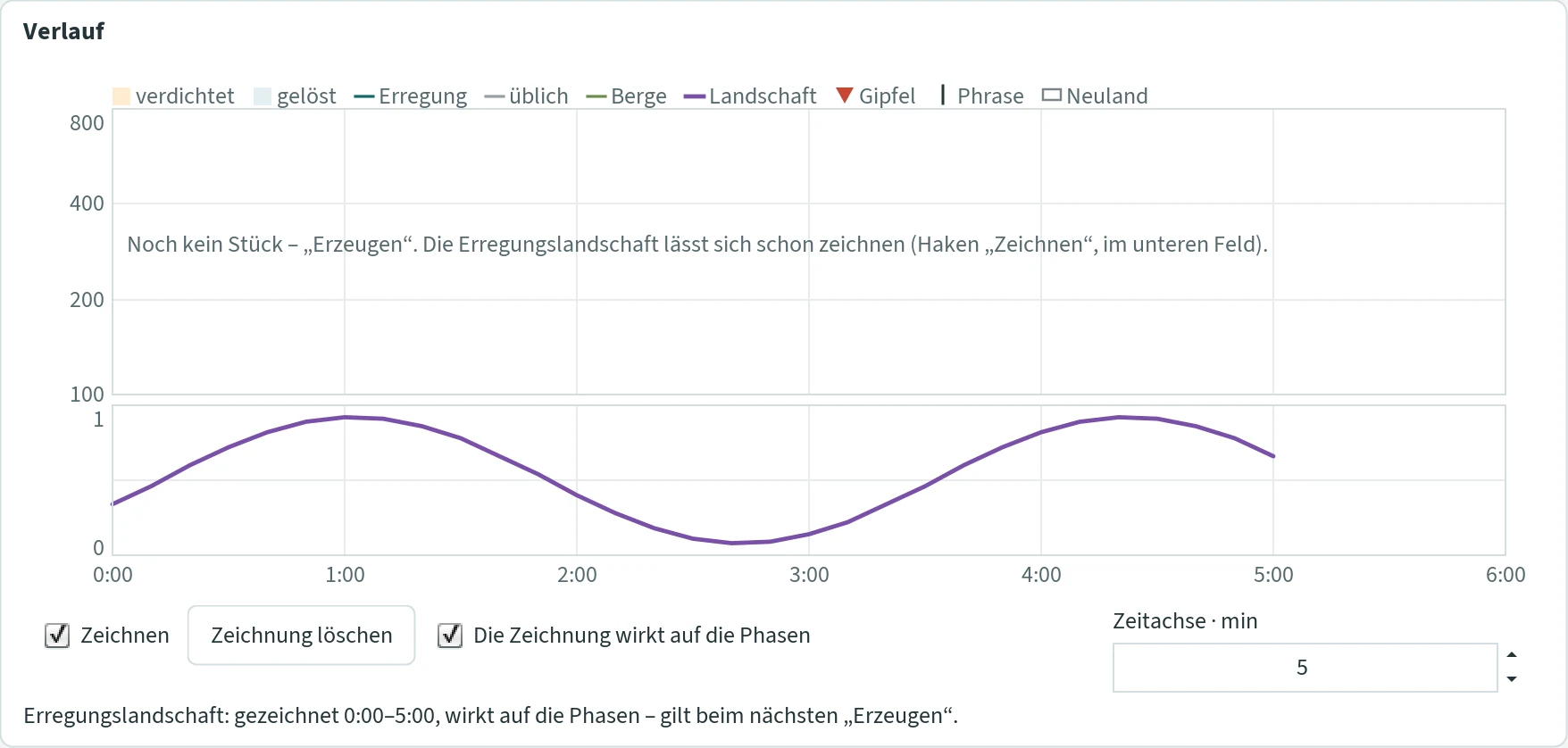
- Zeichnen (draw)
- With the tick the lower field becomes a drawing area: drag a line with the mouse button held – 0 at the bottom, 1 at the top, time as on the axis. A new stroke replaces only the section it covers; the rest stays. The drawing is saved at once in the JCself folder (
verlauf-landschaft.properties) and survives a restart and the loading of templates: it belongs to the window, not to the template. - Die Zeichnung wirkt auf die Phasen (the drawing acts on the phases)
- Tick off: the drawing stays but does not act – for comparing. The drawing acts only when the phases are on, and it rests while a text stands under Sätze: then the prosody of the text is the landscape.
- Zeichnung löschen (delete the drawing)
- Deletes the whole drawing, also from the JCself folder.
- Zeitachse · min (time axis)
- The time axis reaches at least this far – for drawing beyond a piece. A longer piece or a longer drawing stretches it by itself. 1 to 30, default 5.
- The line
- Names the landscape that acts at the next “Erzeugen”: “Erregungslandschaft: gezeichnet 0:00–5:00, wirkt auf die Phasen – gilt beim nächsten „Erzeugen“.” (excitation landscape: drawn 0:00–5:00, acts on the phases – applies at the next generating), “Keine Erregungslandschaft gezeichnet – die Phasen folgen allein der Musik.” (no landscape drawn – the phases follow the music alone) or with a text “Erregungslandschaft: Sätze 0:00–8:29, wirkt auf die Phasen – die Prosodie des Textes (Abschnitt „Sätze“); die Zeichnung ruht.” (the prosody of the text; the drawing rests).
The drawing also applies to the fields of the ensemble. In the window of the duet, trio and ensemble the button Verlauf … opens the same view for every field.
Verwehen und Ausklang (fading and ending)
The counterpart to the build-up under “Verfahren”: where music is played, the mountains of the weight distribution fade – a little at every entry; a region that has not been played for a long time regains its strength; the longer the piece lasts, the less grows back. When the mountains have faded, the piece dies down by itself. “Durchläufe” in the tab “Komposition” is then only the upper limit – set it high, for example 600, so that the piece finds its own ending. With the fading a piece gets a form that nobody prescribes: regions carry the music for a while, others come up, and in the end it becomes quiet.
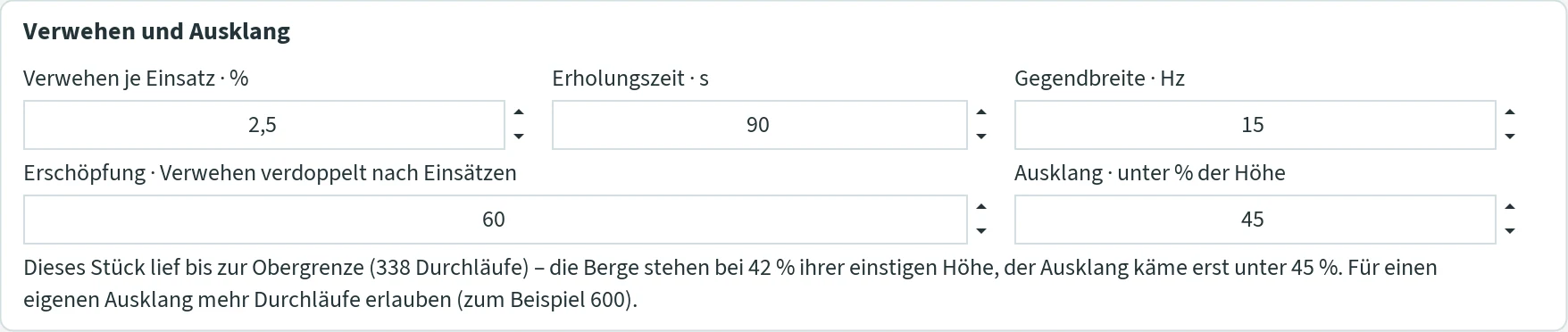
- Verwehen je Einsatz · % (fading per entry)
- By this share the weights of a much-played region fade at every entry. 0 to 50; at 0 nothing fades and there is no ending of its own – everything as before the fading. Default 2.5.
- Erholungszeit · s (recovery time)
- After this time without an entry a region has regained a good two thirds of its strength. 5 to 3600, default 90.
- Gegendbreite · Hz (width of the region)
- How wide the region around a played note is that fades – a bell around the note, in hertz. 1 to 500, default 15.
- Erschöpfung · Verwehen verdoppelt nach Einsätzen (exhaustion: fading doubled after entries)
- The exhaustion of the whole piece: after this many entries the fading has doubled, and it keeps growing. 5 to 100 000, default 60.
- Ausklang · unter % der Höhe (ending below % of the height)
- If the mountains stay below this share of their former height for about ten entries – at the earliest after one minute – the piece dies down. 1 to 95, default 45. While a text is speaking (Sätze), the ending waits until the last sentence has been spoken.
- The line about the piece
- While composing: “Dieses Stück läuft: 120 Einsätze, die Berge stehen bei 71 % ihrer einstigen Höhe (Ausklang erst unter 45 %).” (this piece is running: 120 entries, the mountains stand at 71 % of their former height; ending only below 45 %). After the ending: “Dieses Stück: Ausklang nach 222 Durchläufen (5:05 min) – 1 Gipfel.” (ending after 222 runs, 1 peak). If the piece ran up to the upper limit, the line says so and names the state of the mountains; for an ending of its own, allow more runs.
How long a piece becomes depends on the range and on chance; with the defaults and usual ranges (90 to 800 Hz) pieces mostly end after five to nine minutes, some after three and a half, some only after thirteen. Melodic pieces – with the listener and much “Melodie” – end earlier than leaping ones: a melody stays in narrow regions, and those tire faster. The values belong to the basic settings and are stored in templates. In duet, trio and ensemble every field fades by the same values; the status line then names the ending of each field. The log komposition.log records the ending.
Phasen (phases)
A piece has two states, verdichtet (dense) and gelöst (relaxed), and tips between them by itself. Dense, the music circles: a small selection set, short durations, louder, with chord. Relaxed, it reaches out: a large selection set, long durations, quieter, without chord. When it tips follows from the music: when the excitation – the smoothed liveliness of leap, shortness and loudness – lies clearly above or below what is usual in the state, or when the state tires. The state shapes the ticked quantities of the next run – as shares of what you entered in the tab “Komposition”; the entries there stay unchanged. How long a phase lasts is not counted; in the course view the phases are the orange and blue bands.
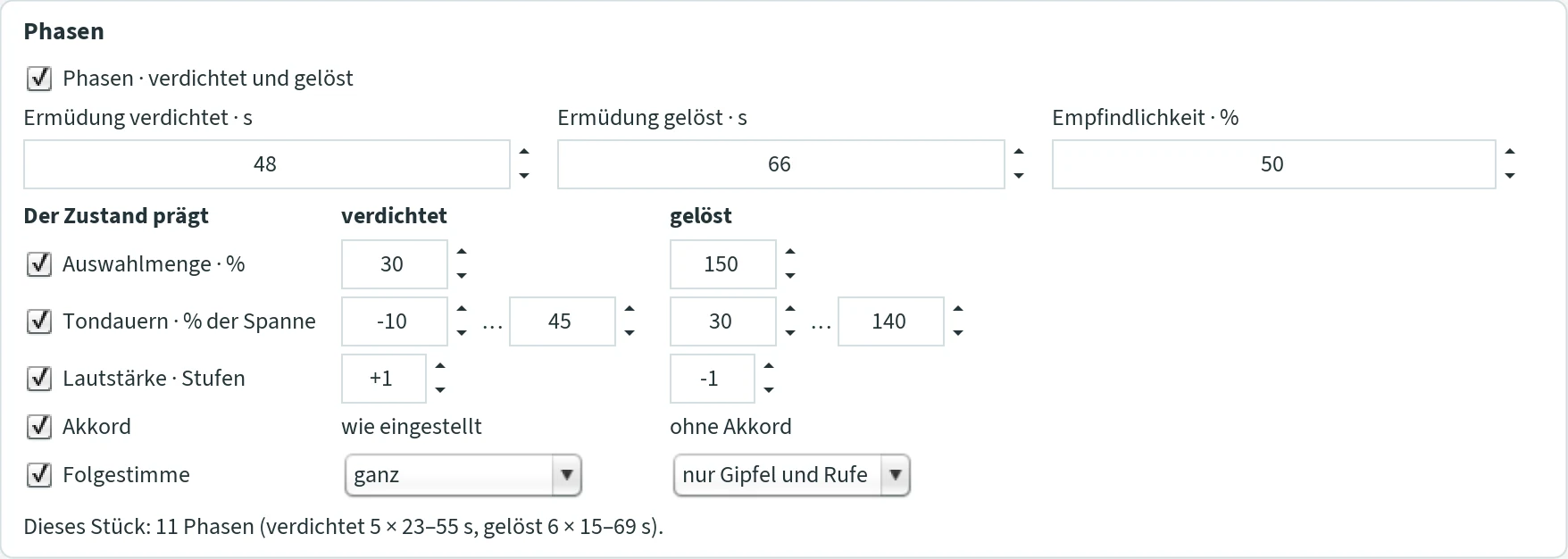
- Phasen · verdichtet und gelöst (phases: dense and relaxed)
- The tick switches the phases on. Off: no phases, no excitation landscape, and the listener acts only on the weight landscape – as before Update 86. Default on.
- Ermüdung verdichtet · s / Ermüdung gelöst · s (fatigue of the dense / relaxed state)
- At the latest after this time the state tips into the other – also without a push from the excitation, but at the earliest after 15 s. 5 to 600, default 48 and 66.
- Empfindlichkeit · % (sensitivity)
- How strongly a deviation of the excitation from the usual urges the state to tip: 100 % very easily, 0 % not at all – then fatigue alone tips, in regular alternation. Default 50.
- Der Zustand prägt: Auswahlmenge · % (the state shapes: selection set)
- The selection set of the run as a share of the one entered – dense and relaxed, one value each. 5 to 500, default 30 and 150: with a selection set of 20, JCself chooses among 6 candidates when dense and among 30 when relaxed.
- Tondauern · % der Spanne (note durations, % of the span)
- The durations of the run as a section of the entered span from shortest to longest duration (0 = shortest, 100 = longest). Dense −10 … 45, relaxed 30 … 140 by default; a value below 0 or above 100 reaches beyond the span, a time grid is kept. −100 to 300, from ≤ to.
- Lautstärke · Stufen (loudness, steps)
- Dense louder, relaxed quieter, in steps (one step as from mf to f), within ppp to fff. −3 to 3, default +1 and −1.
- Akkord (chord)
- Dense the chord as set in the tab “Komposition”, relaxed without chord. Only with a chord switched on.
- Folgestimme (following voice)
- How much of the following voice (echo or canon) sounds in each state, one choice each: ganz (all: every note of the main voice gets its follower), nur Gipfel und Rufe (only peaks and calls: the follower answers only the new peaks and the calls – a leap of at least a fifth upwards, not quieter than the note before) or ohne (none). Default dense all, relaxed only peaks and calls: where the music circles, short and loud, the second voice is fully there; where it reaches out, long and quiet, it answers only the calls. What counts is the phase the note of the main voice lies in – the follower carries the state on, delayed by its distance, like a player who comes after. What the state does not let through does not sound and is not heard. Only with a following voice; without the tick it runs through.
- The line about the piece
- After generating, something like “Dieses Stück: 11 Phasen (verdichtet 5 × 23–55 s, gelöst 6 × 15–69 s).” (11 phases: dense 5 of 23–55 s, relaxed 6 of 15–69 s).
What makes the phases tip lies not only in the music: a drawn excitation landscape, or one gained from a text, urges them, and the boredom of the listener tips them. The log komposition.log names every change with its reason (“#### Form: Phase verdichtet ab 131,2 s … aus Langeweile 0,89”).
Phrasen (phrases)
Every entry charges the phrase by its liveliness (leap, shortness, loudness, 0 to 1); the charge wears off with time. When the charge is reached, the phrase discharges: the note becomes long – the Schlusston (closing note) –, a breath follows, and the charge falls back. Lively music charges fast and makes short phrases, calm music long ones; nothing is counted. In the course view a phrase ends at a stroke at the upper edge.

- Phrasen · Laden und Entladen (phrases: charging and discharging)
- The tick switches the phrases on. Default on.
- Ladung (charge)
- At this charge the phrase discharges. 4 gives phrases of about five to fifteen entries. 1 to 20, default 4.
- Atem · bis s (breath, up to s)
- The breath after the phrase, at most this many seconds – shorter, down to a third, where the music is excited. 0 to 10, default 1.5.
- Schlusston · × länger (closing note, × longer)
- The last note of the phrase, with all voices of the entry, becomes longer by this factor. 1 to 3, default 1.6.
- The line about the piece
- After generating, something like “Dieses Stück: 29 Phrasen.” – “die letzte offen” (the last one open) when the piece ended in the middle of a phrase.
Sätze (sentences)
A text you enter gives the form of the piece with its sentences – not the notes, not the pitches, only the prosody, the way one would speak the text: the length of every sentence, where it is stressed, where it breathes. The piece ends with the last sentence. No word becomes a note; the notes are chosen by JCself as always. Without a text nothing happens.
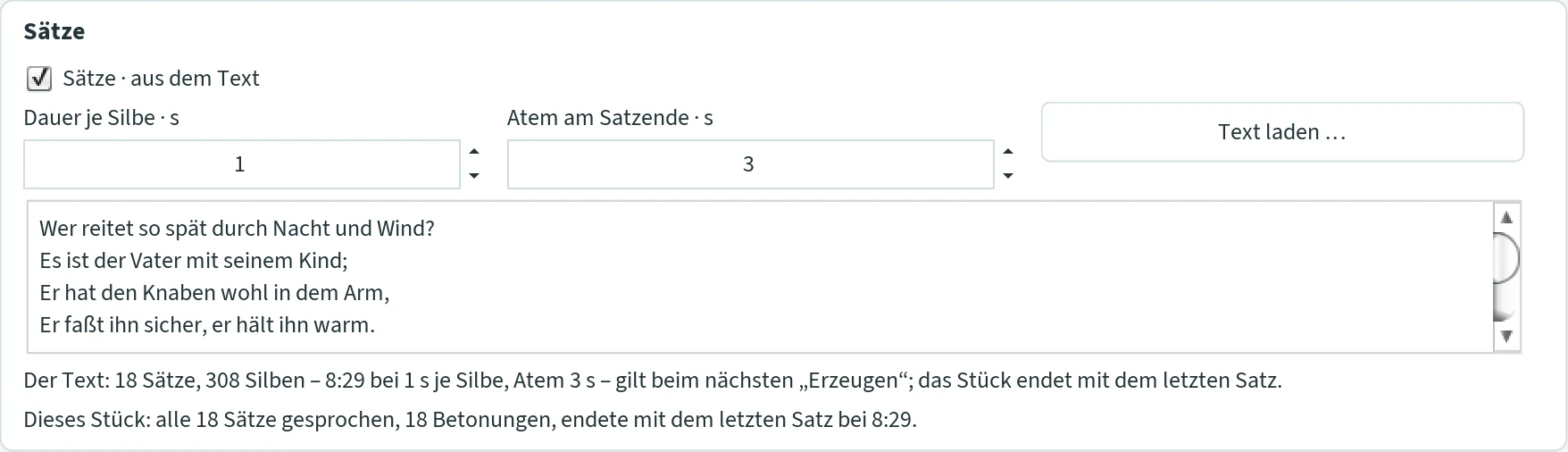
- Sätze · aus dem Text (sentences from the text)
- The tick switches the sentences on; off, the text stays but does not act. Default on.
- Dauer je Silbe · s (duration per syllable)
- This long a syllable lasts in the piece – stressed syllables longer (× 1.3), the sentence accent longest (× 1.6), the last syllable before a break stretched (× 1.3), as in speech. From this every sentence has its time. 0.3 to 6, default 1.
- Atem am Satzende · s (breath at the end of a sentence)
- This long the piece breathes after a sentence. After a comma, semicolon, colon, dash or the line end of a verse a third of it, after a paragraph twice as much. 0 to 10, default 3.
- The text field · Text laden … (load text)
- Type or paste the text, or choose a text file (UTF-8) with “Text laden …”. The text is kept in
saetze.txtin the JCself folder and stays whichever template you load: it belongs to the window like the drawing. An empty text field deletes the file. - The line about the text
- Says in advance how long the piece will be: “Der Text: 18 Sätze, 308 Silben – 8:29 bei 1 s je Silbe, Atem 3 s – gilt beim nächsten „Erzeugen“; das Stück endet mit dem letzten Satz.” (the text: 18 sentences, 308 syllables – 8:29 at 1 s per syllable, breath 3 s – applies at the next generating; the piece ends with the last sentence). The runs in the tab “Komposition” must suffice – for the “Erlkönig” about 900 –, otherwise the piece ends before the text.
- The line about the piece
- After generating, something like “Dieses Stück: alle 18 Sätze gesprochen, 18 Betonungen, endete mit dem letzten Satz bei 8:29.” (all 18 sentences spoken, 18 accents, ended with the last sentence at 8:29) – or “12 von 18 Sätzen gesprochen” (12 of 18 sentences spoken) when the runs did not suffice.
What becomes of the text: every word carries its stress on the first syllable (the rule of German; exceptions, foreign words and names are unknown to the program – a text in another language is stressed by the same rules). Every clause – the stretch between two breaks – has its accent on the last capitalised word that does not stand at the start of a sentence or line, otherwise on the last word of at least four letters; the sentence accent lies on the accent of the last clause (“Wer reitet so spät durch Nacht und Wind?”). The note sounding on the sentence accent comes one step louder. At every break the note holds until the break, then the piece breathes: the next entry comes after the pause; the end of a sentence also discharges the phrase. The prosody curve – falling from the start of a sentence to its end, lifted at every stressed syllable, highest on the sentence accent (an exclamation all the way up), a question rising at the end, low in the pauses – is the excitation landscape of the piece: towards the accent it grows dense, towards the end of the sentence it relaxes. Full stop, exclamation and question mark end a sentence, a paragraph makes a long break; abbreviations such as “z. B.”, “St.” and “Dr.” do not end a sentence. While the text is speaking, the ending of the fading waits. In the ensemble all fields speak the same text with the same values and end with the last sentence; an echo or canon field has no sentences of its own.
Zuhörer (listener)
A listener listens along while JCself composes – an imagined listener who knows nothing but what he has heard in this piece: no style, no key, no scale. He only measures, and the piece reacts to him at the same places as to the drawn landscape and to the listening in the ensemble. He needs four things:
- Expectation: he counts how the piece went on so far – in which direction and how far (unison, step, third, fourth and fifth, sixth and seventh, octave and more, up or down) and how the duration compared with the previous one (half, shorter, equal, longer, double). What is long past fades after about two minutes. From this every new note has its surprise: ½ means “as unexpected as is usual in this piece”, 1 entirely unexpected, 0 exactly what was expected. Over the first twenty notes he first builds up the expectation.
- Habituation: he gets used to the measure of surprise itself; a stimulus is only what goes beyond it. His boredom grows with time and falls with every stimulus. A piece that always does the same – whether always the same note or always equally random – bores him.
- Attention: the ear follows a line. Small steps he hears exactly, loud and short notes too; a leap loses him. Where he cannot follow, his boredom grows faster, and a stimulus wakes him only as far as he is listening.
- Memory: the last notes as a sequence of their intervals and durations. When a motif returns that was already there and not for at least twenty seconds – a return, not an ostinato –, he recognises it: the reprise. His boredom falls by half, the notes of the return are brought out (at strength 50 % by half a step), and the course view marks them.
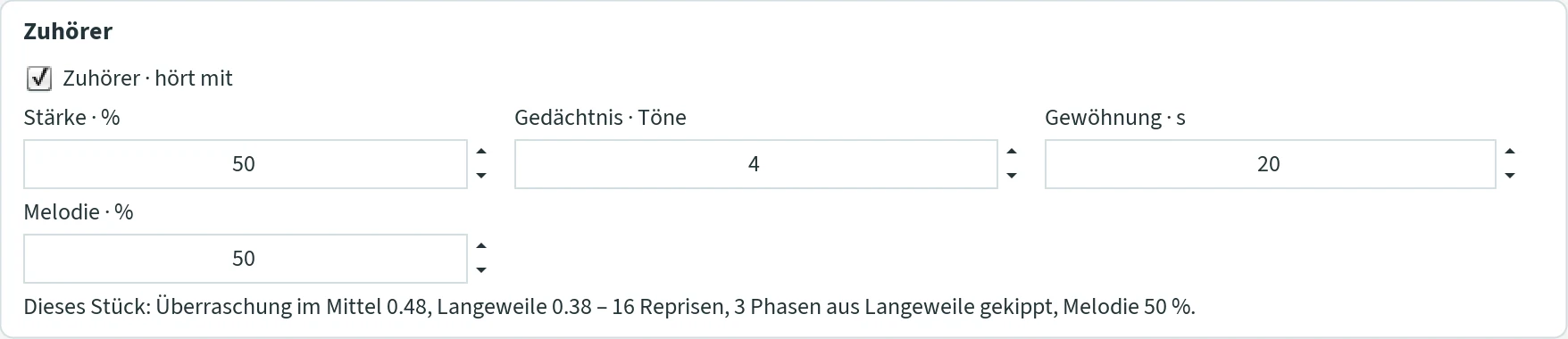
- Zuhörer · hört mit (listener listens along)
- The tick switches him on. Off, or strength and melody both 0: he does not listen, and everything is as before Update 89. Default on.
- Stärke · % (strength)
- How strongly he acts on the phases: the excitation listens for a part to his surprise instead of to the liveliness alone – surprise excites, the predictable calms –, and his boredom above ½ urges the phase to tip. At 100 % the excitation listens to him by half, and boredom alone tips the phase; at 50 % by a quarter, and boredom halves the fatigue time. 0 to 100, default 50.
- Gedächtnis · Töne (memory, notes)
- This many notes make a motif that he recognises. 3 to 8, default 4.
- Gewöhnung · s (habituation)
- Over this time the boredom with the predictable grows: after this many seconds without a stimulus it is two thirds there. 5 to 120, default 20.
- Melodie · % (melody)
- How strongly his expectation of nearness acts on the weight landscape – like the listening in the ensemble, only from the own piece. The ear expects a line to go on: after a step (up to a minor third) the listener lays his glance two semitones further in the same direction – a cone of light on the landscape, as high as the highest weight × melody × (1 − boredom); after a leap he looks back into the gap. Only the choice of the next note sees this glance; the fading, the mountains and the Autofonie see the landscape itself. While the ear follows a line, JCself chooses among six instead of the entered candidates, binds the note before to this entry (legato) and makes no rest; rests remain where the line breaks anyway – at leaps and phrase ends. When the melody bores him, the cone subsides and the piece leaps again. 0: the landscape stays untouched, he acts only on the phases. 0 to 100, default 50 – lines and leaps; 100 gives markedly more lines.
- The line about the piece
- After generating, something like “Dieses Stück: Überraschung im Mittel 0.48, Langeweile 0.38 – 16 Reprisen, 3 Phasen aus Langeweile gekippt, Melodie 50 %.” (surprise on average 0.48, boredom 0.38 – 16 reprises, 3 phases tipped out of boredom, melody 50 %); while composing: “Dieses Stück läuft: … – jetzt Überraschung 0.61, Langeweile 0.22.” (now surprise 0.61, boredom 0.22).
In numbers, with a horn piece between 90 and 520 Hz: without the listener 8.6 semitones on average from note to note and 18 % steps; with the default 4.0 semitones and 60 % steps, with melody 100 % 3.1 semitones and 66 % steps, lines of four notes on average, up to thirteen, in one direction. The course view shows his surprise and boredom as curves and the reprises as strokes under the notes; the log names every reprise (“#### Zuhörer: wiedererkannt bei 49,5 s – das Motiv von 21,8 s (4 Töne), Langeweile 0,68 → 0,34, um 4 lauter”). In the ensemble every field has its own listener with the values of the main window.
Zeit atmen lassen (let time breathe)
The time of the piece breathes: where the music is calm, the step to the next entry stretches; where it is lively, it presses on – continuously with the liveliness (leap to the new note, shortness of its step, loudness, smoothed over the last entries). This is no rubato laid on top: the stretched and pressed steps are in the composition itself, hence alike in MIDI, sheet music, Csound and the ensemble.

- Stärke · % (strength)
- How far time breathes. At 100 % a calm step becomes up to 35 % longer, a lively one up to 26 % shorter; at 50 % half as much. 0 means: time as before. A time grid is kept. Default 50.
- The line about the piece
- After generating, something like “Dieses Stück: Zeit atmen lassen 50 %: 338 Einsätze, 168 gedehnt, 170 gedrängt, Faktor im Mittel 1.004.” (338 entries, 168 stretched, 170 pressed, mean factor 1.004).
Two more things belong to it. The tempo change at the peak no longer jumps: the tempo glides about a third of the way to the new value with every entry. And in the Csound file – that is, when listening with Csound and in the WAV file – a small breath comes before every new peak, a delay of a quarter second at 100 %, half as much at 50 %; this is interpretation and therefore not in MIDI and sheet music. Because the breathing time also changes the recovery in the fading, the same setting gives different pieces at 0 % and at 50 %.
Reaktion am Gipfel & Tempo (reaction at the peak & tempo)
What happens when the main voice reaches a new peak – that is, arrives at the heaviest point of the weight distribution for the first time. The reaction begins with the next note. Because new peaks become rarer over time, there are more reactions at the beginning of a piece.
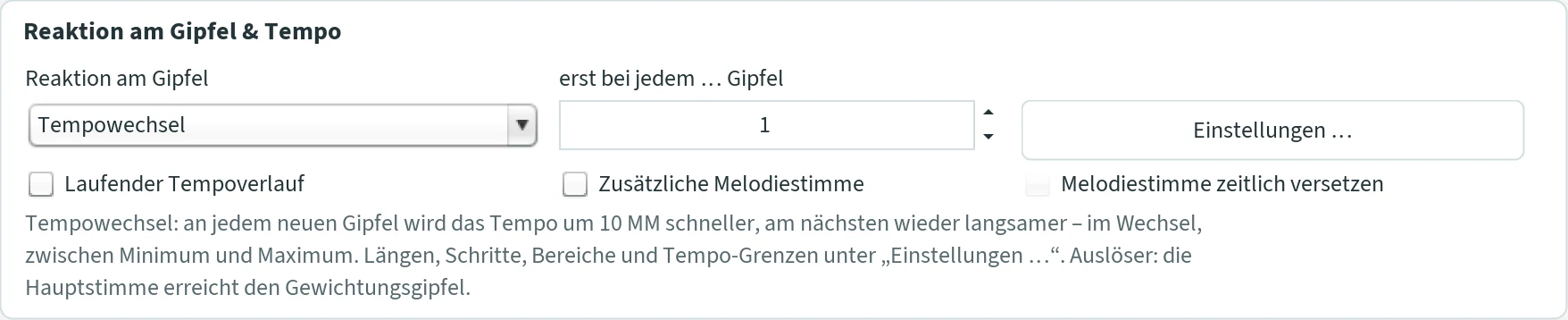
- Reaktion am Gipfel (reaction at the peak)
- Ohne Gipfelreaktion (no peak reaction): nothing extra happens at the peak (default).
- Tonfolge weiterführen (Kaskade) (continue the sequence – cascade): from the peak note, notes follow in equal semitone steps. The first sequence rises, the next falls, and so on. At the edge of the range the note stays put. With a tuning system, each note moves to the nearest note of the system.
- Motiv wiederholen (Schleife) (repeat the motif – loop): the last notes up to the peak note are repeated.
- Transposition: the pitch shifts by a random number of semitones; several peaks add up. A note that falls out of the range is dropped – a rest arises in its place.
- Tempowechsel (tempo change): at every new peak the tempo becomes faster by the “Schritt am Gipfel” (step at the peak) – default 20 MM, i.e. from 60 to 80 – and slower again at the next peak, always alternating, between the tempo minimum and maximum. If a step would cross a limit, it goes the other way. The tempo does not jump but glides about a third of the way to the new value with every entry (see Zeit atmen lassen). 60 MM is the tempo as composed, 120 MM twice as fast. The tempo only changes the entries, not the length of the notes: faster, the notes ring into each other; slower, gaps arise. It can be combined with the “Laufender Tempoverlauf”, which then keeps swinging from wherever the peak has taken the tempo.
- Mehrere Reaktionen gemischt … (several reactions mixed): opens “Einstellungen …”. There you tick the reactions that should occur – cascade, loop, transposition, tempo change – each with its numbers. At every peak one of them is chosen at random. The line below names the ticked ones. Older templates with several reactions also appear this way.
- erst bei jedem … Gipfel (only at every … peak)
- The peaks reached are counted over the piece; only every N-th one triggers the reaction. 1: at every peak; 2: at the second, fourth, sixth …; 3: at the third, sixth, ninth … Applies to all reactions, also to “Mehrere Reaktionen gemischt”. The line below the reaction names the number; the log notes “Reaktion ausgesetzt”. With the usual settings a piece of 150 runs reaches the peak zero to four times – so N = 2 or 3 often allows only one reaction. 1 to 100, default 1.
- Einstellungen … (settings)
- Opens the window “Effekte · Gewichtungsgipfel” with all the numbers, see below. The menu item Optionen › Effekte … in the main window opens the same window.
- Laufender Tempoverlauf (running tempo curve)
- A tempo that swings slowly back and forth, independently of the peak: it starts at 60 MM, rises to the maximum, falls to the minimum and so on. It changes at random moments, roughly at every “Auswahlmenge”-th note. The tempo only changes when the notes begin, not how long they sound: faster than 60 MM the notes overlap, slower than that rests arise. If the tempo should change precisely at the peak, choose the reaction Tempowechsel; minimum and maximum apply to both. Default off.
- Zusätzliche Melodiestimme (additional melody voice)
- A voice of its own high above the composition, between c'' and b'' (523 to 988 Hz), always in equal-tempered semitones. It begins with the first note and changes its note when the main voice reaches a new peak; each note sounds until shortly before the next. The new note fits the main voice: at the interval of a unison, minor or major third, fifth, minor or major sixth. Which interval and how loud is decided by a shadow sequence of its own. No chord notes. MIDI channel 8. Default off.
- Melodiestimme zeitlich versetzen (offset the melody voice in time)
- New notes of the melody voice enter a little later, by at most the longest duration. The previous note is extended so that no gap arises. Only with “Zusätzliche Melodiestimme”. Default off.
Window “Effekte · Gewichtungsgipfel” (effects · weight peak)
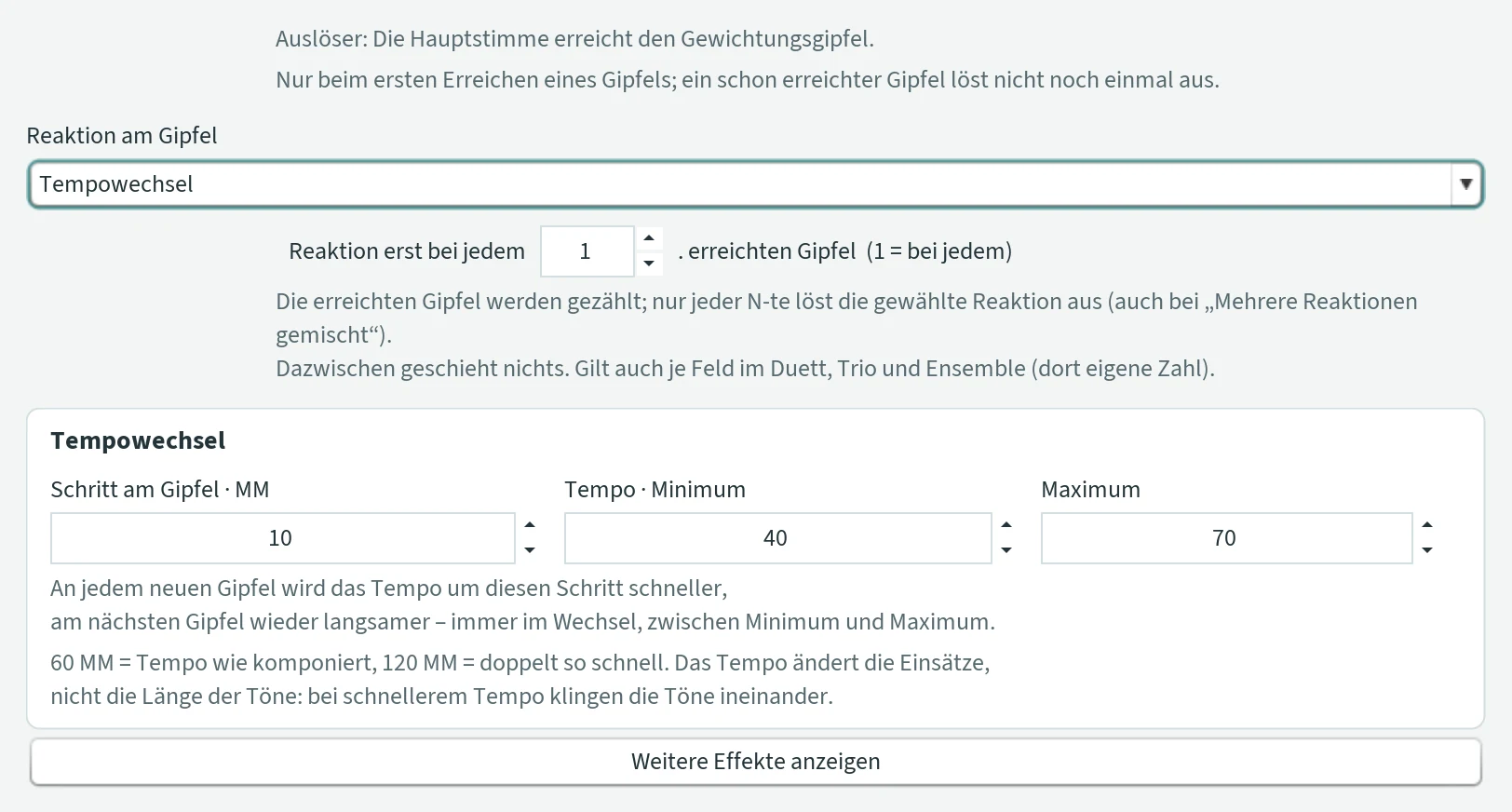
At the top you choose the reaction; below it only its fields appear. “Weitere Effekte anzeigen” (show further effects) shows the running tempo curve and the melody voice. “Übernehmen” (apply) saves, “Abbrechen” (cancel) discards.
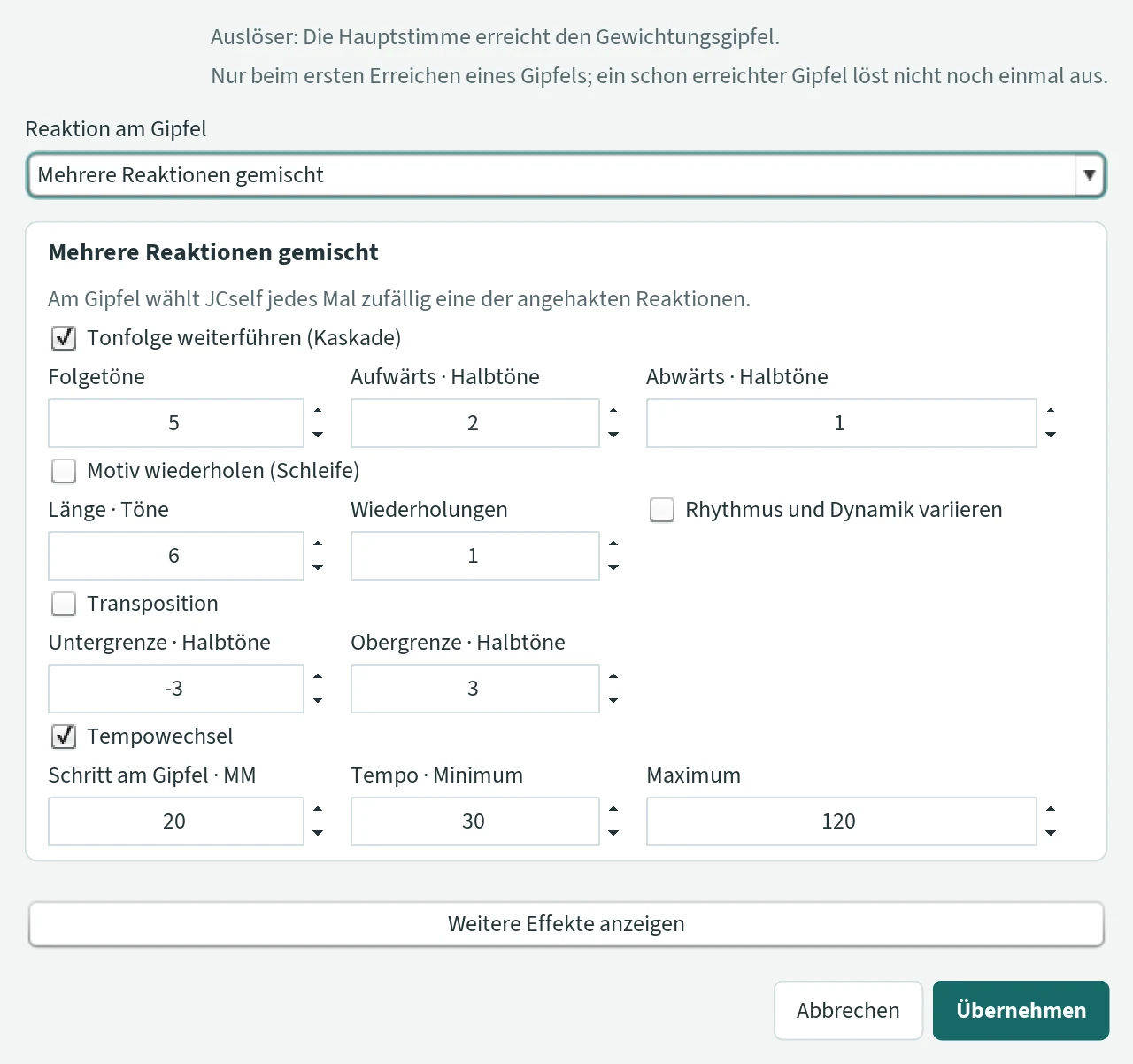
With “Mehrere Reaktionen gemischt” all four reactions are listed one below the other, each with a tick and its fields. The numbers are the same as for the single reaction: what you change here also applies there.
| Field | Meaning | Range | Default |
|---|---|---|---|
| Reaktion erst bei jedem … erreichten Gipfel | the same number as “erst bei jedem … Gipfel” in the tab: only every N-th peak reached triggers | 1–100 | 1 |
| Anzahl der Folgetöne | how many notes a cascade has | 1–10 000 | 5 |
| Aufwärts · Halbtöne | step size of the rising cascade, in semitones | 1–127 | 2 |
| Abwärts · Halbtöne | step size of the falling cascade, in semitones | 1–127 | 1 |
| Länge des Motivs · Töne | how many notes the loop repeats | 1–10 000 | 6 |
| Wiederholungen | how often (repetitions) | 1–10 000 | 1 |
| Rhythmus und Dynamik bei der Wiederholung variieren | vary rhythm and dynamics in the repetition. Off: the notes are copied exactly. On: only the pitches; duration and loudness arise anew. With “Ausdruck: Eigenentwicklung” they always arise anew. | tick | off |
| Untergrenze · Halbtöne | largest shift downwards, in semitones | −127–0 | −3 |
| Obergrenze · Halbtöne | largest shift upwards (0 is also possible) | 0–127 | 3 |
| Schritt am Gipfel · MM | tempo change: how much faster or slower the tempo becomes at each peak | 1–200 | 20 |
| Tempo · Minimum / Maximum | limits of the tempo in MM, for the tempo change and the running tempo curve | 10–500 | 30 / 120 |
| Schritt | running tempo curve: how much the tempo changes each time (step), in MM | 1–100 | 1 |
Folgen (following voices)
A second voice that follows the main voice: the Echo brings the same notes back after a delay, quieter – on request only the peaks and the calls; the Kanon (canon) plays them at full strength, at the unison or an interval. Nothing composes along: the main voice arises as always, the following voice carries it on. But the following voice is a fellow player: it already sounds while JCself composes, and the main voice hears it – just as a field in the ensemble hears the others (listening along, sounding along, falling into step) – and it comes and goes with the form (section “Phasen”, row Folgestimme). As soon as a note of the main voice is set, its note in the following voice is fixed – the distance later, at the interval –, and from then on it is there for the main voice. The following voice lies opposite the main voice in the stereo image, in MIDI on channel 2 (the melody voice on channel 8), in the sheet music as a voice of its own, “Folgestimme”, and in the course view in blue. Room and distance follow the main voice alone. For an echo from afar or an imitation, take the ensemble: there the following is the role of a field.
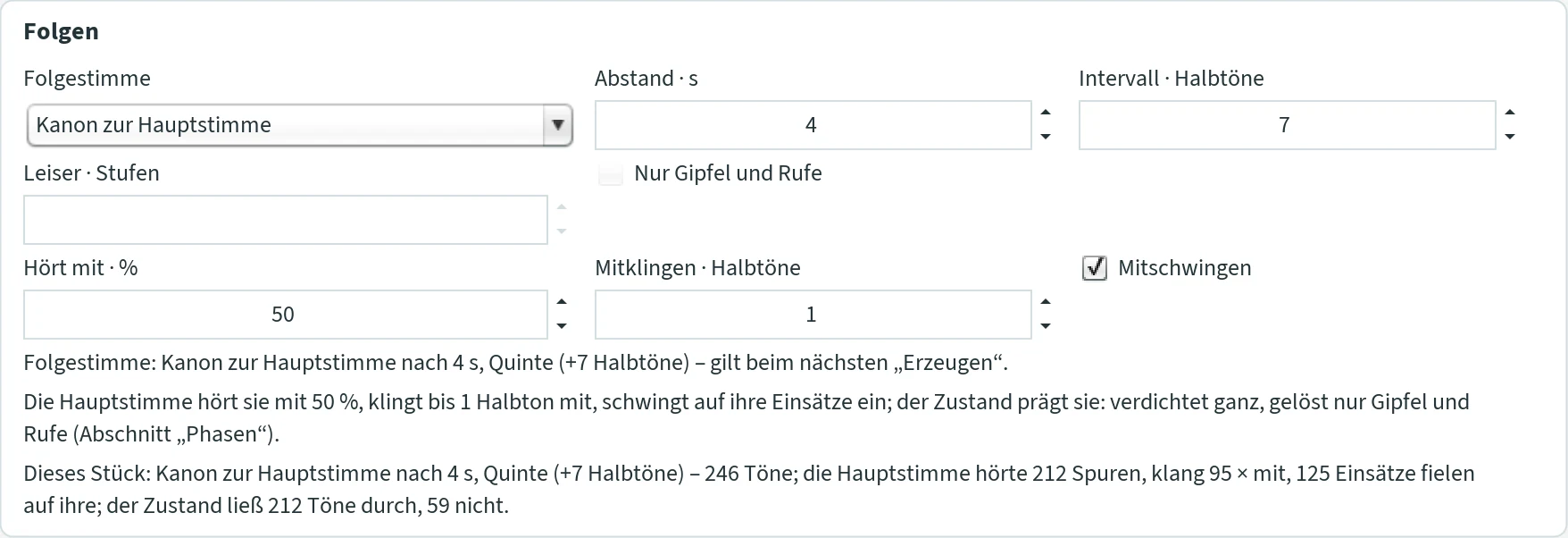
- Folgestimme (following voice)
- Keine (none, default), Echo der Hauptstimme (echo of the main voice) or Kanon zur Hauptstimme (canon to the main voice). The change sets the usual values: echo 3 s, unison, 2 steps quieter; canon 4 s, fifth.
- Abstand · s (delay)
- This many seconds after the main voice the following voice comes. 0.1 to 60.
- Intervall · Halbtöne (interval, semitones)
- The interval of the following voice: 0 unison, 7 fifth, 12 octave, −12 octave below. −24 to 24.
- Leiser · Stufen (quieter, steps)
- Echo only: this many steps quieter (one step as from f to mf), within ppp to fff. 0 to 3.
- Nur Gipfel und Rufe (only peaks and calls)
- Echo only: only the new peaks and the calls come back – a call is a leap of at least a fifth upwards, not quieter than the note before. The echo in the mountains.
- Hört mit · % (listens along)
- What sounds from the following voice at the moment of the next choice raises the weight landscape at its pitch – by this many per cent of a note of its own, as far as the weighting width. The main voice composes to what is sounding beside it. The trace counts for this one choice only, like the listener’s gaze: the mountains, the fading and the Autofonie see the landscape itself. 0: it does not hear the following voice. 0 to 200, default 50 – like “Mithören” in the ensemble.
- Mitklingen · Halbtöne (sounds along, semitones)
- If the main voice chooses a note to which a note of the following voice from the last 4 seconds lies this close in its octave, it falls onto it: the friction of a semitone against the following voice becomes a consonance. It is the strongest of the three interventions – in a piece it easily affects every third note; if you want the main voice freer, set 0. 0 to 6, default 1.
- Mitschwingen (falls into step)
- If the next entry of the main voice lies close to an entry of the following voice (up to 30 % of the step), it falls exactly onto it: the voices start together instead of overlapping by chance. Default on.
- The lines
- The first names the setting in words, the second the hearing: “Die Hauptstimme hört sie mit 50 %, klingt bis 1 Halbton mit, schwingt auf ihre Einsätze ein; der Zustand prägt sie: verdichtet ganz, gelöst nur Gipfel und Rufe.” (the main voice hears it at 50 %, sounds along up to 1 semitone, falls into step with its entries; the state shapes it: dense all, relaxed only peaks and calls). The third counts the piece after generating: “Dieses Stück: Kanon zur Hauptstimme nach 4 s, Quinte (+7 Halbtöne) – 246 Töne; die Hauptstimme hörte 212 Spuren, klang 95 × mit, 125 Einsätze fielen auf ihre; der Zustand ließ 212 Töne durch, 59 nicht.” (canon to the main voice after 4 s, fifth – 246 notes; the main voice heard 212 traces, sounded along 95 times, 125 entries fell onto its; the state let 212 notes through, 59 not). The log
komposition.logsays the same at the first note and at the end.
With Hört mit 0, Mitklingen 0, Mitschwingen off and the row “Folgestimme” unticked, the follower is again what it was up to Update 90: laid on top, unheard, from beginning to end. The difference then is the hearing alone – the same settings, the same seed, and yet another piece.
Tab “Klang”
Here you choose what you listen and save with. The choice takes effect at the next “Anhören”, without generating again: the notes stay the same, only the sound changes. So you can compare a piece with different sounds. All sound settings are saved immediately.
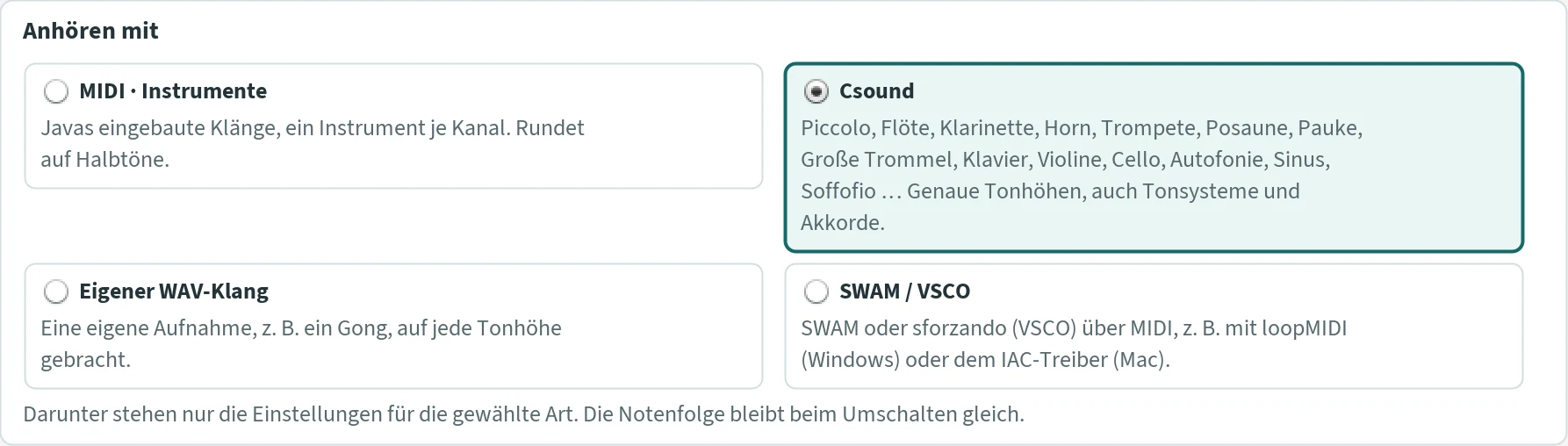
- MIDI · Instrumente (MIDI instruments)
- Java’s built-in sounds, one instrument per channel. Needs no other program, but rounds to semitones. Save button: “MIDI speichern”.
- Csound
- Sounds built specially for JCself, with exact pitches – also for tuning systems and justly tuned chords: the Autofonie, sine and FOF sounds, from the VSCO library piccolo, flute, clarinet, horn, trombone, timpani, bass drum, violin and cello, and the gong from Peter Heeren’s own recordings. Needs the free program Csound. Save button: “WAV speichern”.
- Eigener WAV-Klang (own WAV sound)
- A recording of your own, for example a gong, brought to every pitch. Save button: “WAV speichern”.
- SWAM / VSCO
- External instruments via MIDI. Save button: “MIDI speichern”.
Below the cards, only the settings of the chosen kind are shown.
MIDI · Instrumente
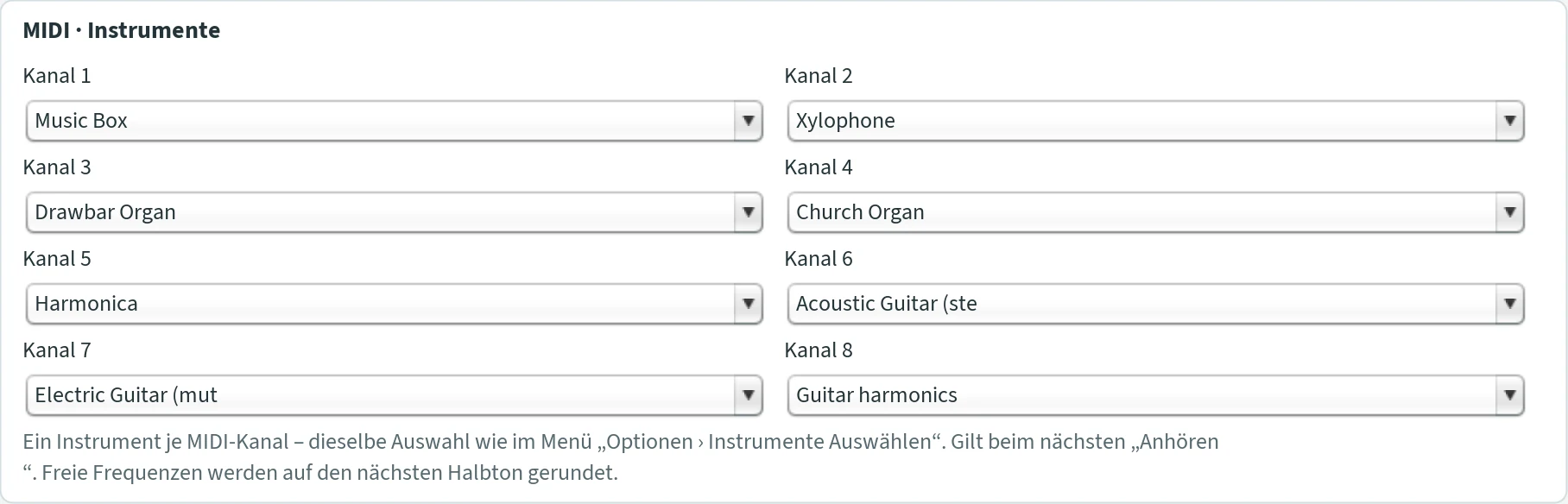
For each of the eight channels you choose an instrument, for example “Vibraphone” or “Cello” (the names come from Java and are in English). The choice takes effect at the next listening. Each channel plays certain voices:
| Channel | Content |
|---|---|
| 1 | main voice and all chord notes |
| 2 to 7 | further voices (“Stimmen · von / bis”) |
| 8 | additional melody voice |
- Every note is rounded to the nearest semitone. For exact pitches and other tuning systems, use Csound or the own WAV sound.
- Loudness and place in the stereo image are sent along.
- MIDI speichern (save MIDI) becomes available after you have listened to the piece with MIDI. Exactly this listening is saved – after “Abbruch”, only the part you heard. The file is placed next to the Csound file, with the same name and the extension
.mid; an older file of that name is replaced without asking. Each voice is on its own channel with its own instrument. - Optionen › Instrumente Auswählen leads here.
Csound
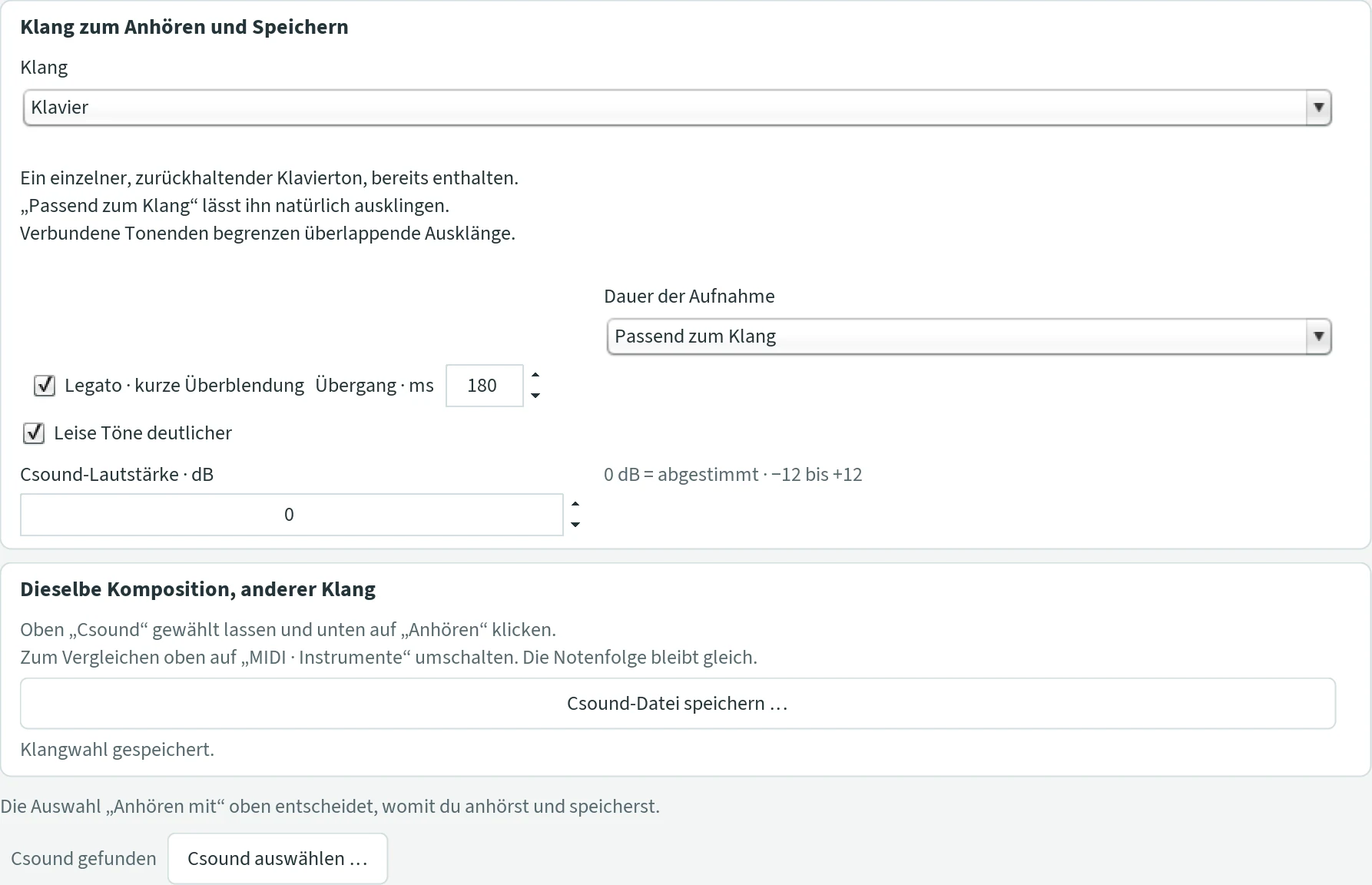
With Csound you hear every note exactly as JCself calculated it. Csound plays in the background through the computer’s usual sound output. If JCself does not find Csound, it asks for it the first time you listen.
Klang (sound)
The list begins with the electronic sounds; then the instruments follow in score order. The instruments from the VSCO library need the folder VSCO-2-CE-1.1.0, see Instruments from the VSCO library; the gong needs the folder Gong with Peter Heeren’s recordings, see Gong.
| Sound | Character |
|---|---|
| Autofonie | The sound from the composition: JCself chooses the partials of every note by the same rule as the notes, see Autofonie. On the very first start with Csound this is the sound. |
| Sinus – weich (sine – soft) | A pure sine tone with soft fade-in and fade-out – or, with the Klangraum, a hundred timbres from pure to rich, every note finding its own. |
| FOF – Formantklang (formant sound) | Sounds made of many tiny sound grains, some of them voice-like, in eleven variants, see FOF variants; Vocefof with the Klangraum: the formants wander through the vowels. |
| Lorenz – Schmetterlingsbahnen (butterfly orbits) | A continuous sound with moving metallic colours, a warm base and subtle reverberation. |
| JCself-Sinus | The original sound of JCself: a pure sine tone per note. If “Eigenen Klang verwenden” is switched on for the own WAV sound, Csound plays that recording here instead. |
| Piccolo | VSCO recordings, sounding G5–G7; plays like the flute, see Piccolo. |
| Flöte (flute) | VSCO recordings, C4–C7; breathes like a player, four kinds of recording by the synergy, see Flöte. |
| Klarinette (clarinet) | VSCO recordings, D3–F♯6; sustained and tongued, breath phrases, see Klarinette. |
| Horn | VSCO recordings of the F horn, A1–F5; sustained, tongued, muted and swelling by the synergy, see Horn. |
| Trompete (trumpet) | A recorded trumpet note, brought to every pitch. |
| Posaune (trombone) | VSCO recordings of the tenor trombone, B♭1–F4; glissando and vibrato by the synergy, see Posaune. |
| Pauke (timpani) | Five VSCO timpani, about C2–C4; damping, rolls and pedal glissando by the synergy, see Pauke. |
| Große Trommel (bass drum) | VSCO recordings without pitch: the rhythm of the main voice, see Große Trommel. |
| Gong | Peter Heeren’s own recordings – friction tones on tuned gongs, great C and E, small b to f♯³ –, tuned or natural, damping and accents by the synergy, see Gong. |
| Klavier (piano) | A single, restrained piano note that rings out naturally. |
| Violine (violin) | The VSCO solo violin, G3–C7, with playing styles like the cello and harmonics in the Neuland, see Violine. |
| Cello | A recorded cello note, brought to every pitch – or the cello ensemble of the VSCO library with all its playing styles, see Cello with VSCO recordings. |
Below the choice, a text describes the selected sound. Depending on the sound, further settings appear:
- Dauer der Aufnahme (length of the recording)
- Only cello (built-in), trumpet, piano. Passend zum Klang (to suit the sound): the piano rings out naturally, cello and trumpet are held. Gehalten · volle Notendauer (held · full note length): the note lasts exactly as long as the note value; long notes carry too. Originalaufnahme · eigener Ausklang (original recording · own decay): the note lasts as long as the recording (cello 4.4 s, trumpet 4.2 s, piano 10 s).
- Formantfarbe (formant colour)
- Only with the FOF variant Vocefof: Dunkel – O (dark), Offen – A (open), Hell – I (bright).
- Legato · kurze Überblendung (legato · short crossfade)
- Lets directly successive notes merge into each other briefly; how long is set by Übergang · ms (transition) (20 to 600, default 180). Rests remain rests. Not with “JCself-Sinus”; the FOF variants except Vocefof have their own transition. Default on.
- Leise Töne deutlicher (quiet notes clearer)
- Reduces the differences in loudness: quiet notes come forward, strong ones stay emphasised. Off: the full dynamics of the composition. Not with “JCself-Sinus”; has no effect with Soffofio and the mountain sounds Vettafof, Ecofof and Montefofia. Default on.
- Csound-Lautstärke · dB (Csound volume)
- The overall volume of all Csound sounds, from −12 to +12 dB. At 0 dB the sounds are matched to each other and roughly equally loud. A soft limiter prevents clipping. Applies to listening, WAV and Csound file.
- Tiefe Töne gehörrichtig (low notes loudness-compensated)
- Only with “Sinus – weich” and “JCself-Sinus”. The ear hears low sine tones as quieter than middle ones, even when they are equally strong. On: notes below 400 Hz become suitably louder, about 200 Hz by 6 dB, 160 Hz by 9 dB, at most 12 dB. A piece becomes louder overall as a result; lower the Csound volume if necessary. Default on.
- Raum und Ferne nach der Synergie · % (room and distance by the synergy)
- For all Csound sounds: the music sounds far away where the composition has little weight (in the Neuland) and near where it stands on its mountains (at the peak). Far away, the sound becomes quieter (up to −9 dB), duller (a low-pass down to 1.8 kHz) and stands in a wide room; the distance moves continuously with every entry of the main voice, within about a second and a half, faster at a peak. A piece thus mostly begins far away and comes nearer when its regions gain weight. Applies to listening, WAV and the Csound file; in duet, trio and ensemble to every field by the weights of its own composition. 0 to 100; 0 = as before, without distance. Default 50.
Autofonie – the sound from the composition
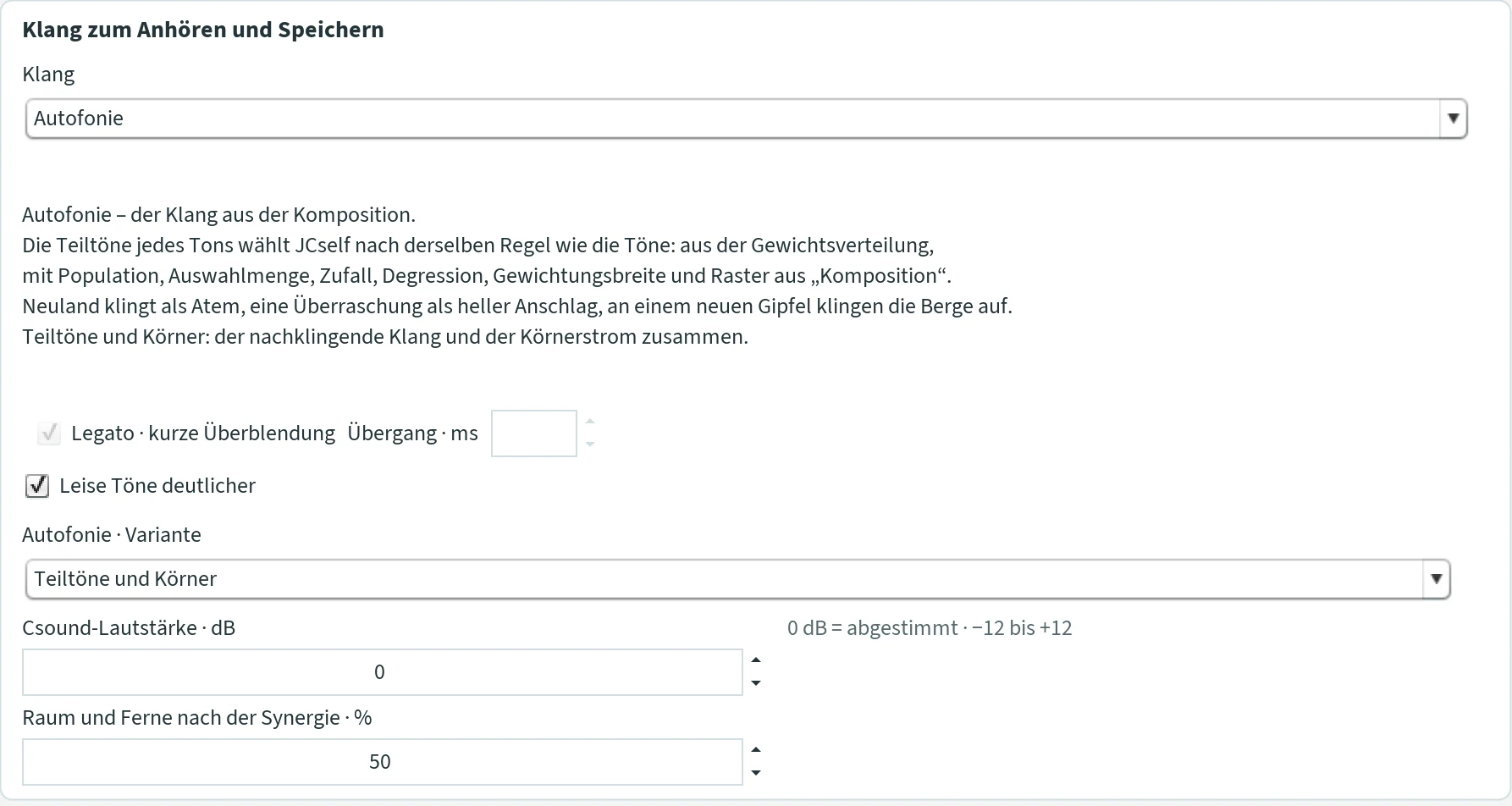
The Autofonie is the sound that comes from the composition itself. JCself chooses the partials of every note by the same rule as the notes: from the weight distribution, with population, selection size, chance, degression, weighting width and grid from the tab “Komposition” – other inputs, other sound. A coarse frequency grid gives almost harmonic partials, a fine one skewed ones; the weighting width makes the sound purer or more beating. Added to this are the values of the synergy: Neuland sounds as breath with few partials, a surprise as a bright attack, at a new peak the mountains ring up, and the lower octave joins in with the weight as warmth. The sound is entirely generated by JCself, without recordings.
- Autofonie · Variante (variant)
- Teiltöne (partials): every note a sound made of its partials, which ring on. Körner (grains): the same partials as a stream of small bell grains – lively notes trickle faster. Teiltöne und Körner: both together (default).
“Legato” has no effect here; “Leise Töne deutlicher” and the Csound volume as with all sounds. In duet, trio and ensemble the Autofonie can be chosen for every field.
FOF variants
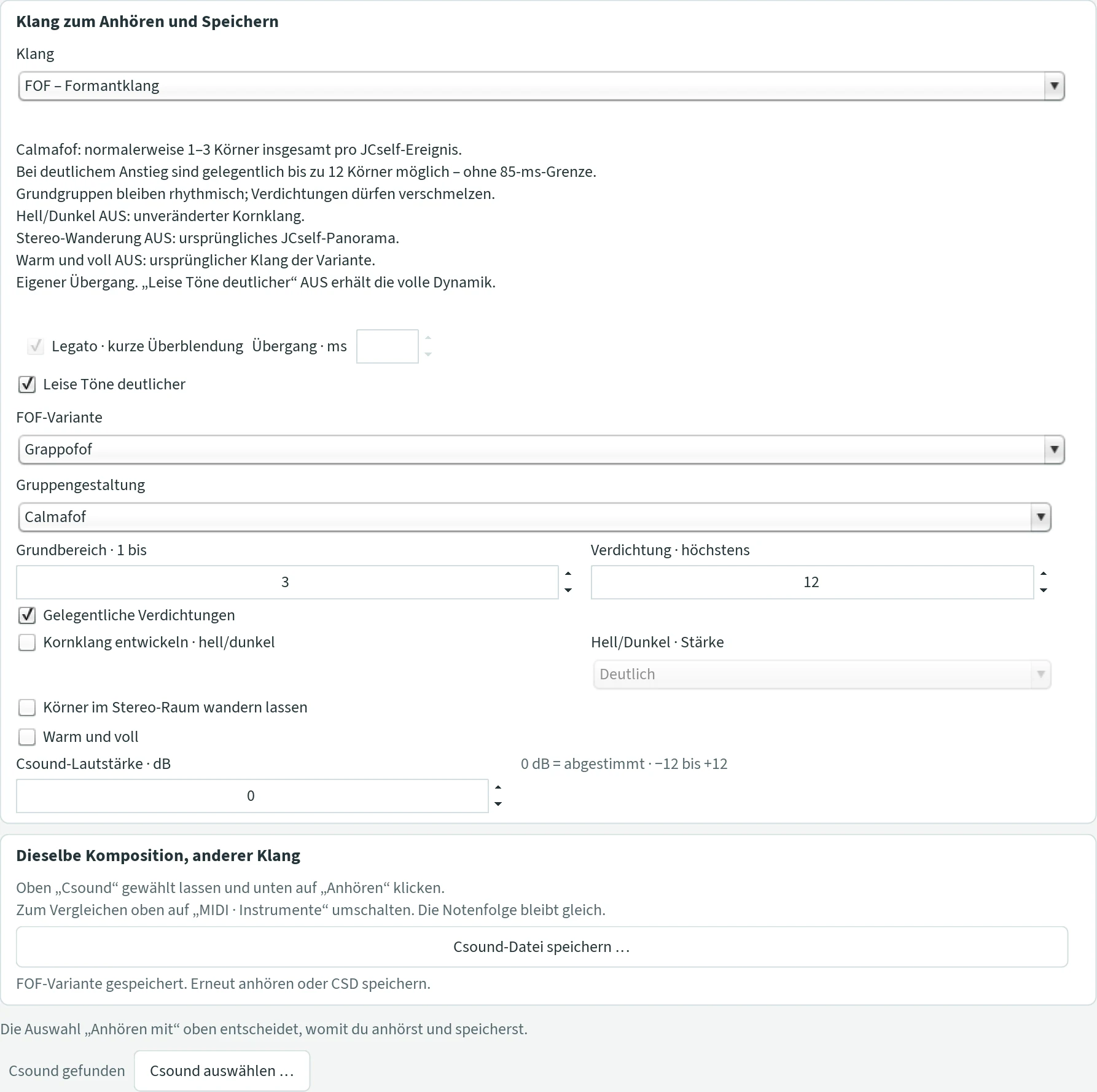
FOF sounds arise from many tiny sound grains. Depending on how dense and how shaped these grains are, it sounds like breath, singing, trickling, drops, bells or a gong. Three variants make the mountains of the weight distribution audible. You choose the variant under FOF-Variante:
| Variant | Character |
|---|---|
| Soffofio | The breath: every note opens and settles again. Fixed fundamental 110 Hz; your pitch colours the sound. Round grains, warm reverberation. Default. |
| Granfofina | Trickling grains, 2 to 128 per second; how dense results from pitch and loudness. |
| Cantofofo | Overtone singing: fixed fundamental 110 Hz with small, human fluctuations, vowels A, E, I, O, U; your pitches steer the overtone melody. |
| Vocefof | A voice at your pitch; louder also sounds brighter. You choose the vowel under “Formantfarbe”. |
| Gocciafof | Single drops, 0.5 to 6 per second, without a continuous tone; the pitch colours the drops. |
| Grappofof | Grain clusters: for every note a small group of grains, see below. |
| Campanafof | Bell grains: every grain is a small bell stroke with a long decay; the grains ring into each other. The higher the note, the more metal. Density as with Granfofina: low notes sound like single strokes, high ones merge into a shimmer. |
| Bronzofof | Gong grains: every grain is a short excerpt from a gong recording, tuned to the pitch of the note. Each voice wanders slowly through the recording, so the colour changes continuously. Density as with Granfofina; you can exchange the recording, see below. |
| Vettafof | Bell mountains: every note is a stream of bell grains. Its skewed partials are the mountains that stand above the note in the display: where a mountain lies decides how skewed the partial is; how high it is, how strong and long it sounds; how wide, how it beats. Few mountains give an almost pure bell, many mountains a many-voiced, skewed sound. |
| Ecofof | Resonance mountains: the note is a dark breath, and the mountains sound along like sympathetic strings. Those close to the note resonate softly and beating an octave higher; the highest mountain hums an octave lower. Almost dry at the beginning, an ever denser veil as the mountains grow. |
| Montefofia | Bell and resonance mountains: the bell grains of Vettafof with the sympathetic mountains of Ecofof. |
With Soffofio and Cantofofo the fundamental stays at 110 Hz; your pitches colour the sound. Chords cannot be heard as chords there.
With Vettafof, Ecofof and Montefofia sound and picture belong together: what sounds are exactly the mountains that were visible in the display while composing, for each note at the moment it enters. Usually there are few mountains at the beginning of a piece and more later; the sound then grows richer in the course of the piece. If a composition was not made in the window, JCself forms the mountains from its notes; the Csound file then says so. In duet, trio and ensemble each field sounds with its own mountains.
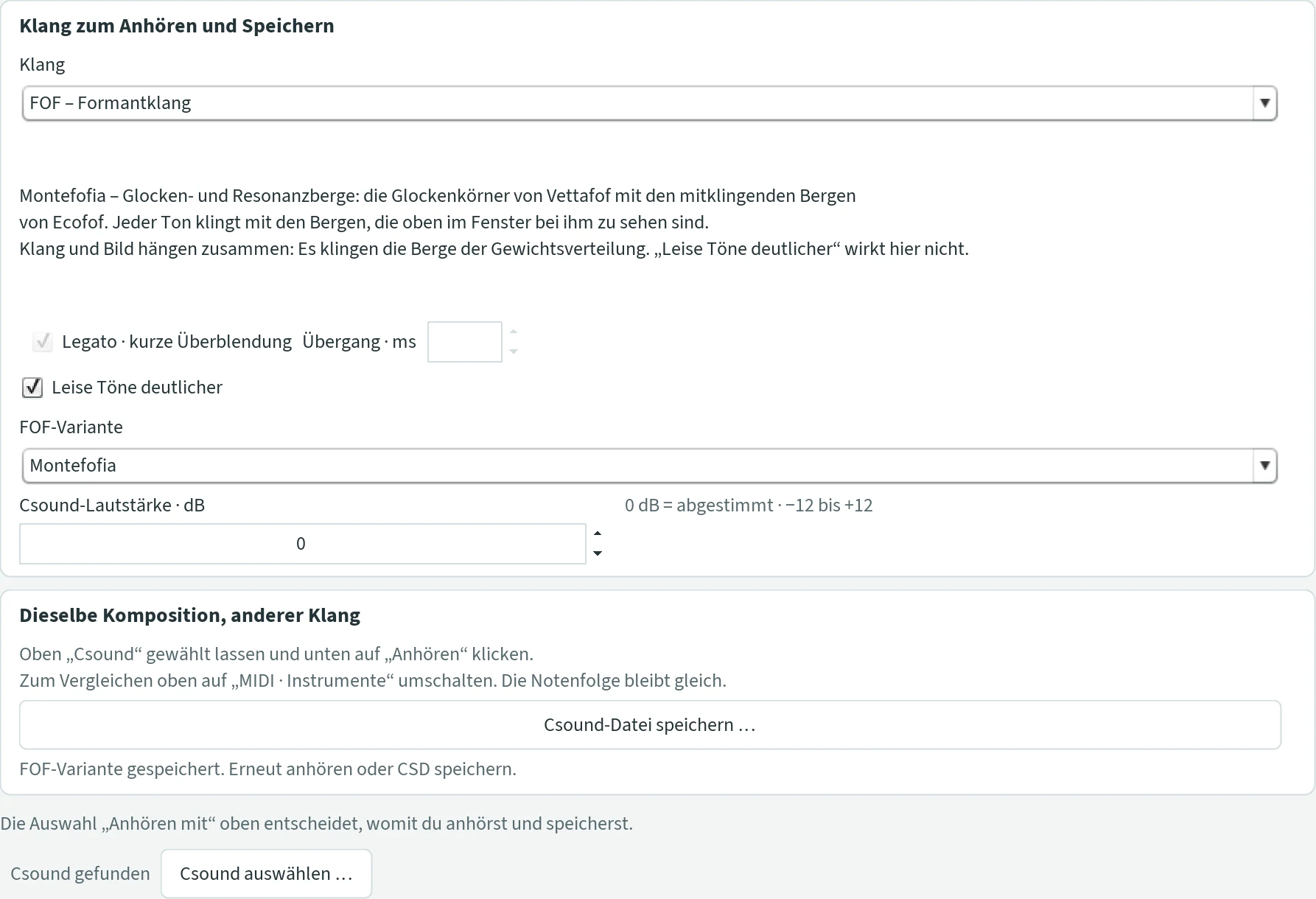
- Warm und voll (warm and full)
- Only with Granfofina, Cantofofo, Vocefof, Gocciafof and Grappofof (the other variants sound warm and full by themselves), saved separately for each. On: a round, full sound at the pitch of the note, with overtones and long reverberation (with Vocefof a deeper, rounder vowel). Off: the variant’s original, slimmer sound. Rhythm, number of grains and dynamics stay the same. Default on for Granfofina, Cantofofo and Vocefof, off for Gocciafof and Grappofof.
- Gruppengestaltung (group design)
- Only Grappofof. Calmafof: calm, small groups of 1 to Grundbereich (basic range) grains (default 3). With Gelegentliche Verdichtungen (occasional condensations) the groups grow when pitch or loudness rise markedly – up to Verdichtung · höchstens (condensation · at most) grains (default 12). Sciamefof: often larger groups, a swarm; the limits then do not apply.
- Kornklang entwickeln · hell/dunkel (develop grain sound · bright/dark)
- Only Grappofof. Every grain becomes brighter or darker over time, depending on how the music continues. Hell/Dunkel · Stärke (strength): Dezent (subtle), Deutlich (clear, up to about one octave of movement per grain) or Stark (strong, up to two octaves). Default off.
- Körner im Stereo-Raum wandern lassen (let the grains wander in stereo space)
- Only Grappofof. The grains wander between left and right – slowly, attracted by neighbouring notes and steered back when they stay on one side too long; no even swinging. Best with headphones. Default off.
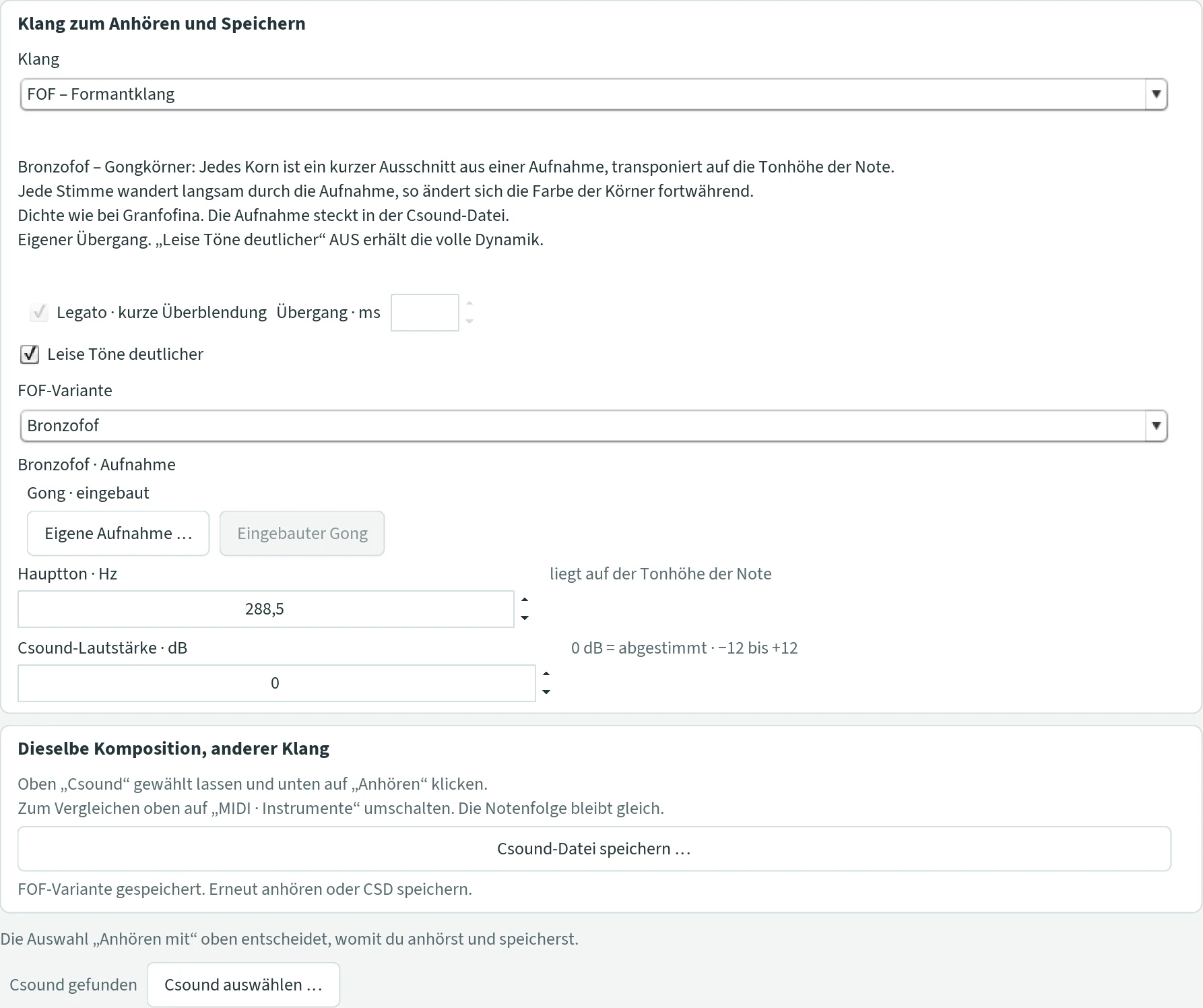
- Bronzofof · Aufnahme (recording)
- Only Bronzofof. A gong recorded by Peter Heeren is built in. With Eigene Aufnahme … (own recording) you choose a WAV or AIFF file, for example another gong, a singing bowl or a voice. JCself takes the first 22 seconds of the first channel, makes them as loud as the gong and stores them in the folder
Gipfel-DatenunderCsound-Klaenge; there the recording moves along when you copy the folder to another computer. Eingebauter Gong (built-in gong) leads back. If a chosen recording is missing later, the gong sounds again. - Hauptton · Hz (main tone)
- Only Bronzofof. The part of the sound that lies at the pitch of the note. For the built-in gong 288.5 Hz; for a recording of your own, JCself measures the strongest partial between 60 and 2000 Hz. You can change the value (20 to 4000 Hz): twice the value puts all grains an octave lower, half the value an octave higher.
Klangraum (sound space)
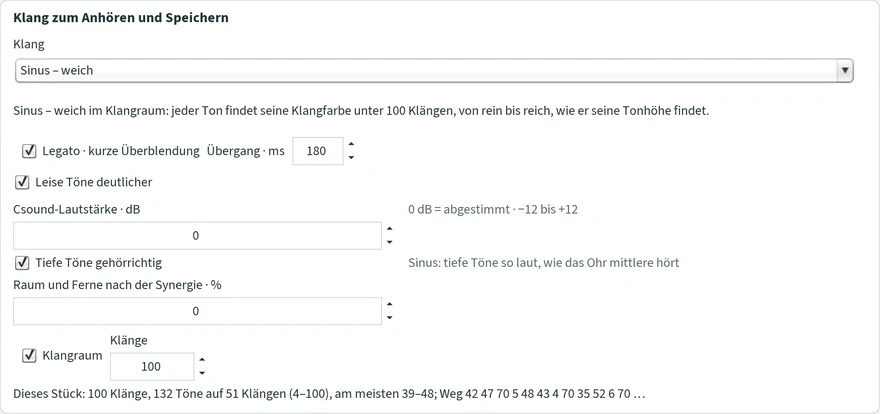
With the tick Klangraum every note gets a timbre of its own – by JCself’s principle. The Klangraum is a row of sounds (Klänge, 100 at first; 2 to 100,000), ordered from pure to rich. Every note JCself sets finds its timbre in it, and it does so the way it finds its pitch: over the sounds lies a second weight distribution. For every note JCself takes the selection size of random sounds, weighs each with its weight and the random weighting, takes one of the best, and where it was chosen the mountain grows with the weighting width and the degression – the procedure of the tab “Komposition”, step by step; the best count with the form and the listener as with the notes; the fading of the piece wears down the regions of sound that were played, with the piece’s values (the region width scaled to the Klangraum, without an ending of its own). The first sound is drawn by lot, like the start note 0. So the timbres form lines and regions, as the melodies do. The weighting width counts relative to the range: with 5 Hz in 150 to 400 Hz it is 2 of 100 sounds, and the way wanders far; a field of the ensemble with a narrow range gets 13 of 100 – it finds its region of sound and stays with it, so every field gets a sound of its own by itself. Chord notes sound with the sound of their entry; a pause has none.
The section shows for the sounds that have a Klangraum: Sinus – weich, FOF – Formantklang in the variant Vocefof and Lorenz – Schmetterlingsbahnen. It holds for the main window and for every field of the ensemble with these sounds – for the fields by JCself and the fields that come as well. After generating, the line below says “Dieses Stück: 100 Klänge, 137 Töne auf 55 Klängen (2–99), am meisten 25–34; Weg 33 44 52 28 …” (this piece: 100 sounds, 137 notes on 55 sounds (2–99), mostly 25–34; way …) – the way: the sound of every note in order. A piece carries its sounds within it; the tick decides, when listening and when saving the Csound file, whether they sound. Tick off: one sound for all notes. Tick on: the piece composes differently in its notes too, because the lot for the sounds runs along.
- Sinus – weich
- A hundred wavetables: with the index the brightness grows (the fall of the harmonics from 4 – nearly a sine – to 2 – bright); in addition the space changes three times between hollow (odd harmonics only, like a clarinet) and full – sound 1 a soft sine, around 33 full, around 66 bright and hollow, 100 bright and full. The brightest sound falls with 1/n² (second harmonic 0.2500, third 0.1111, fourth 0.0625) – not with 1/n, for that would be a sawtooth, and a sawtooth cuts. Every table in five registers (32, 16, 8, 4, 2 harmonics), chosen by pitch so that high notes stay clean; all sounds have the energy of a sine, the bright ones up to 30 % softer so that they do not push forward.
- FOF – Formantklang (Vocefof)
- Every sound is a basic sound on the way breath – voice – bell – gong. It no longer sounds from computed formants but from the built-in gong recording of Bronzofof: it is read grain by grain, in three layers on the ratios 1 : 1.31 : 0.73. Across the space 190 grains per second make a bright shimmer, and at the end 90 make a single deep stroke; in addition every sound has its own resonance band (centre 200 Hz to 5 kHz) and its own brightness (14 kHz to 800 Hz). About 36 grains always lie on top of each other, and the cloud levels out its own fluctuation: with twelve grains – as many as Bronzofof has at its dense end – a loudness fluctuation of 87 % remained inside a held note, heard as graininess; with 36 it is 46 %. Only the calmest part of the recording is read (6 to 13.5 s), and every sound carries its own measured gain so that all hundred are equally loud. The “Formantfarbe” (Dunkel – O, Offen – A, Hell – I) does not apply then.
- Lorenz – Schmetterlingsbahnen
- Here every note gets not only a timbre but a development of its own: while it sounds, it computes its own path on an attractor, from an initial condition that comes from its sound. Without the Klangraum all notes read from one common path, which is why they sound alike; with it sound 2 starts at (−9.50 | 15.76 | 22.42) and sound 58 at (12.45 | −22.83 | 22.19), and the numbers of the path and its speed grow across the space as well. Two lists decide the rest.
- Bahn (path)
- What the sound runs on. Lorenz: the butterfly – a soft wandering that jumps between two wings. Rössler: a singing spiral that breaks out at long intervals. Mandelbrot: not an attractor but the sequence z → z² + c; depending on where c lies it runs into a point, circles in 2, 4, 8 steps or turns wild – the sound jumps in steps. Duffing: a driven oscillator, the only one with a pulse of its own; the note throbs, first regularly, then out of step. Intermittenz: long, almost motionless stretches (0.8 to 5.5 s) and then, without warning, an outbreak; the intervals never repeat. Gabelung: the logistic map with a growing r – the note alternates between two states, then four, then eight, and dissolves; one hears the splitting as it happens.
- Erzeuger (generator)
- What produces the sound. Teiltöne: three movable partials and two filters, as before. Modal – Glocken: six struck resonances on inharmonic ratios; the path shifts their frequencies and their Q, that is their decay times – the notes die away by themselves. gbuzz – Obertonreihe: a harmonic series that opens and closes like a vowel; the path moves the fall-off factor (0.28 to 0.88), which never reaches 1 – at 1 it would be a sawtooth. FM – Modulation: one carrier and two modulators; the ratios run from 0.5 to 4.0 and so meet harmonic (bell-like) as well as inharmonic (metallic) sounds. Gestrichene Saite: noise bows, three string resonators answer – a bodily singing with small irregularities.
- Differences between the sounds
- With Modal, gbuzz, FM and the string every sound gets eight to eleven numbers of its own, each from its own irrational step, so that they do not run in parallel – and the path moves only around that sound’s own centre, with its own width. One sound stays dark, another bright, a third swings wide. Measured over a hundred notes of the same pitch and loudness, the timbres lie 6.4 dB apart with the partials, 14.1 dB with gbuzz and 20.9 dB with FM; with the latter two no pair lies under 2 dB.
- In the Csound file
- The sound of every note stands as the ninth field of its line; the tables or the formant paths stand once after the header, in the ensemble once for all fields; the instrument takes the table of the sound in the register of the note.
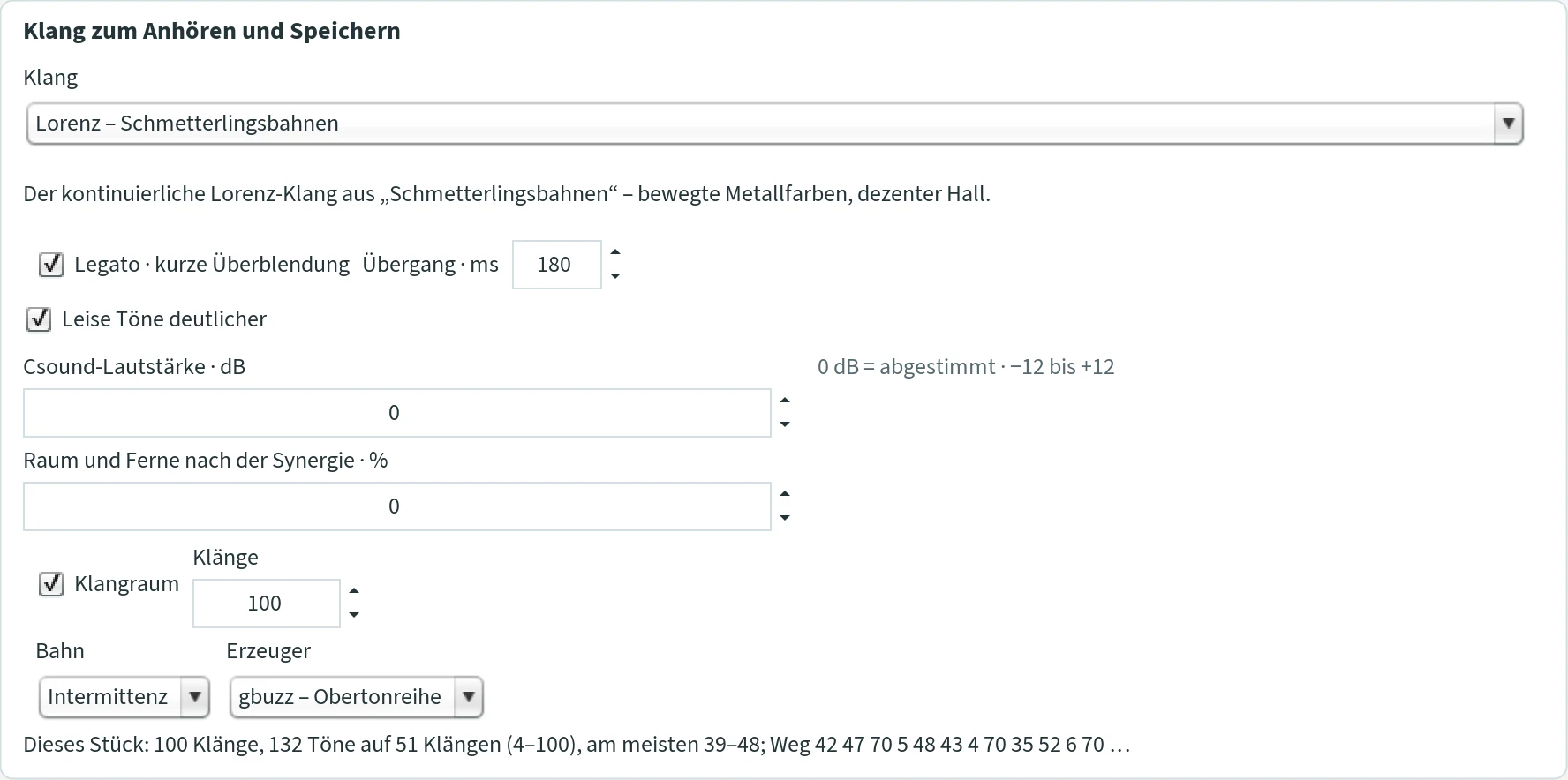
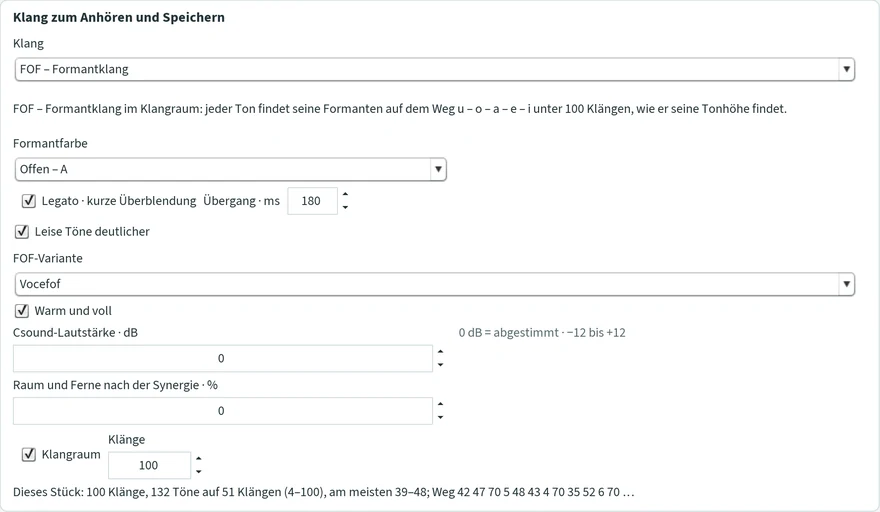
The lists “Bahn” and “Erzeuger” show only for the sound “Lorenz”; with Sinus and FOF they carry nothing. The other FOF variants (Soffofio, Granfofina, Montefofia …), the recordings (cello, gong, piano, the VSCO instruments) and Autofonie have their own sound – no Klangraum. If “Leise Töne deutlicher” softens the dynamics, the Klangraum stays as it is.
The Klangraum applies in the ensemble too, and that is where it unfolds completely: every field whose sound has a Klangraum gives each of its tones its own timbre, and in the swarm this multiplies with every copy. Four fields with 250 copies each become a thousand fields whose tones all search the same Klangraum and yet none sounds like another. The tick, the number of sounds, Bahn and Erzeuger are in the Klang tab and apply to every field.
Cello with VSCO recordings
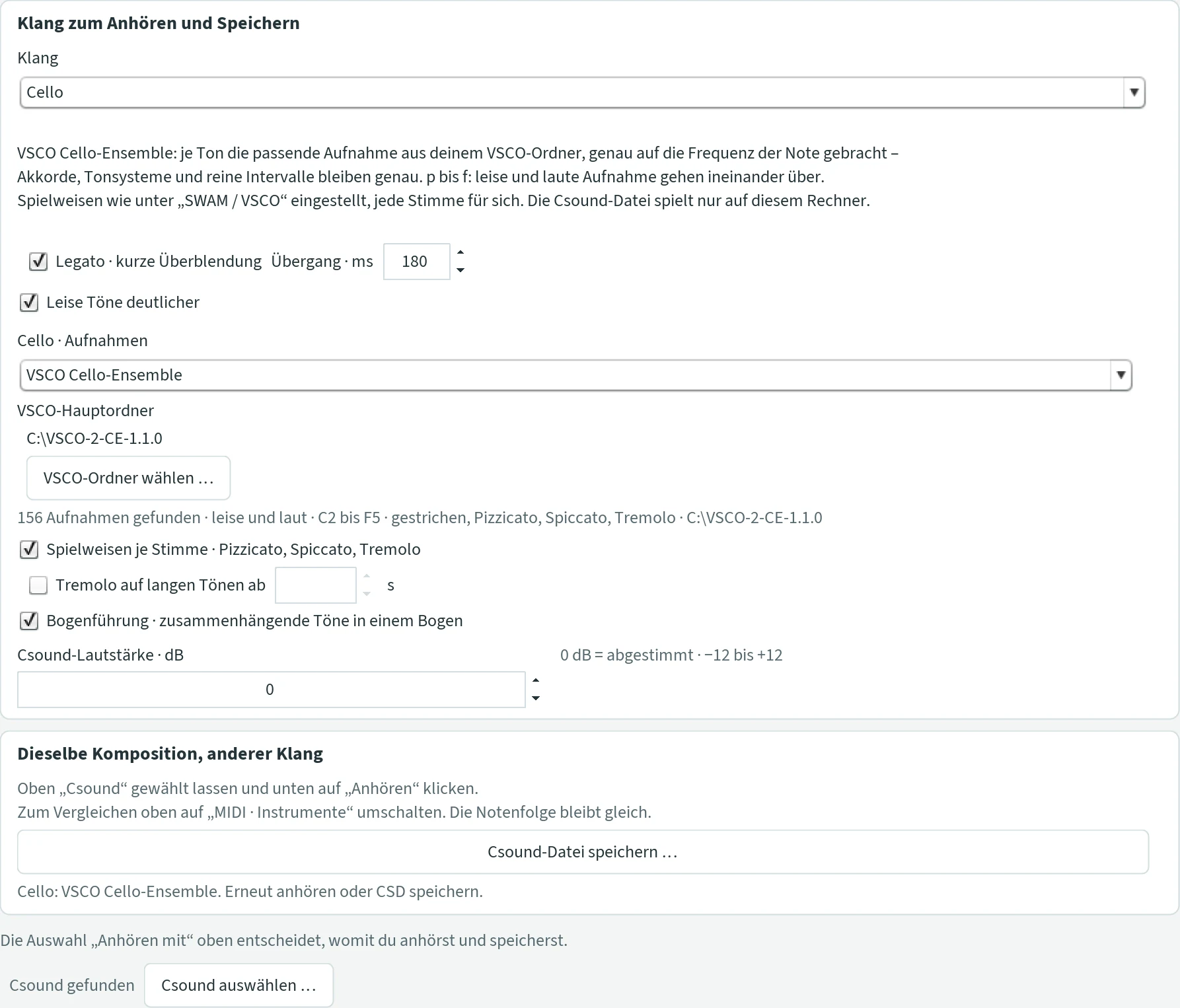
With the sound “Cello”, Csound can play the cello ensemble of the free library VSCO 2 Community Edition instead of the built-in recording (where to get it: see VSCO via sforzando; you do not need sforzando itself for this). For each note JCself takes the matching recording and brings it exactly to the frequency of the note. Unlike via MIDI, chords, tuning systems and justly tuned intervals thus stay exact as well. From p to f the soft and the loud recording blend into each other.
- Cello · Aufnahmen (cello · recordings)
- Eingebaut · eine Aufnahme (built-in · one recording): the previous cello sound, one recording brought to every pitch. VSCO Cello-Ensemble: the recordings from your VSCO folder. Default built-in.
- VSCO-Hauptordner · VSCO-Ordner wählen … (VSCO main folder · choose VSCO folder)
- The folder
VSCO-2-CE-1.1.0, the same as under “SWAM / VSCO”; if it is already chosen there, JCself takes it over. JCself only reads and writes nothing into it. Below it, JCself says what it found, for example “156 Aufnahmen gefunden · leise und laut · C2 bis F5 · gestrichen, Pizzicato, Spiccato, Tremolo” (156 recordings found · soft and loud · C2 to F5 · bowed, pizzicato, spiccato, tremolo). The recordings range from C2 to F5 (65 to 698 Hz); limit the pitch range accordingly. - Spielweisen je Stimme · Pizzicato, Spiccato, Tremolo (playing styles per voice)
- The playing styles as set under “SWAM / VSCO” › “Artikulation & Dynamik”, for example “Spielweisen aus dem Verlauf entwickeln”. Each voice chooses for itself – the melody and every chord note, as if each had its own MIDI channel. So a chord note can be plucked while the melody goes on bowed. Off: everything bowed, unless “Tremolo auf langen Tönen” is switched on. Default on.
- Tremolo auf langen Tönen ab … s (tremolo on long notes from … s)
- Bowed notes of this length or longer play tremolo, even if “Spielweisen je Stimme” is off; 0.5 to 10 s, 1.5 s when switched on. If almost all notes are that long, almost everything becomes tremolo – that can be attractive and sounds as it did up to Update 73. For less tremolo, raise the length. Default off.
- Bogenführung · zusammenhängende Töne in einem Bogen (bowing · connected notes in one bow)
- Bowed notes that follow each other directly are played by the cello in one bow: without a new attack, the loudness glides from one note to the next. A new bow with an attack comes after a rest or when the bow is used up after about 6 seconds. This sounds more natural and softer. Default on.
“Dauer der Aufnahme” does not apply here: bowed notes are held as long as the note lasts, pizzicato and spiccato ring out naturally. The Csound file refers to the recordings in the VSCO folder instead of containing them; it therefore only plays on a computer that has this folder. In duet, trio and ensemble every cello field has the same switches.
Instruments from the VSCO library
Piccolo, flute, clarinet, horn, trombone, timpani, bass drum and violin are played by Csound from the recordings of the free library VSCO 2 Community Edition, just like the cello ensemble: for every note JCself takes the fitting recording and brings it exactly to the frequency of the note – chords, tuning systems and justly tuned intervals stay exact; depending on the dynamics the soft, medium or loud recording sounds. All you need is the unpacked folder VSCO-2-CE-1.1.0 (see VSCO via sforzando, step 1); sforzando itself and a MIDI connection are not needed.
What sets the instruments apart from one recording per note is their playing nach der Synergie (by the synergy): they follow the values JCself records while composing – peak, Neuland, surprise, liveliness – and play as a musician would who understands the piece: wind players breathe where a player breathes, a horn stops a surprise, a timpanist rolls into the peak, a flute tongues the note that falls out of line. That is interpretation, not composition: the notes stay the same; the same Csound file sounds different with different ticks. All ticks take effect at the next listening. The gong plays the same way – from Peter Heeren’s own recordings instead of the VSCO library.
- VSCO-Hauptordner · VSCO-Ordner wählen … (VSCO main folder · choose VSCO folder)
- The folder
VSCO-2-CE-1.1.0; once chosen, it applies to all instruments (and to the cello). JCself only reads and writes nothing into it. Below it stands what JCself found, for example “101 Aufnahmen gefunden · A1 bis F5 · gehalten, gestoßen, gedämpft” (101 recordings found, A1 to F5, sustained, tongued, muted). - Spielweisen je Stimme (playing styles per voice)
- The playing styles as set under “SWAM / VSCO” › “Artikulation & Dynamik” (“Spielweisen aus dem Verlauf entwickeln” and the other rules): every voice chooses for itself – the main voice and every chord note. For the wind instruments pizzicato and spiccato become “tongued”, bowed and tremolo “sustained”; notes from 1.5 s are never tongued. Off: everything sustained or bowed. Default on.
- Atembogen · Luft für … s (breath phrase · air for … s)
- Wind instruments: sustained notes that follow each other directly come in one breath – without a new attack, the dynamics glide. The air lasts for the seconds set at medium loudness; loud and low notes need more, soft and high ones less. If a breath needs more, the player breathes where a player breathes: after a long note, before a peak or a surprise, near the end of the air – the note before is shortened by a quarter (at most 0.3 s), the next one attacks anew. A new breath also begins after a rest, for horn and trombone also at the peak and in the Neuland. Default on, with 10 to 14 s depending on the instrument.
- Überraschung ab … (surprise from …)
- From which surprise (0.1 to 1) the instrument sets an accent, plays a glissando or tongues: 0.5 hits about every fifth entry, 0.7 fewer, 0.3 more. A strong surprise from 0.8 is played more distinctly. Default 0.5.
| Instrument | Recordings | Range (sounding) | Above / below |
|---|---|---|---|
| Piccolo | sustained, tongued | G5–G7 (784–3136 Hz) | shifted, duller or brighter |
| Flöte (flute) | without vibrato soft and loud, with vibrato, expressive, tongued | C4–C7 (262–2093 Hz) | shifted |
| Klarinette (clarinet) | sustained in three layers, tongued | D3–F♯6 (147–1480 Hz) | shifted |
| Horn | sustained, tongued, muted | A1–F5 (55–698 Hz) | above: an octave lower |
| Posaune (trombone) | sustained, tongued | B♭1–F4 (58–349 Hz) | shifted |
| Pauke (timpani) | five drums, soft to hard, rolls | about C2–C4 (65–260 Hz) | above: an octave lower |
| Große Trommel (bass drum) | seven strengths, rubbing | no pitch | – |
| Violine (violin) | bowed soft and loud, pizzicato, spiccato, tremolo | G3–C7 (196–2093 Hz) | shifted |
| Cello ensemble | bowed soft and loud, pizzicato, spiccato, tremolo | C2–F5 (65–698 Hz) | shifted |
Limit the range in the tab “Komposition” to the instrument’s range as far as possible. The Csound file refers to the recordings in the VSCO folder instead of containing them, and therefore plays only on a computer with this folder. In duet, trio and ensemble the ticks of the tab “Klang” apply to all fields with this instrument.
Piccolo
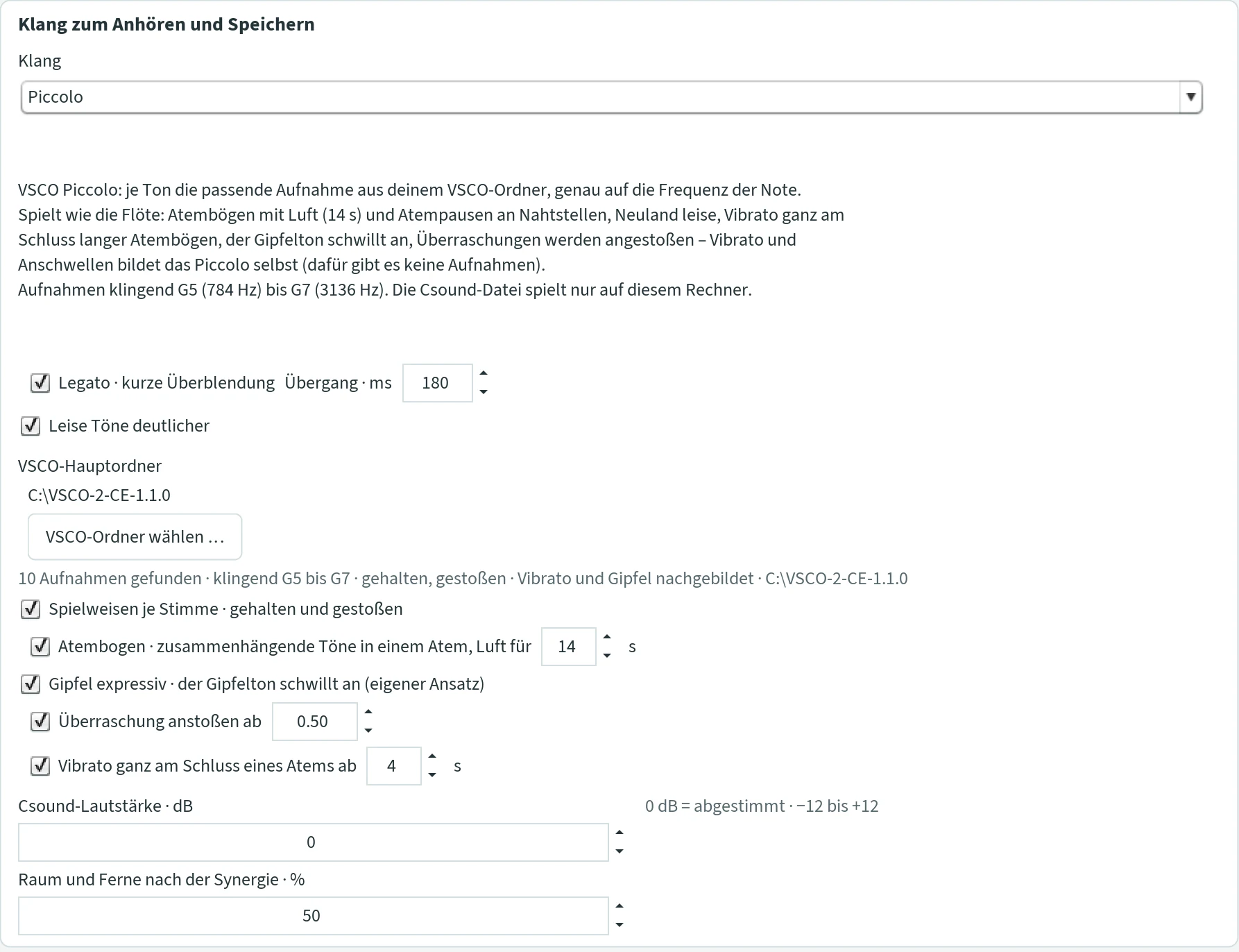
The piccolo plays like the flute, with the same ticks: breath phrases with air (default 14 s – the piccolo needs less air than the flute) and breathing pauses at seams, Neuland soft, vibrato at the very end of long breath phrases, the peak note swells, surprises are tongued. Vibrato and swelling the piccolo forms itself, since there are no recordings for them: the peak note swells over two thirds of its length, the vibrato (22 cents, 5 to 6.5 Hz depending on the liveliness) sets in in the second half of the last note of a breath. The recordings sound from G5 to G7.
Flöte (flute)
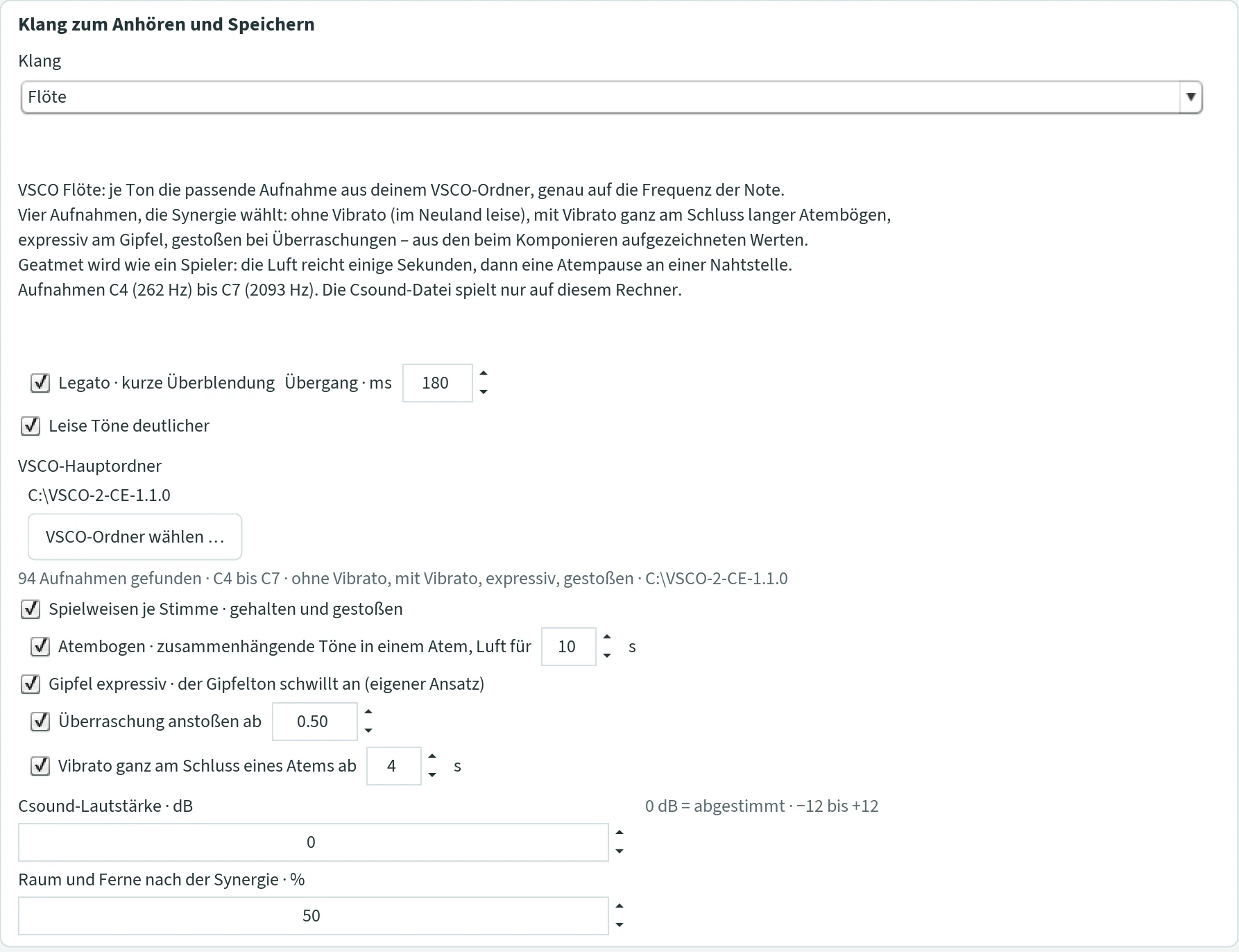
The flute has four kinds of recording – without vibrato (soft and loud), with vibrato, expressive and tongued – and the synergy chooses: in the Neuland the soft recording without vibrato, at the peak the expressive one, at a surprise the tongued one, at the very end of long breath phrases the one with vibrato. Breathing is like a player’s: the air lasts a few seconds, then comes a breathing pause at a seam.
- Spielweisen je Stimme · gehalten und gestoßen (playing styles per voice · sustained and tongued)
- See above. Default on.
- Atembogen · zusammenhängende Töne in einem Atem, Luft für … s (breath phrase · connected notes in one breath, air for … s)
- Notes that follow each other directly in one breath without a new attack; a new breath begins at the peak and after a rest. The air lasts for the seconds set at medium loudness – loud and low notes use more, tongued ones almost nothing. 3 to 30 s; 10 (default), 7 breathes more often, 20 almost never.
- Gipfel expressiv · der Gipfelton schwillt an (eigener Ansatz) (peak expressive · the peak note swells, own attack)
- At a new peak the expressive recording plays: the note swells over seconds and gets vibrato; it begins a new breath. Default on.
- Überraschung anstoßen ab … (tongue a surprise from …)
- An entry that falls out of line with the last eight notes is tongued: the tongued recording lies briefly on the attack, within the breath, without a new breath. Default on, from 0.5.
- Vibrato ganz am Schluss eines Atems ab … s (vibrato at the very end of a breath from … s)
- Only at the end of a long breath – from the breath length set – and on the final notes of the piece: the last note passes in its second half into the vibrato recording. Otherwise no vibrato. 1 to 12 s; 4 (default), 6 more rarely, 2 more often. Default on.
Klarinette (clarinet)
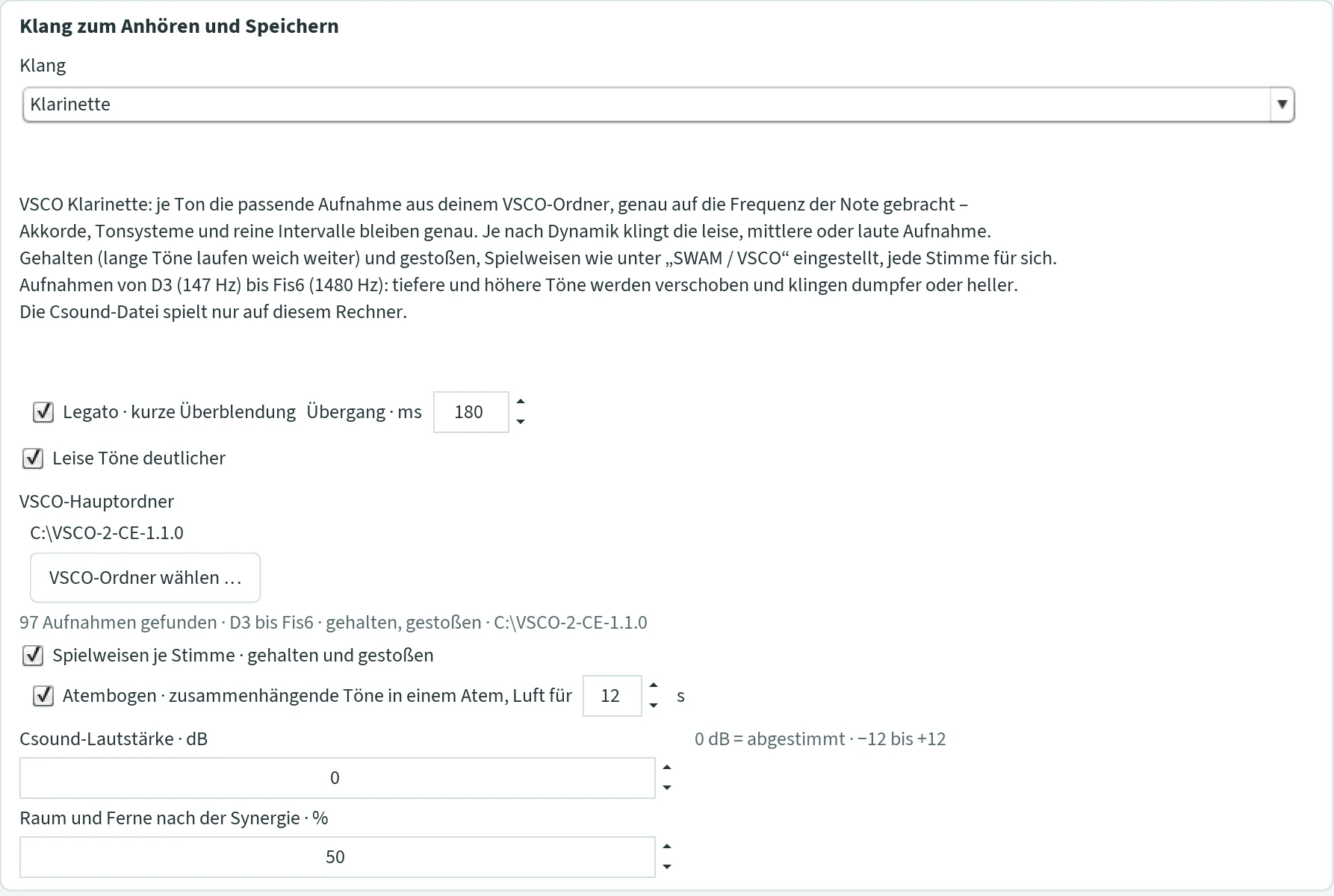
The clarinet plays sustained – long notes run on softly – and tongued, in three layers depending on the dynamics. The recordings range from D3 to F♯6; lower and higher notes are shifted and sound duller or brighter.
- Spielweisen je Stimme · gehalten und gestoßen (playing styles per voice · sustained and tongued)
- See above; every voice chooses for itself. Default on.
- Atembogen · zusammenhängende Töne in einem Atem, Luft für … s (breath phrase, air for … s)
- Sustained notes that follow each other directly in one breath without a new attack; the player breathes after a long note near the end of the air. 12 s (default; softly the air then lasts for 15 s and more), 8 breathes more often, 20 almost never, 0 a fixed breath of 8 s. Default on.
Horn
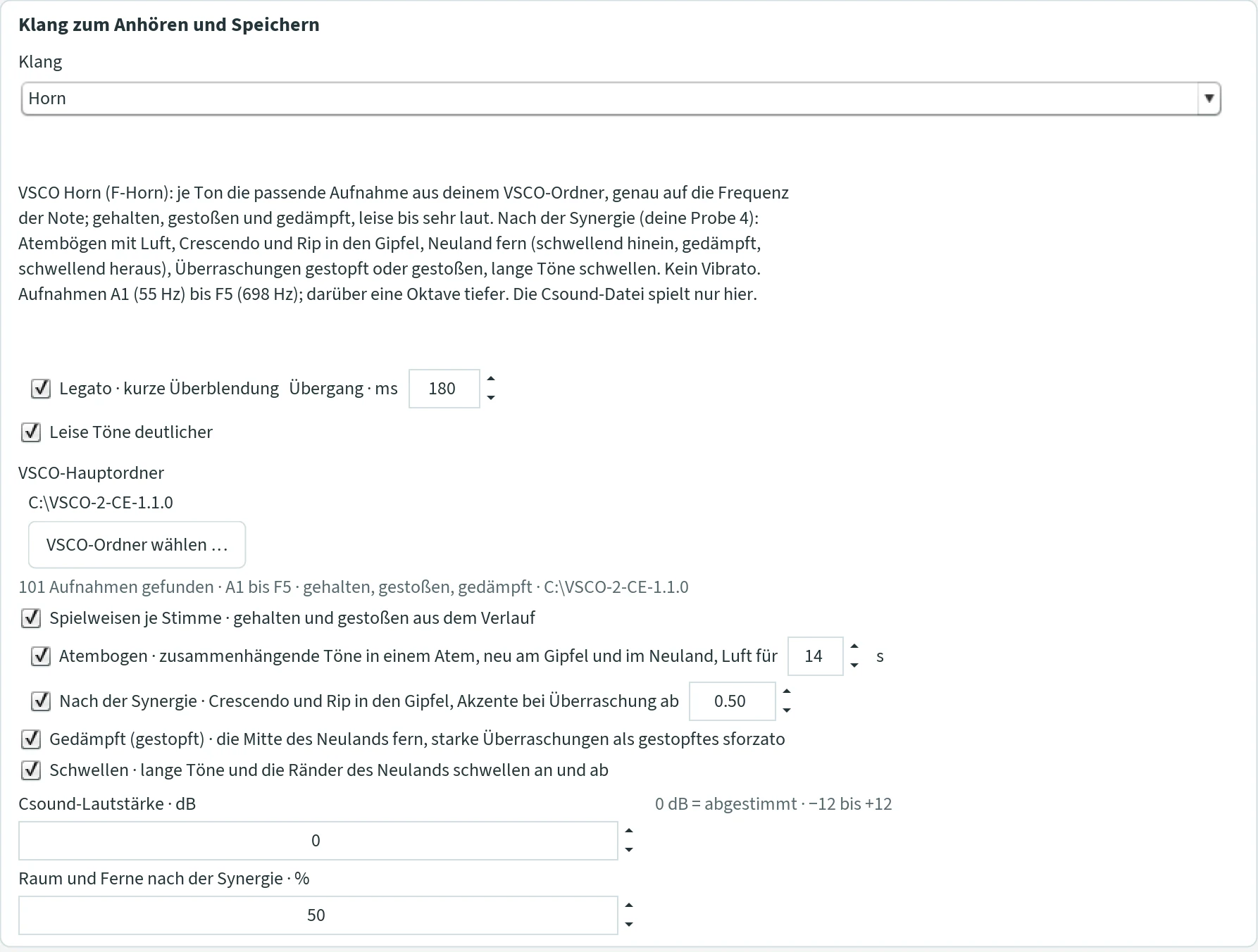
The F horn has sustained, tongued and muted recordings from soft to very loud, A1 to F5 (notes above an octave lower), no vibrato. By the synergy it combines everything: breath phrases with air, crescendo and rip into the peak, a distant Neuland – swelling in, muted in the middle, swelling out –, surprises stopped or tongued, long notes swell.
- Spielweisen je Stimme · gehalten und gestoßen aus dem Verlauf (playing styles per voice · sustained and tongued from the course)
- See above. Default on.
- Atembogen · zusammenhängende Töne in einem Atem, neu am Gipfel und im Neuland, Luft für … s (breath phrase, new at the peak and in the Neuland, air for … s)
- As for the clarinet; a new breath with attack also begins at a new peak and in the Neuland. 3 to 60 s, default 14; off: a fixed breath of 12 s.
- Nach der Synergie · Crescendo und Rip in den Gipfel, Akzente bei Überraschung ab … (by the synergy · crescendo and rip into the peak, accents at surprise from …)
- The note of the main voice before the peak swells into the peak, from below with a rip – the quick upward run through the natural harmonics –, the peak entry is full. A strong surprise (from 0.8) is a stopped sforzato accent of the main voice, a medium one (from the threshold) an open accent, tongued on a short note. The Neuland is quieter: the first note of a Neuland stretch is open and swelling, the middle muted and distant, the last note swells with a crescendo back into the action. Default on, from 0.5.
- Gedämpft (gestopft) · die Mitte des Neulands fern, starke Überraschungen als gestopftes sforzato (muted/stopped · the middle of the Neuland distant, strong surprises as stopped sforzato)
- The muted recordings of the VSCO – horn with mute: nasal, distant, like the stopped horn. Off: everything open; the Neuland stays quieter, the strong surprise an open accent. Default on.
- Schwellen · lange Töne und die Ränder des Neulands schwellen an und ab (swelling · long notes and the edges of the Neuland swell and fade)
- Sustained notes from 2 s swell to the middle and back (messa di voce), more strongly when the music is calm; the first and the last note of a Neuland stretch swell more distinctly. Off: even notes. Default on.
Posaune (trombone)
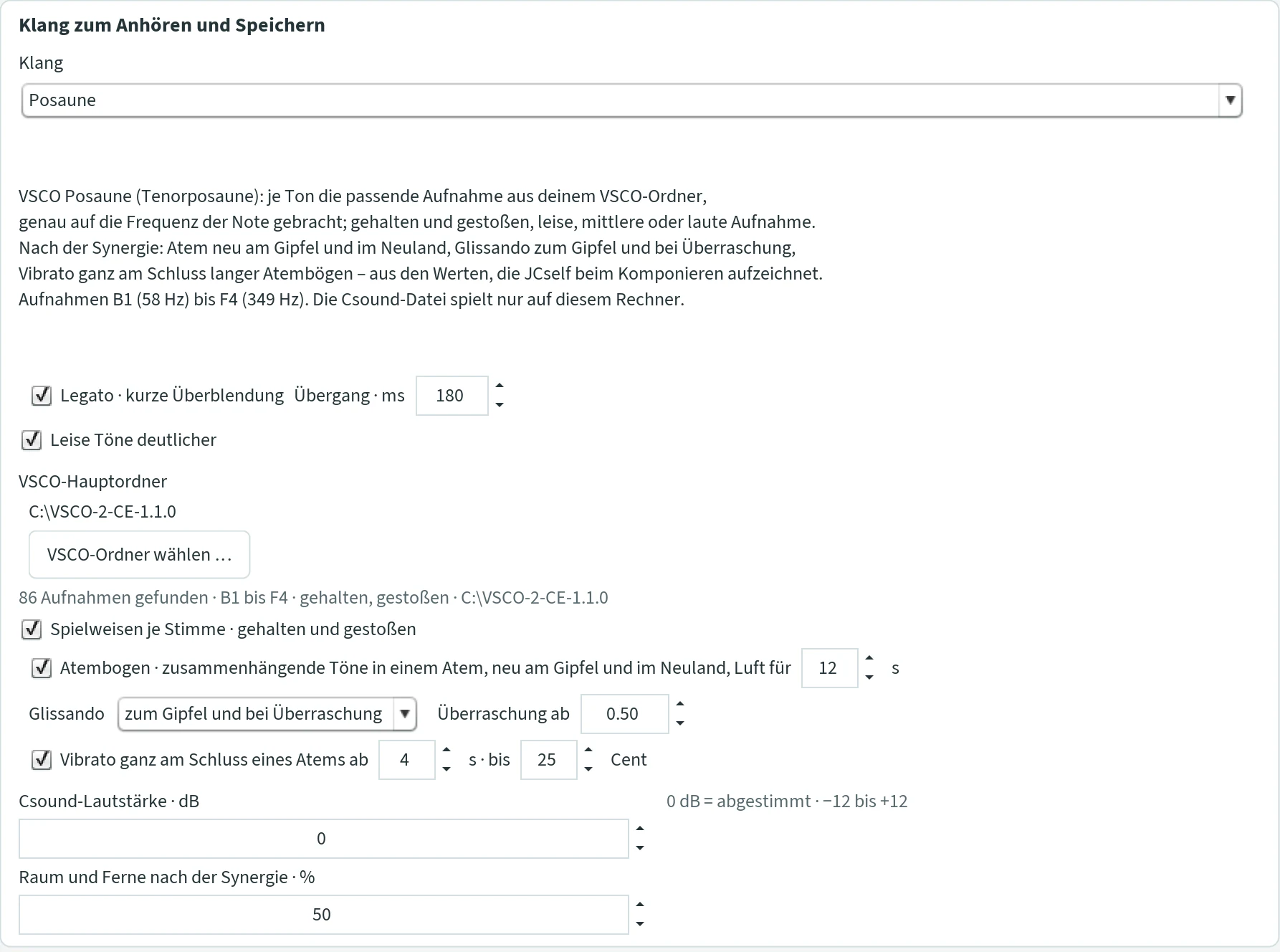
The tenor trombone plays sustained and tongued, soft, medium or loud, B♭1 to F4. By the synergy: the breath begins anew at the peak and in the Neuland, the slide glides to the peak and at a surprise, and at the very end of long breath phrases comes a vibrato.
- Spielweisen je Stimme · gehalten und gestoßen (playing styles per voice · sustained and tongued)
- See above. Default on.
- Atembogen · zusammenhängende Töne in einem Atem, neu am Gipfel und im Neuland, Luft für … s (breath phrase, new at the peak and in the Neuland, air for … s)
- As for the horn. 12 s (default – a trombone needs a lot of air), 8 breathes more often, 20 rarely, 0 a fixed breath of 12 s. Default on.
- Glissando
- aus (off); zum Gipfel und bei Überraschung (to the peak and at a surprise; default): the note before a new peak glides long into the peak, a surprise is reached with a short glissando – the livelier the music, the faster; otherwise no glissando. auf allen verbundenen Tönen (on all connected notes): every note in the breath glides to the next. Überraschung ab: the threshold, 0.1 to 1, default 0.5.
- Vibrato ganz am Schluss eines Atems ab … s · bis … Cent (vibrato at the very end of a breath from … s · up to … cents)
- Only at the end of a long breath – from the breath length set – and on the final notes of the piece: on the last note a slide vibrato sets in in its second half (about 5 Hz), up to the depth set, a little deeper the longer the breath was. Breath length 1 to 12 s (4: rarely, 2: more often, 8: almost only the final notes), depth 5 to 60 cents (15 subtle, 25 distinct, 40 strong). Default on, 4 s, 25 cents.
Pauke (timpani)
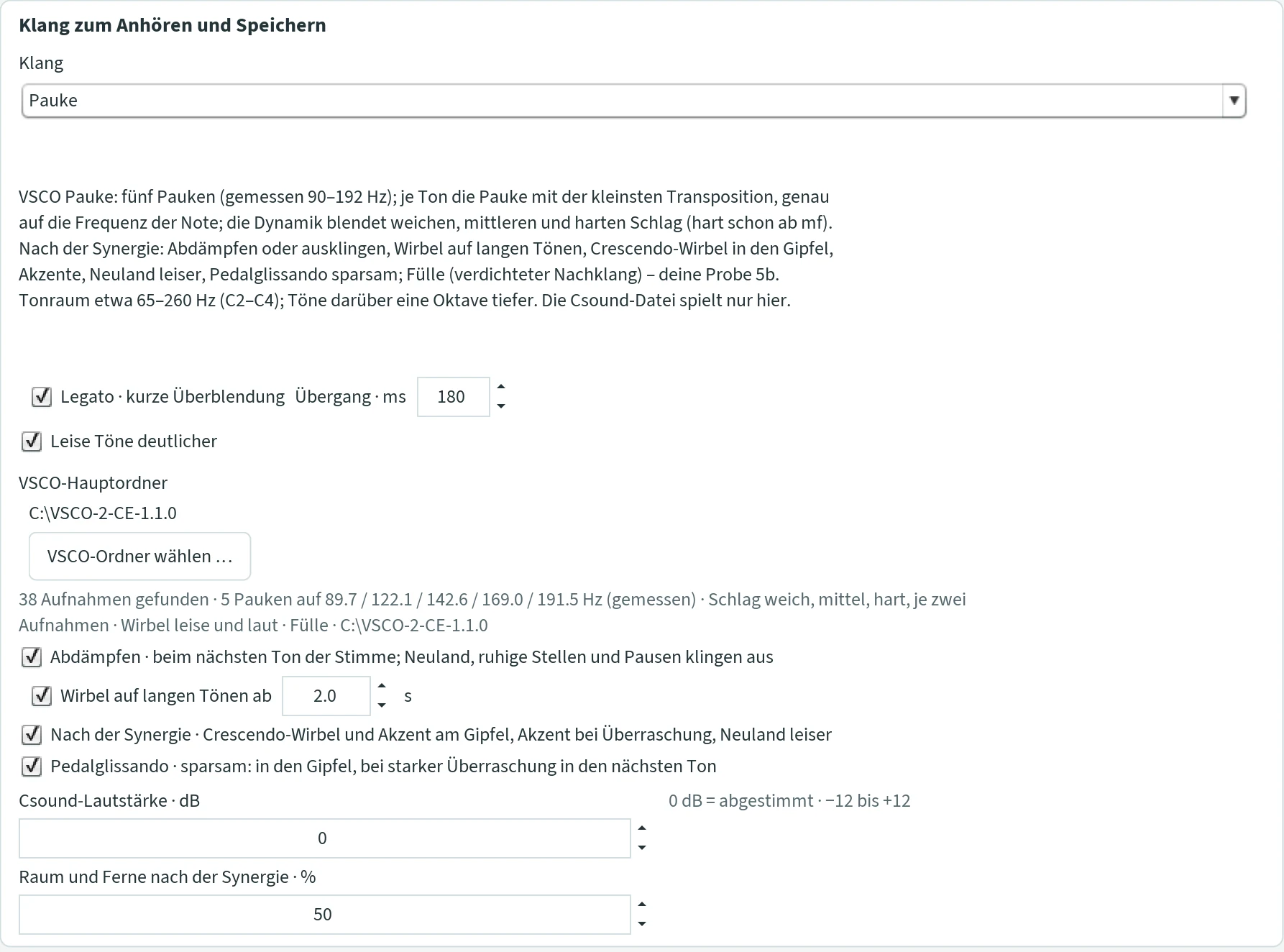
Five timpani (measured about 90 to 192 Hz): for every note JCself takes the drum with the smallest transposition and brings it exactly to the frequency of the note; the dynamics blend soft, medium and hard stroke – hard from mf on. The range is about C2 to C4 (65 to 260 Hz); notes above sound an octave lower. A fullness stage densifies the ring so that the timpani sound full and strong.
- Abdämpfen · beim nächsten Ton der Stimme; Neuland, ruhige Stellen und Pausen klingen aus (damping · at the next note of the voice; Neuland, calm passages and rests ring out)
- On: the timpanist damps the stroke when the next note of its voice comes (not on repeated notes; in a rest half a second after the note). Peak and final notes always ring out; with “Nach der Synergie” also the Neuland, calm passages (liveliness below 25 %) and notes before a rest of 1.5 s or more. Off: everything rings out, up to 10 s. Default on.
- Wirbel auf langen Tönen ab … s (roll on long notes from … s)
- Notes of the main voice from this length are rolled – a soft or loud roll according to the dynamics; long accompanying notes in the Neuland ring out as soft strokes. 0.5 to 10 s, default on from 2 s. Off: strokes only.
- Nach der Synergie · Crescendo-Wirbel und Akzent am Gipfel, Akzent bei Überraschung, Neuland leiser (by the synergy · crescendo roll and accent at the peak, accent at surprise, Neuland quieter)
- The note of the main voice before the peak becomes a crescendo roll into the peak; the peak an accent with all chord notes that rings out; surprises from 0.5 are accented; in the Neuland everything is quieter. Default on.
- Pedalglissando · sparsam: in den Gipfel, bei starker Überraschung in den nächsten Ton (pedal glissando · sparingly: into the peak, at a strong surprise into the next note)
- The crescendo roll glides into the peak note – from the preceding note if it is at most a fifth away, otherwise from the fourth below; at a strong surprise (from 0.8) the ring glides into the next note, up to a fifth. Imitated, since the VSCO has no glissando recorded. Only with “Nach der Synergie”. Default on.
Große Trommel (bass drum)
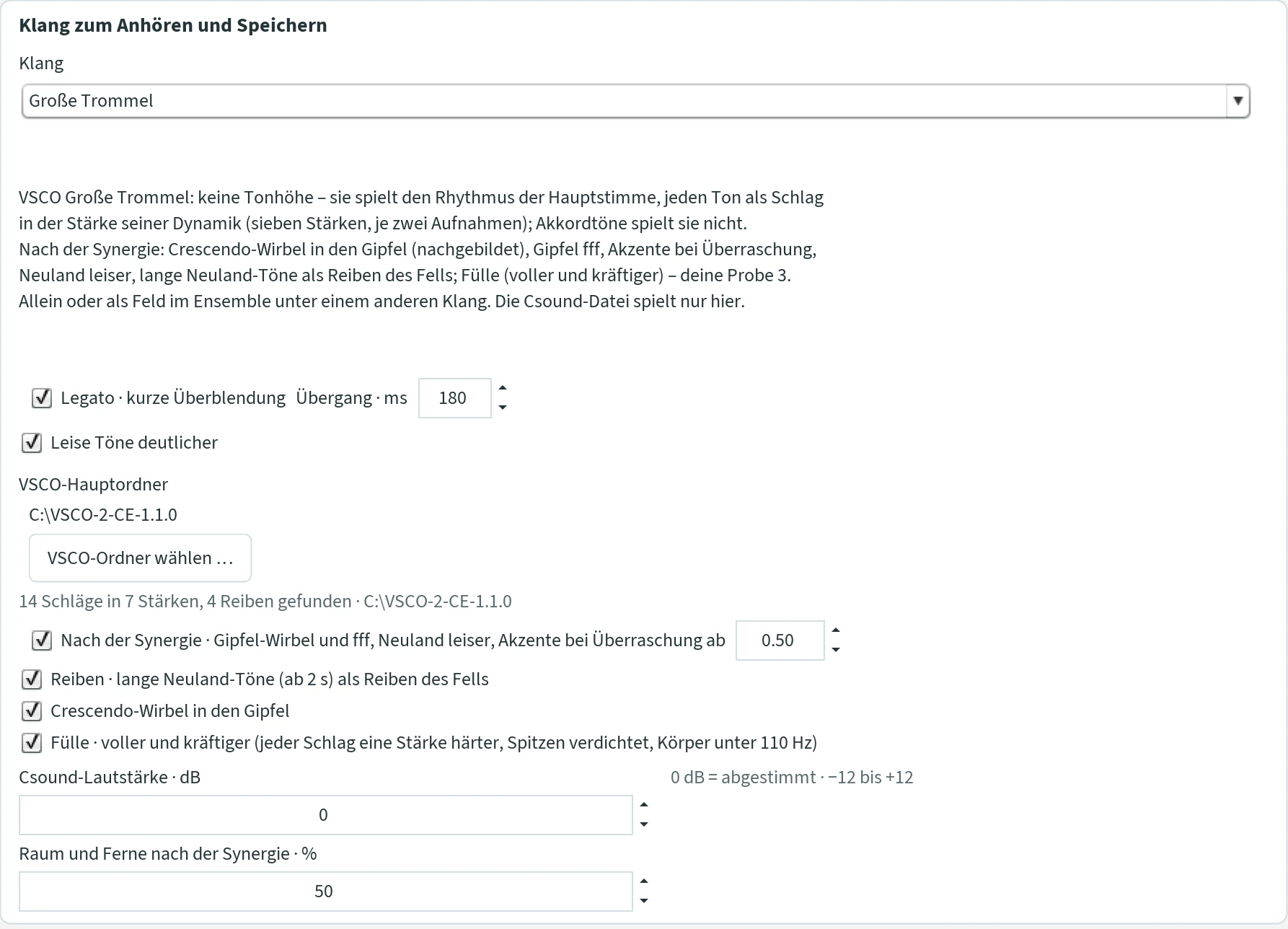
The bass drum has no pitch: it plays the rhythm of the main voice, every note as a stroke in the strength of its dynamics (seven strengths, two recordings each); chord notes it does not play. Alone this gives a rhythm piece; in the ensemble it plays as a field beneath another sound – with its own rhythm, since every field composes for itself.
- Nach der Synergie · Gipfel-Wirbel und fff, Neuland leiser, Akzente bei Überraschung ab … (by the synergy · peak roll and fff, Neuland quieter, accents at surprise from …)
- The note of the main voice before the peak becomes a crescendo roll (dense strokes getting louder – imitated, the VSCO has no drum roll), the peak itself fff; surprises are accented, strongly from 0.8; in the Neuland everything is quieter. Off: every note a stroke by its dynamics. Default on, from 0.5.
- Reiben · lange Neuland-Töne (ab 2 s) als Reiben des Fells (rubbing · long Neuland notes from 2 s as rubbing of the head)
- Four recordings of the rubbed drumhead – a low, swelling noise –, alternating, soft, over the length of the note. Off: soft strokes. Default on.
- Crescendo-Wirbel in den Gipfel (crescendo roll into the peak)
- Over the note of the main voice before the peak a stroke every 85 ms, from the dynamics of the note almost up to the peak. Off: one stroke. Default on.
- Fülle · voller und kräftiger (fullness · fuller and stronger)
- Every stroke one strength harder, the peaks of the strokes densified and raised, some body below 110 Hz – the quiet passages become about 4 dB louder, the strokes stay. Off: the recordings as they are. Default on.
Gong
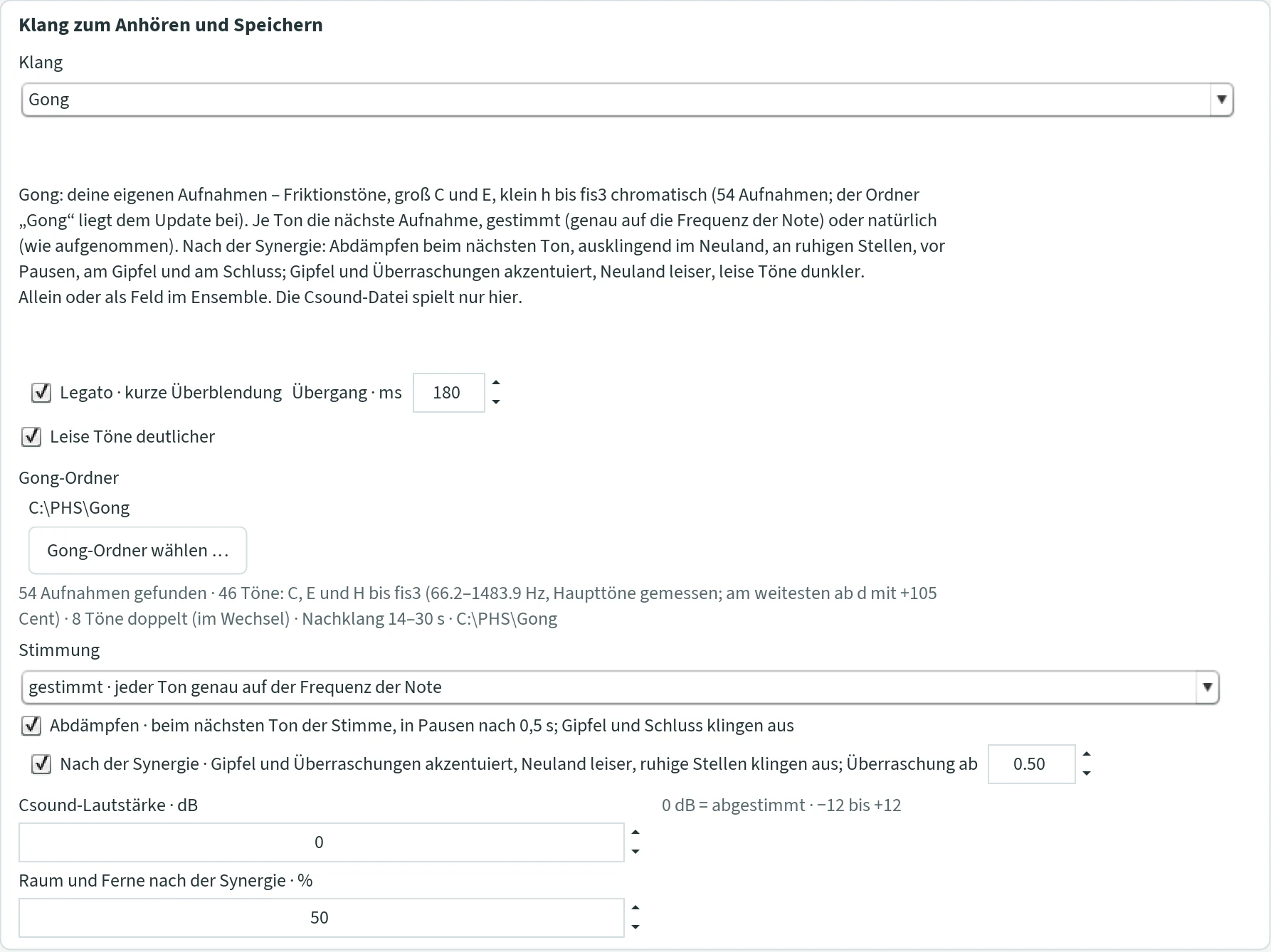
The gong is the composer’s own sound – a sound bank that exists only in JCself: Peter Heeren recorded a good two and a half octaves of his tuned gongs with the friction mallet – not struck, but drawn along the rim until the bronze begins to sing by itself –, great C and great E, then small b to f♯³ chromatically, eight notes twice: 54 recordings, 14 to 30 seconds of decay. Prepared for JCself (a high-pass against the rumble below the lowest note, cut to the onset, equal in loudness, 44.1 kHz, 16 bit, stereo) they form the folder Gong from the download page, with Gong.sfz and the subfolders groß, klein, eingestrichen, zweigestrichen and dreigestrichen. Unpack it anywhere and show it to JCself once; nothing is written into it. JCself measures the main tones itself (the strongest peak in the first two seconds): the great C lies at 66.2 Hz, the great E at 84.5 Hz, the small d at 156.0 Hz – 105 cents above its name, it sounds like an e♭; that is how the gong is, and the program works with it. Between the great E and the small b there is no recording; outside great C to f♯³ neither.
Like the timpani, the gong plays nach der Synergie (by the synergy): it damps or lets ring, accents the peak and the surprises, plays the Neuland quieter and quiet notes darker – playing techniques of an instrument, not rules of composition. The composition is the same as with any other sound. In the duet, trio and ensemble every field can play the gong; the ticks of this section apply to all fields. The Csound file refers to the recordings in the Gong folder instead of containing them, and therefore only plays on a computer with this folder.
- Gong-Ordner · Gong-Ordner wählen … (Gong folder · choose Gong folder)
- The folder in which
Gong.sfzlies. Beneath it says what JCself found: “54 Aufnahmen gefunden · 46 Töne: C, E und H bis fis3 (66.2–1483.9 Hz, Haupttöne gemessen; am weitesten ab d mit +105 Cent) · 8 Töne doppelt (im Wechsel) · Nachklang 14–30 s” (54 recordings found · 46 notes: C, E and B to f♯³, main tones measured, farthest off d by +105 cents · 8 notes twice, alternating · decay 14–30 s). Without the folder the gong does not sound; “Bitte den Gong-Ordner wählen” says so. - Stimmung · gestimmt (tuning · tuned)
- Default. Every note takes the recording with the smallest transposition – by the measured main tone, not by the name: a d of the composition takes the gong’s c♯ (141 Hz), an e♭ its d – and is brought exactly to the frequency of the note, played back faster or slower. The sound moves with it, mostly by less than 50 cents; in the gap between great E and small b by up to three and a half semitones, outside great C to f♯³ shifted by an octave. Tuning systems, pure intervals and chords stay exact.
- Stimmung · natürlich (tuning · natural)
- Every note takes the nearest recording as it is: nothing is transposed, the gong sounds exactly as recorded, up to about 100 cents beside the note. Where no recording lies within 150 cents – in the gap, outside the range –, it takes the one of the octave above or below, unchanged as well. Two recordings of the same note alternate and sound different, like the recordings. Tuned you hear the composition, natural you hear the gong.
- Abdämpfen · beim nächsten Ton der Stimme, in Pausen nach 0,5 s; Gipfel und Schluss klingen aus (damping: at the next note of the voice, in rests after 0.5 s; peaks and the end ring out)
- A gong rings 14 to 30 seconds. On: the player damps it with the hand when the next note of its voice comes (not at a repeated pitch), in a rest of a second or more half a second after the note. It rings out at the peak and at the end; with “Nach der Synergie” also in the Neuland, at quiet places (liveliness below 25 %) and before a rest of 1.5 s or more. Off: every note rings out fully, the notes pile up – louder and denser. Default on. The “Verlängerung der Töne” in the tab “Komposition” changes nothing here: how long a stroke sounds is decided by the recording and the damping.
- Nach der Synergie · Gipfel und Überraschungen akzentuiert, Neuland leiser, ruhige Stellen klingen aus; Überraschung ab … (by the synergy: peaks and surprises accented, Neuland quieter, quiet places ring out; surprise from …)
- The peak is an accent with all its chord notes, surprises from the set threshold (0.1 to 1, default 0.5) are accented, in the Neuland everything is quieter and rings out. Quiet notes are darker: a gentle stroke wakes fewer partials, so a low-pass rises with the dynamics (at dynamics 20 from 1.7 kHz, at 40 from 4.6 kHz, from 45 none). Default on.
Violine (violin)
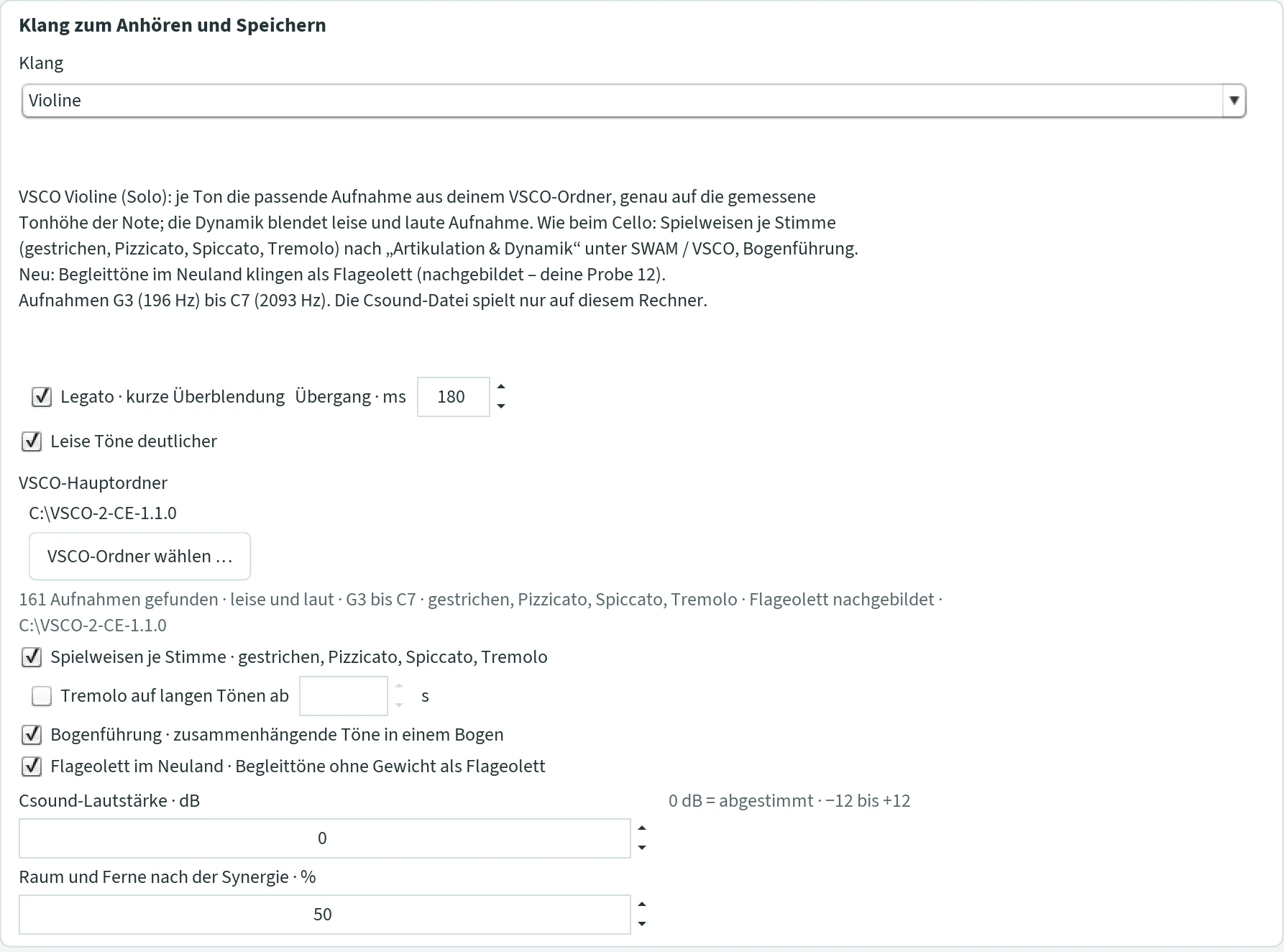
The solo violin plays like the cello ensemble: bowed (soft and loud recording by the dynamics), pizzicato, spiccato and tremolo according to “Artikulation & Dynamik”, every voice for itself, with bowing. The recordings are from G3 to C7 (196 to 2093 Hz) and brought exactly to their measured pitch.
- Spielweisen je Stimme · gestrichen, Pizzicato, Spiccato, Tremolo (playing styles per voice)
- As for the cello. Off: everything bowed. Default on.
- Tremolo auf langen Tönen ab … s (tremolo on long notes from … s)
- Bowed notes from this length play tremolo, even if “Spielweisen je Stimme” is off. 0.5 to 10 s. Default off – tremolo then comes only via the playing styles.
- Bogenführung · zusammenhängende Töne in einem Bogen (bowing · connected notes in one bow)
- Notes of a voice that follow each other directly share one bow – without a new stroke, the dynamics glide – until the bow is used up after 6 s. Default on.
- Flageolett im Neuland · Begleittöne ohne Gewicht als Flageolett (harmonics in the Neuland · accompanying notes without weight as harmonics)
- The violin has no harmonics recordings; JCself imitates them: the accompanying notes of an entry without weight – in the Neuland, no peak in sight – sound like harmonics, almost only fundamental and second partial, a breath of bow noise, quieter. The main voice stays bowed. Default on.
Csound file, finding Csound
- The Csound file (.csd)
- “Erzeugen” writes every piece as a Csound file – with the sound currently set under “Csound”, even if you listen with something else. Everything is in this one file: the sounds, the notes and the recordings of cello, trumpet, piano, Bronzofof or your own sound. It can be opened and edited further in Csound or CsoundQt. The only exception are the instruments from the VSCO library (piccolo to cello ensemble) and the gong: then the file refers to the recordings in your VSCO or Gong folder and only plays on a computer where this folder is in the same place. Room and distance and the breath before a peak are included in the file. A saved file does not change later.
- Csound-Datei speichern … (save Csound file)
- In the section “Dieselbe Komposition, anderer Klang” (same composition, different sound): saves the existing piece with the sound now set as a new Csound file, without composing again. The next “Erzeugen” and “MIDI speichern” then use this new name.
- Csound auswählen … (choose Csound)
- Next to it is “Csound gefunden” (Csound found) or “Csound noch nicht gefunden” (not found yet). Choose the file
csound.exein the subfolderbinof the Csound installation (Windows) or the filecsound(Mac) – not CsoundQt. - WAV speichern (save WAV)
- Csound renders the piece as a WAV file, stereo with 24 bit and 44.1 kHz (48 kHz with all FOF variants except Vocefof). You choose the location freely. A piece may last at most 120 minutes.
Eigener WAV-Klang (own WAV sound)
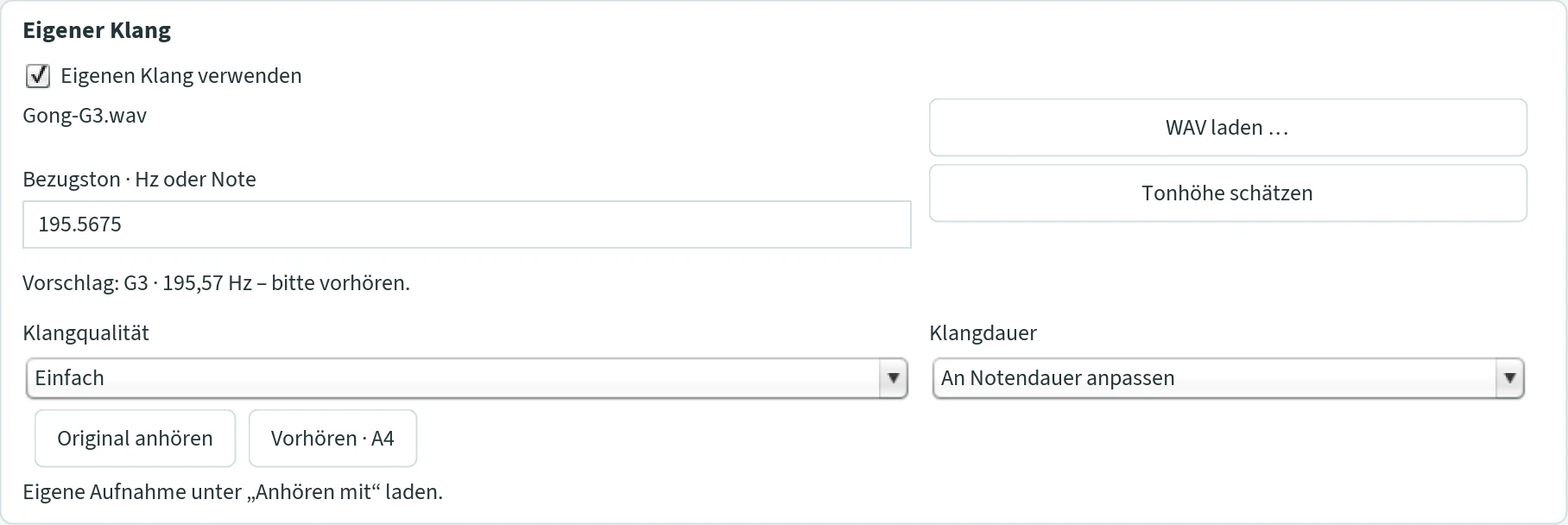
JCself plays your piece with a recording of your own, for example a gong, a singing bowl or a voice: the recording is tuned higher or lower to suit every note.
- WAV laden … (load WAV)
- Mono or stereo, 8 to 192 kHz, PCM or floating point, at most 120 seconds. JCself makes a working copy in the folder
Gipfel-Daten; the original remains untouched. Then it estimates the pitch. - Bezugston · Hz oder Note (reference pitch · Hz or note)
- Which pitch the recording has – as a number (440, also 261,63) or as a note in German names (A4, Cis4 for C♯4, Fis3 for F♯3; German H and B are distinguished: H = B natural, B = B♭; A4 = 440 Hz, C4 = 261.63 Hz). From this JCself calculates how far it retunes the recording for each note, exactly, without rounding. Confirm with Enter.
- Tonhöhe schätzen (estimate pitch)
- Estimates the reference pitch again. The result reads, for example, “Vorschlag: G3 · 195,57 Hz – bitte vorhören” (suggestion … please preview). For noises or bells with an unclear pitch, enter the reference pitch yourself.
- Eigenen Klang verwenden (use own sound)
- Switches the recording on. At the same time, Csound with the sound “JCself-Sinus” then plays this recording.
- Klangqualität (sound quality)
- Hoch · Rubber Band (high): more precise changes of pitch and time with the included program Rubber Band; the calculation takes longer. Windows only. Einfach (simple): a built-in method, faster; always on the Mac.
- Klangdauer (sound length)
- An Notendauer anpassen (fit to note length): every recording is stretched or squeezed to the length of the note. Natürlich ausklingen lassen (let it ring out naturally): every note lasts as long as the recording; decays overlap, the entries stay.
- Original anhören · Vorhören · A4 (play original · preview A4)
- “Original anhören” plays the recording unchanged. “Vorhören · A4” plays it brought to 440 Hz: if that sounds like an A, the reference pitch is right.
When listening, JCself first calculates the whole mix (“Klang berechnen: 12 von 80 Tönen” (calculating sound: 12 of 80 notes)) and then plays it. “WAV speichern” writes stereo, 44.1 kHz, 24 bit.
SWAM / VSCO
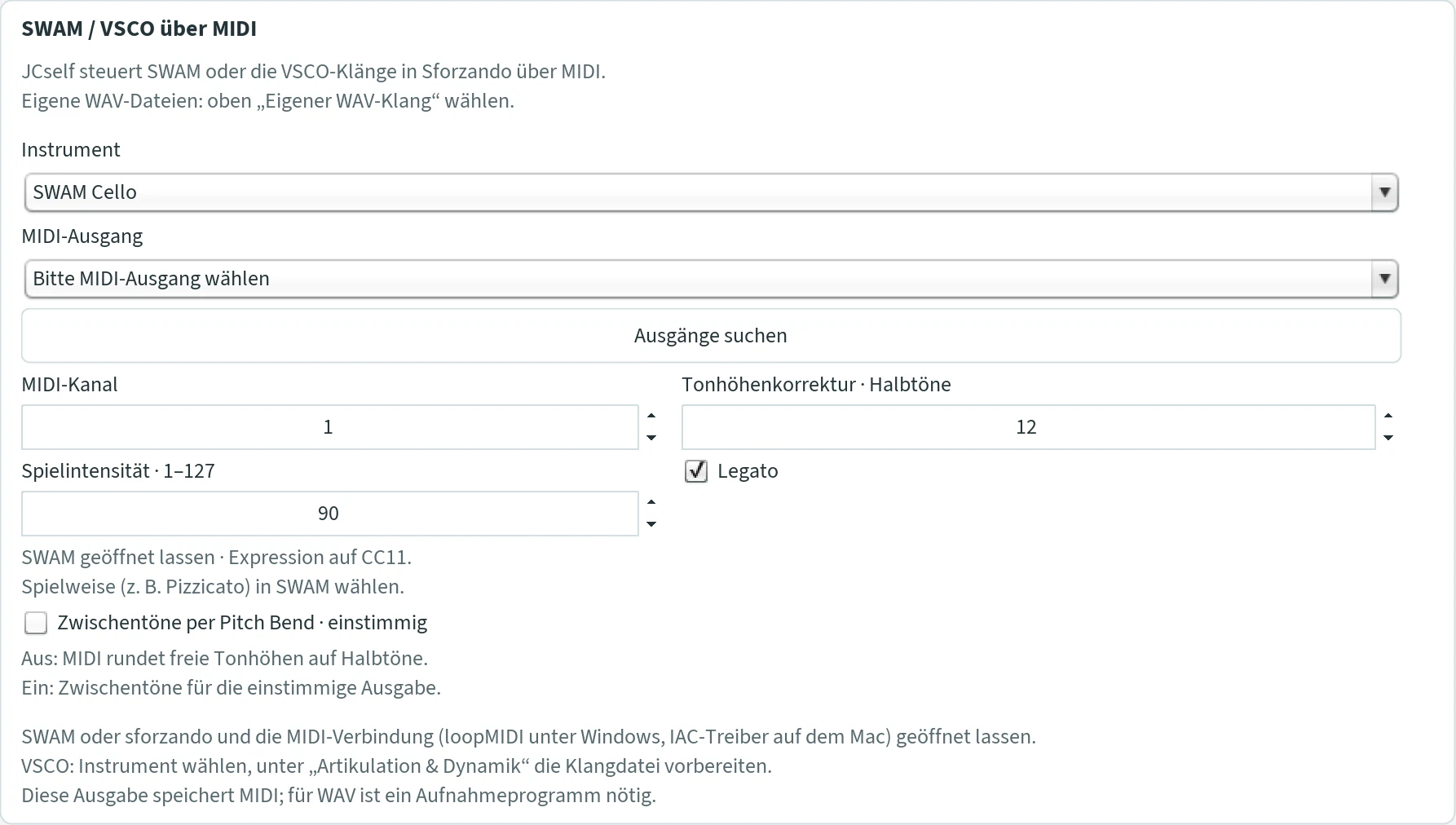
Here JCself does not produce any sound itself: it sends the composition via MIDI to another program – to instruments of the SWAM series by Audio Modeling, or to sforzando with the library VSCO 2 Community Edition. For this you need a virtual MIDI connection (loopMIDI on Windows, the IAC driver on the Mac) that is chosen as the input in the sound program. Keep both programs open.
- Instrument
- SWAM Cello, SWAM Violine (violin), Anderes MIDI-Instrument (other MIDI instrument), VSCO Cello-Ensemble, VSCO Solo-Violine, VSCO Trompete, VSCO Klavier. For VSCO see VSCO via sforzando.
- MIDI-Ausgang · Ausgänge suchen (MIDI output · find outputs)
- The virtual connection over which JCself sends. If a newly created connection does not appear, restart JCself.
- MIDI-Kanal (MIDI channel)
- 1 to 16. Default 1.
- Tonhöhenkorrektur · Halbtöne (pitch correction · semitones)
- Is added to every note. SWAM Cello is set to “Transpose −12” at the factory; then +12 here. If SWAM is set to 0, 0 here as well. With VSCO 0.
- Spielintensität · 1–127 (playing intensity)
- How strongly the instrument plays overall. JCself sends the loudness curve of the piece along by itself (as “Expression”, CC 11). 90 is a good starting point.
- Legato
- Connects successive notes; real rests remain. Default on.
- Zwischentöne per Pitch Bend · einstimmig (microtones via pitch bend · monophonic)
- Transmits the exact pitches instead of rounded semitones: before each note, JCself sends a fine correction. Set the pitch-bend range in the sound program to ±2 semitones. Only for monophonic sequences without chords; overlapping notes only with “Keine Tonüberschneidung”. Default off.
- SWAM Cello and SWAM Violine always play monophonically: switch off chords and further voices for them. Their range: cello C2–F6 (65.41–1396.91 Hz), violin G3–F7 (196–2793.83 Hz). You choose the playing technique, such as pizzicato, in SWAM.
- “Anderes MIDI-Instrument” may play polyphonically.
- MIDI speichern writes a MIDI file with all control data (suggested name
JCself-SWAM.mid). It can be played and recorded in a music program with SWAM or sforzando. JCself does not produce a WAV file in this mode; for that you need a recording program.
Listening and saving
The buttons at the bottom right
- Erzeugen (generate)
- Calculates a new composition and writes it as a Csound file. The first time, you choose location and name; after that JCself uses the same file and asks each time “Diese Datei ersetzen?” (replace this file?). With “Nein” (no) nothing is created. You choose a new name beforehand via Datei › Csound-Datei wählen … in the menu. At the end JCself reports “Csound-Datei gespeichert” (Csound file saved).
- Anhören (listen)
- Plays the most recently generated composition with the kind chosen in the tab “Klang”. Available as soon as something has been generated in this session: after the program starts, JCself does not load an earlier composition.
- MIDI speichern / WAV speichern (save MIDI / save WAV)
- The button follows the playback: “WAV speichern” with Csound and the own WAV sound, otherwise “MIDI speichern”. With MIDI it only becomes available after listening.
- Abbruch (cancel)
- Ends whatever is running. If you cancel “Erzeugen”, the previous composition is kept. Cancelled WAV files do not replace an existing file.
Generate again or just listen again?
| You change … | … and then |
|---|---|
| something in the tab “Komposition” | Erzeugen |
| “Keine Tonüberschneidung”, “Lücken schließen” | Anhören is enough |
| “Verlängerung der Töne · ms” | with Csound Erzeugen, otherwise Anhören |
| something in the tab “Klang” | Anhören is enough |
| something and want to update a saved file | save again – saved files do not change afterwards. For the Csound file: “Csound-Datei speichern …” or Erzeugen; for MIDI: listen first, then “MIDI speichern”. |
What is saved where
| File | Created by | Location |
|---|---|---|
| Piece.csd | Erzeugen, “Csound-Datei speichern …” | chosen freely |
| Piece.mid | “MIDI speichern” (MIDI) | next to the Csound file, same name |
| JCself-SWAM.mid | “MIDI speichern” (SWAM / VSCO) | chosen freely |
| JcSelf-Sound.wav | “WAV speichern” (Csound) | chosen freely |
| JcSelf-Eigener-Klang.wav | “WAV speichern” (own WAV sound) | chosen freely |
| JCself-Noten.musicxml | “Noten speichern (MusicXML) …” in the tab “Komposition” or in the ensemble window | chosen freely, suggested in the JCself folder |
| saetze.txt, verlauf-landschaft.properties | the text of the sentences and the drawn excitation landscape (tab “Form”), automatically | Gipfel-Daten |
| Vorlage.jct | Datei › Template speichern | chosen freely |
| JCself-Duett.* / JCself-Trio.* / JCself-Quartett.* … | “Speichern …” in the duet, trio or ensemble | chosen freely |
The first time, the file dialog opens in the folder Gipfel-Daten.
The display
At the top of the window, JCself shows the weight distribution from which it chooses. Before the first generation it reads “Die Gewichtsverteilung erscheint beim Erzeugen.” (the weight distribution appears when generating)
While composing
- Area
- The weight distribution over the range. The highest value always reaches the full height.
- Line with filled triangle
- The note just chosen.
- Ochre dot
- The peak, the point of the highest weight.
- Open triangle
- The start frequency.
- Labels
- Top left “Durchlauf …” (run), top right “Ton … Hz · Gipfel … Hz” (note … · peak …), at the bottom the hertz scale.
While listening

With Csound, the own WAV sound and SWAM/VSCO the display runs along: it shows the distribution that belonged to this moment of the composition, plus a strong line with a dot for each sounding note and thinner lines for the chord notes. Small arrows at the left or right edge stand for notes below or above the range shown. Top left reads “Wiedergabe 0:39 von 1:01” (playback 0:39 of 1:01), top right the sounding notes in hertz or “Pause” (rest). With MIDI the display shows the composition step by step (“Wiedergabe · Schritt …”). It does not run along while a WAV file is being saved. On slow computers it can run slightly ahead with Csound.
Anzeige 3D (3D display)

Under Optionen › Anzeige 3D, JCself staggers the distributions of the last runs one behind the other in perspective, the newest at the front. The red arrow shows the chosen note, the green one the start frequency; the axis is divided in kilohertz. The switch takes effect from the next “Erzeugen”; while listening, the usual view appears. The background picture stays visible behind the 3D view as well. Optionen › Anzeige 2D switches back.
Hintergrundbild (background picture)
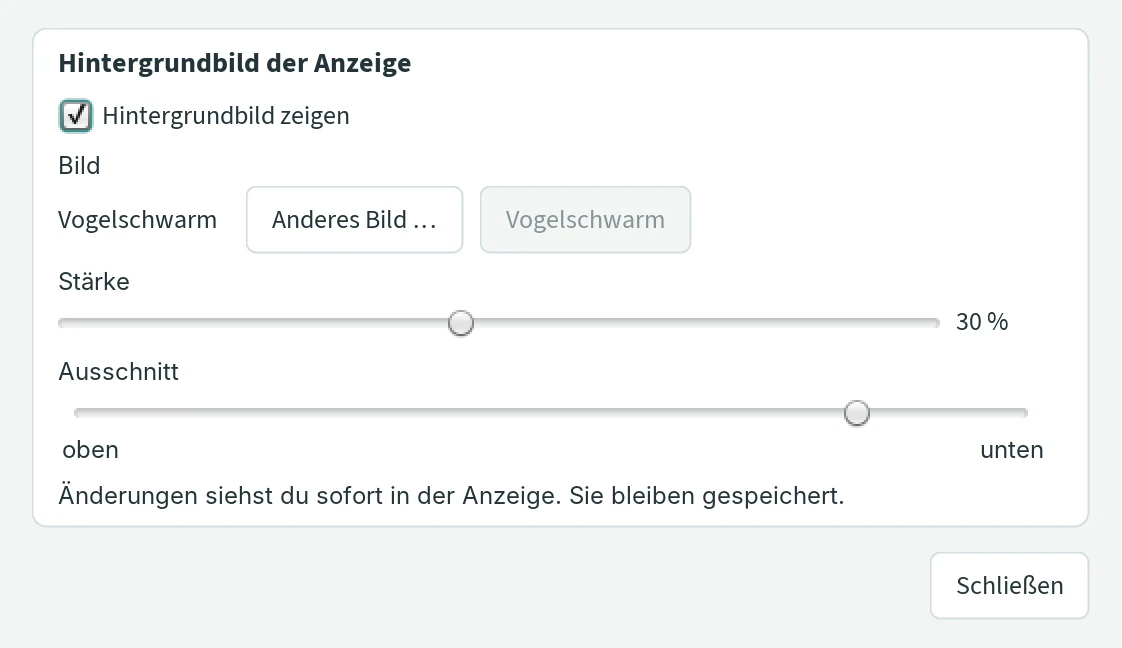
Behind the display lies a photo of a flock of birds. Under Optionen › Hintergrundbild … you switch it off (Hintergrundbild zeigen (show background picture)), choose a picture of your own (Anderes Bild … (other picture): JPG, PNG, GIF or BMP; the button Vogelschwarm (flock of birds) leads back), and set the Stärke (strength) (5 to 60 %, default 30 %) and the Ausschnitt (section, top to bottom). Every change is visible immediately and stays saved. JCself reads a picture of your own from its location; if you move it, the flock of birds appears again.
Duet, trio and ensemble
In the duet, the trio and the ensemble, several JCselfs compose at the same time, each with its own settings – like musicians listening to each other. The individual voices are called Felder (fields) (A, B, C …). When a field reaches a new peak, it gives other fields an impulse. So they stimulate each other without prescribing each other’s notes.
The buttons Duett …, Trio … and Ensemble … open a window of their own for this; while it is open, the main window is locked. At the top of the ensemble stands Felder (fields) with a number and the buttons + and −: as many fields as you want, from four up – type the number or set it with + and −, and the window rebuilds itself with the new number at once, without closing. Beside it stands the name: Quartett, Quintett, Sextett, Septett, Oktett, Nonett, above that “Ensemble · 24 Felder”. What is already set in the fields is kept when you change the number; new fields start with the registers of fields D to I. The limit in the program is 999 fields – every field is a tab with all its values and a curve, so screen and computer set the real limit. With the swarm every field grows as large as you like, and with Felder von JCself … JCself sets the fields itself. Duet, trio and ensemble are independent of the piece in the main window; the tuning system and the switches “Melodie” and “Ausdruck” apply here too, however.
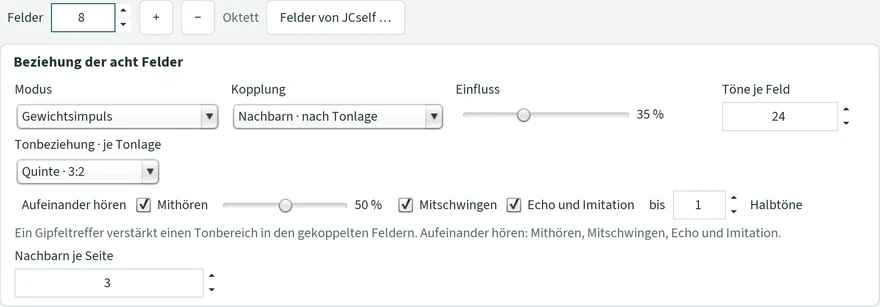
Beziehung der Felder (relation of the fields)
- Modus (mode)
- How the impulse acts. Gewichtsimpuls (weight impulse): a peak in one field makes a certain region of notes more likely in the fields it stimulates; which notes come there remains free. Evolution · Annäherung (evolution · convergence): at every peak the stimulated fields move a little closer – in durations, population, selection size, grid, weighting width, chance, degression, entry spacing and extension, and also in the shape of their weight distribution. So the fields become more alike over time.
- Richtung · Kopplung (direction · coupling)
- Who stimulates whom. Duet: Unabhängig (independent – nobody), A → B (only A stimulates B) or A ↔ B (both each other). Trio: all each other. From the quartet on the field is called Kopplung (coupling): Alle wechselseitig (all mutually) – every peak hit acts on all other fields; Nachbarn · nach Tonlage (neighbours · by register) – only on the fields directly below and above, ordered by the middle of their range; Kette · A → B → C … (chain) – each field acts on the next, the last on none; Unabhängig – no coupling.
- Nachbarn je Seite (neighbours on each side)
- Only with the coupling “Nachbarn”: on how many fields below and above a field acts and how many it hears. 1 is the nearest neighbour on each side; 7 means every field hears its seven neighbours below and above – the way a starling in a flock keeps to about seven neighbours. Default 1.
- Einfluss (influence)
- How strongly the weight impulse acts, 0 to 100 %. Default 35 %.
- Tonbeziehung (pitch relation)
- At which pitch the impulse arrives: the same note (1:1), a fifth (3:2) or an octave (2:1). Example fifth: a peak at 220 Hz in field A makes the area around 330 Hz more likely in field B; in the trio, field C lies a fifth below A (147 Hz). In the ensemble the relation applies je Tonlage (per register): each next higher field lies higher by this interval, and the impulse is placed in octaves into the range of the stimulated field. Default fifth.
- Annäherung pro Gipfel · % (convergence per peak)
- Only with evolution: how far a stimulated field moves closer at each peak, 0 to 95 %. Default 20 %. Tonräume mit angleichen (align ranges as well) also brings the lowest and highest frequency closer.
- Töne je Feld (notes per field)
- The runs per field, 1 to 1000 – with the fading only the upper limit: every field dies down when its mountains have faded. Default 40.
Aufeinander hören (listening to one another)

The peak impulse alone rarely lets the fields hear one another – a peak occurs only a few times in a field. So in the mode “Gewichtsimpuls” the fields listen to one another constantly, in three ways, each switchable on its own; all off gives the coupling as before. The choice of notes always stays free: no field prescribes notes to another, it leaves traces.
- Mithören · % (listening in)
- Every note a field hears from a coupled field leaves a trace in its own weight landscape – with this strength compared with a note of its own (50 %: half as strong), in the octave of its range closest to its last note, and in the pitch relation set. So the fields form common regions over time. Off: only the peak sends. Default on, 50 %.
- Mitschwingen (swinging along)
- If the next entry of a coupled field lies close to the field’s own planned one – within 30 % of its own step –, its own entry falls exactly on it. The fields attack together more often without their durations becoming equal. Default on.
- Echo und Imitation · bis … Halbtöne (echo and imitation · up to … semitones)
- If a field chooses a note that lies at most this many semitones from a note it has heard from a coupled field in the last four seconds, it falls exactly on that note – in its own octave: an echo; several in a row an imitation. At 1 semitone that hits about every third note, at 3 semitones about two in three. 0.5 to 4; default on, 1.
The status line after generating counts along: “633 Spuren, 145 gemeinsame Einsätze, Echo und Imitation: 191 Töne fielen auf gehörte” (633 traces, 145 common entries, echo and imitation: 191 notes fell onto notes heard), plus the ending, the form and the listener of every field, such as “A: Ausklang nach 135 Durchläufen (4:09 min), 10 Phrasen · 4 Phasen (verdichtet 2 × 27–72 s, gelöst 2 × 41–111 s), Überraschung im Mittel 0.46, Langeweile 0.36 – 5 Reprisen, 2 Phasen aus Langeweile gekippt, Melodie 50 %” (ending after 135 runs, 10 phrases · 4 phases, surprise on average 0.46, boredom 0.36 – 5 reprises, 2 phases tipped out of boredom) – and with a text its sentences, with a role the role. With “Evolution” and without coupling the line is grey.
Verläufe (curves) and fields
Under “Verläufe”, a small display for each field shows its weight distribution and the chosen note, running along while generating and listening; in the ensemble they are arranged in two columns, from seventeen fields on in three, from thirty-three on in four. A thick line means: here the field reaches a peak. “Impuls: … Hz” means: here an impulse from another field arrived. When listening zapped, the field that can be heard right now is framed and labelled “gehört” (heard).
The tabs Feld A, Feld B and so on contain the settings of each field, as in the main window: population, selection size, frequency grid, range, start, durations, time grid, “Tonsystem verwenden”, “Keine Tonüberschneidung”, “Akkord”, plus the loudness of the field and the swarm, and, under “Weitere Einstellungen” (further settings), weighting width, random weighting, degression, legato, the reaction at the peak and two fields of their own. With more than sixteen fields the tabs carry only the letters – A to Z, then AA, AB and so on.
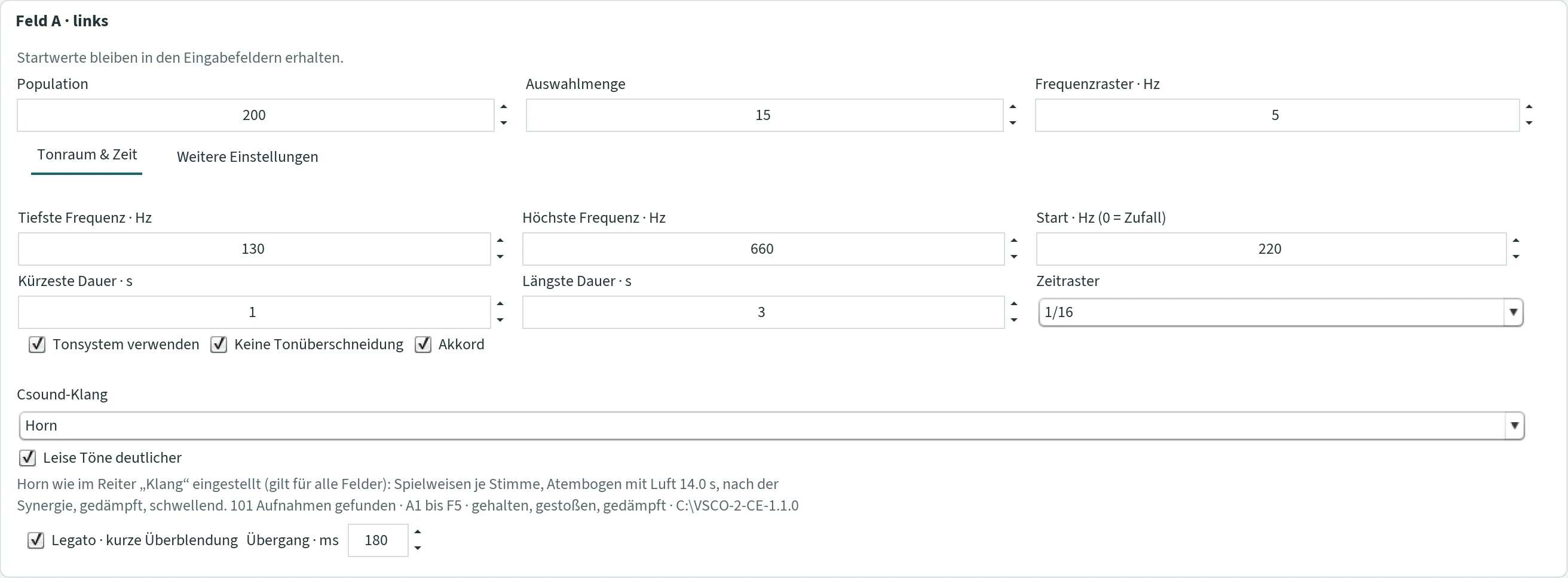
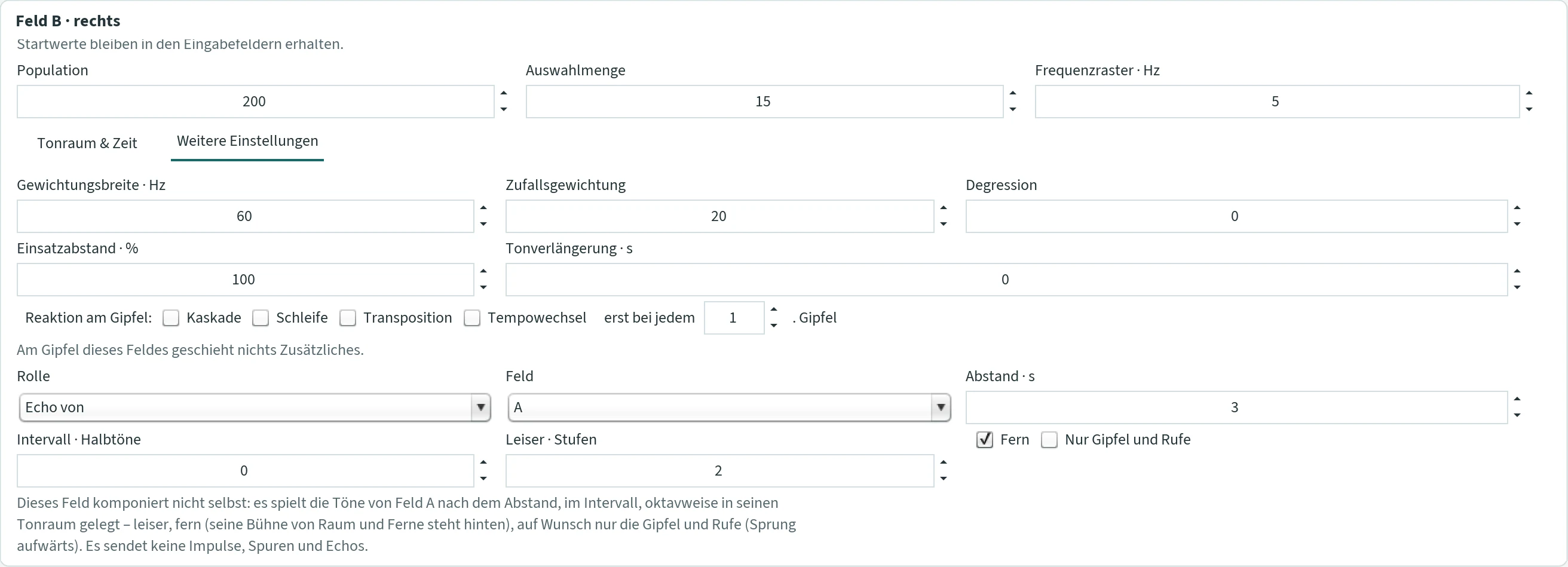
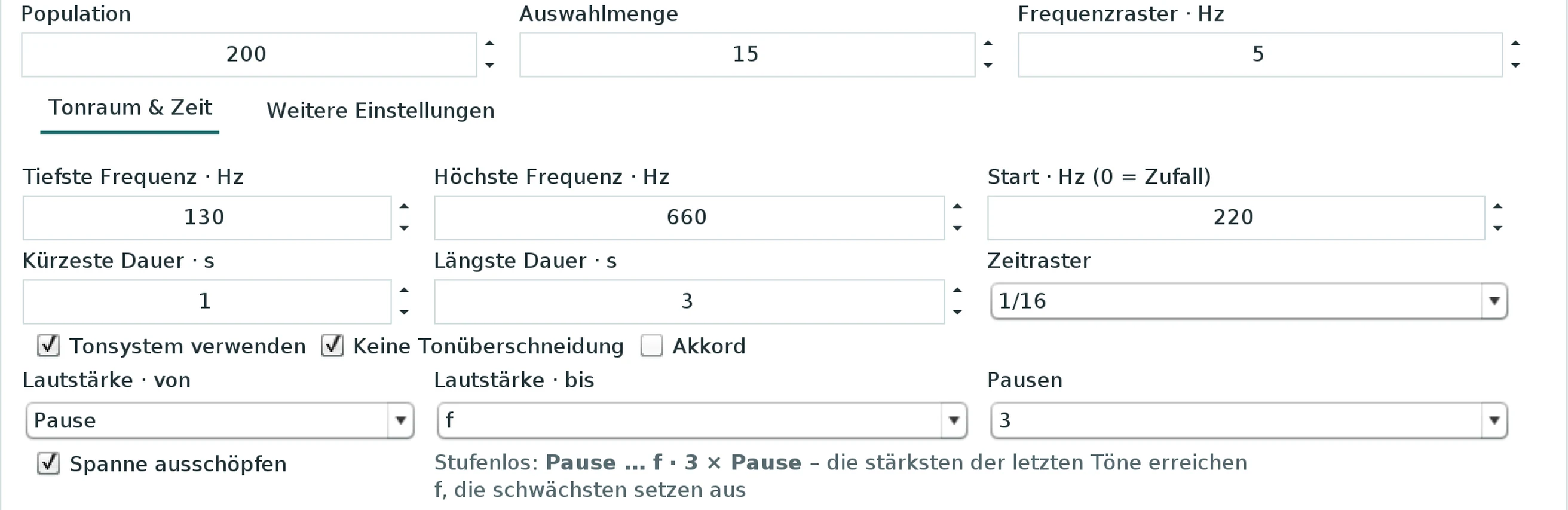
- Einsatzabstand · % (entry spacing)
- Distance to the next entry as a percentage of the note length. 100 %: the next note begins when the previous one ends. Less: the notes overlap. More: rests arise.
- Tonverlängerung · s (note extension)
- Lets every note sound longer, in seconds.
- Lautstärke · von / bis · Pausen · Spanne ausschöpfen (loudness from / to · rests · use the whole span)
- In the tab “Tonraum & Zeit”, as in the main window under Dynamik & Stimmen: the loudness range of this field from ppp to fff, the rest as the lowest level (“Pause” at “von”, or one to ten under “Pausen”), and “Spanne ausschöpfen” – stepless, measured against the last notes of the field. How loud a note becomes follows from its weight; here only the range. So the fields can be balanced against each other, say a bass voice p to mf, a melody voice mp to ff. Default mp to f, no rests, span off – that is how every field played until Update 92. The line below names the levels that occur.
- Akkord (chord)
- The synergetic chord as in the main window: chord notes to the main voice of this field, with the chord spacing and the tuning system of the main window. The sounds treat the chord notes as voices of their own – accompaniment quieter, harmonics in the Neuland, pizzicato by weight. Default off.
- Reaktion am Gipfel · Kaskade, Schleife, Transposition, Tempowechsel · erst bei jedem … Gipfel (reaction at the peak · cascade, loop, transposition, tempo change · only at every … peak)
- The peak reactions of the main window for this field, each with a tick; several ticked come mixed. Following notes, steps, motif length, transposition range, tempo step and limits are those from the window “Effekte …” of the main window. “erst bei jedem … Gipfel” counts the peaks of this field (1 to 100). The line below names what is set. Default no reaction, 1.
The swarm
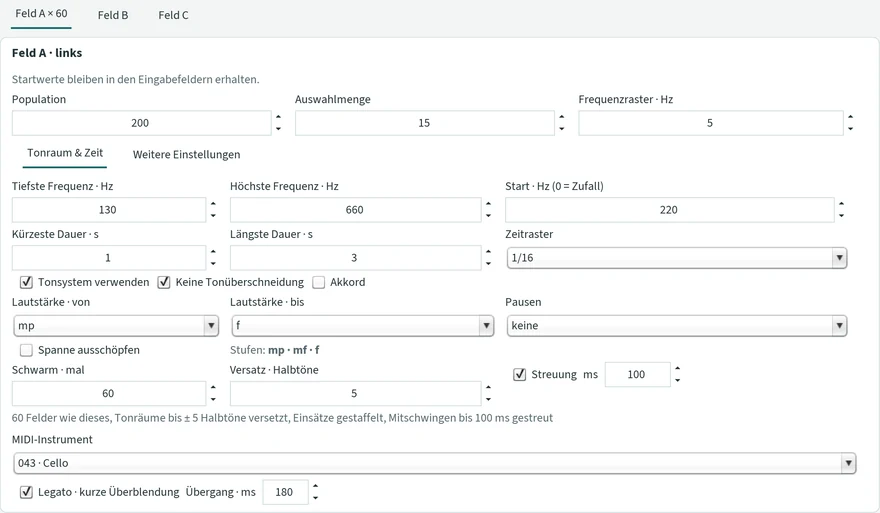
A field can be a swarm: when generating, many fields like this one then compose – each its own evolution with its own beginning, spread over the stage, coupled with the others like any field. Unlike the voices in the main window, which begin and end together within one entry, every field of a swarm breathes for itself; they hear one another only through the coupling – listening in, swinging along, echo and imitation. A swarm of sixty sine fields, each hearing seven neighbours on each side, becomes a wandering cloud that thickens and loosens by itself. Three values under “Tonraum & Zeit”:
- Schwarm · mal (swarm · times)
- How many fields like this one compose, 1 to 9999 – your computer sets the limit. The starting notes of the copies are spread evenly over the range (randomly with “Start 0 = Zufall”); on stage the first copy stands at the far left, the last at the far right. The tab is then called “Feld A × 60”; everything you set there – sound, legato, “Anhören mit”, playing techniques – applies to all copies. The curves and lines show the first copy, the status counts the swarm (“A × 60: 15 000 Töne, 123 Gipfel”), the window “Verlauf …” shows the notes of all copies per tab. In Csound files, MIDI tracks, sheet music and messages the copies are called A1, A2 … The roles follow: if B is an echo of A, B listens to A1; if C × 2 is a canon to A × 5, C1 follows A1 and C2 follows A2. Default 1 – no swarm.
- Versatz · Halbtöne (offset · semitones)
- The ranges of the copies lie up to this many semitones above and below the one set, spread evenly, 0 to 24; at the edge of the audible range a copy slides only as far as the range allows and keeps its width. 0: all in the same range. Default 0.
- Streuung · ms (spread · ms)
- Without spread the copies of a swarm often strike on the very same millisecond: they all swing along with the entries of their neighbours, and the time grid rounds them onto the same spot – the swarm becomes a rhythmic noise. With the tick every copy gets an inertia of its own: when swinging along it enters a few milliseconds later than its neighbours, each differently, up to this value; and the copies enter the piece staggered, spread over the length of the longest note, instead of all in the same instant. 0 to 2000 ms, in steps of ten; off or 0: all in step. A free time grid helps further. The line below sums it up: “60 Felder wie dieses, Tonräume bis ± 5 Halbtöne versetzt, Einsätze gestaffelt, Mitschwingen bis 100 ms gestreut”. Default on, 100 ms.
A swarm of a hundred Csound fields is too heavy for listening in real time; “WAV speichern” renders it offline, in a few minutes. “Raum und Ferne” in the tab “Klang” gives every field a reverb of its own – a hundred fields, a hundred reverbs; set the strength to 0 for large swarms, the discreet room of the ensemble remains. With the gong the copies of a field share the recordings in memory; every further gong field loads them again (about 0.9 GB). Over MIDI, fields from the tenth on share the channels. In a large swarm avoid the FOF variant Soffofio: its breath pulses coincide by the dozen and click; the other ten variants are clean.
With Csound sounds a Csound file carries at most 326 fields. This is not a limit of JCself but one of Csound: it only handles instrument numbers up to 32,767, and each field gets a hundred of them (the first 1, 2, 99 and 100, the second 101 to 200, and so on). Beyond that, “Erzeugen” says so and names the number; previously a file was written on which Csound broke off during playback. Measured: 250 fields with 38,637 notes run through, 500 fields with 4000 notes do not – so it is the number of fields that counts, not the number of notes. A swarm of 250 fields takes about five times its playing time to compute. For more fields there are two ways: compute the piece in several files and lay the WAVs on top of each other, or play the fields over MIDI – there the limit does not apply.
The role of a field
Under “Weitere Einstellungen” stands the Rolle (role): Eigenständig (independent, default) or Echo von (echo of), Kanon zu (canon to) and Imitation von (imitation of) another field, which you choose next to it. An echo or canon field does not compose itself: it plays the notes of its model after the delay, at the interval, laid by octaves into its own range – the echo quieter and, with the tick Fern (far), from the back of the stage of room and distance, on request only the peaks and calls; the canon at full strength. It sends no impulses, traces and echoes, has no form of its own, no listener and no sentences. An imitation field composes itself: at every new peak of its model and after every N-th note it takes over the model’s last notes – as many as Motiv · Töne (2 to 8), the pitches at the interval laid into its own range, with their durations – and then composes freely again. Changing the role sets the usual values: echo 3 s, unison, 2 steps quieter, far; canon 4 s, fifth; imitation fifth, 4 notes, every 12th note. A field cannot follow itself, cannot play after an echo or canon and cannot form a circle; “Erzeugen” says so when a role is not possible. The roles are stored in the line-up file of the window.
An echo or canon field, too, is a fellow player: its notes are fixed as soon as its model plays, and the coupled fields hear them as they hear any other field – with the values of Aufeinander hören (listening along, falling into step, sounding along); the model hears its own canon as well. The state of the model shapes the field according to the row “Folgestimme” of the phases; a field that follows a follower gets everything. A follower sends no peak impulses. The hint beneath the role says that the field is heard, and the status line after generating counts it: “B: Echo von A nach 3 s, Prime, 2 Stufen leiser, fern – 118 Töne – der Zustand ließ 118 Töne durch, 54 nicht, gehört: 118 Spuren, 7 Einsätze fielen auf seine” (B: echo of A after 3 s, unison, 2 steps quieter, far – 118 notes – the state let 118 notes through, 54 not; heard: 118 traces, 7 entries fell onto its).
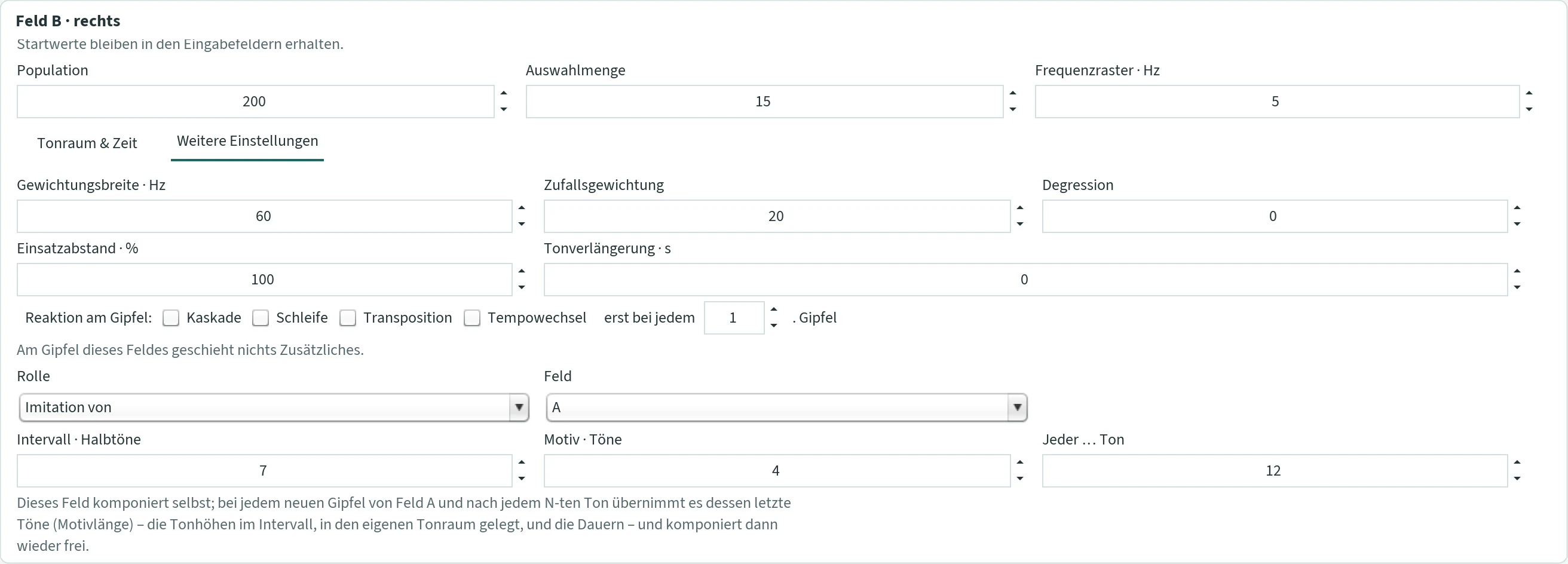
Each field plays monophonically, without pedal; loudness, rests, chord, peak reactions and the role you choose per field. Fading and ending, phases and phrases, the drawn excitation landscape, the listener, the sentences with the text of the main window, the breathing of time and room and distance apply with the values of the main window to every field by its own composition – every field has its own phases and its own listener, and all fields speak the same text. In space, in the duet field A stands on the left and B on the right, in the trio C in the centre; in the ensemble the fields line up from left (A) to right. Each field starts with its own range, durations and sound, in Csound: A cello (130–660 Hz), B FOF (196–990 Hz), C piano (87–440 Hz), D trumpet (262–1320 Hz), E cello (65–330 Hz), F sine (330–1480 Hz), G piano (55–262 Hz), H FOF (175–880 Hz), I cello (41–196 Hz). Everything can be changed.
What each field sounds with
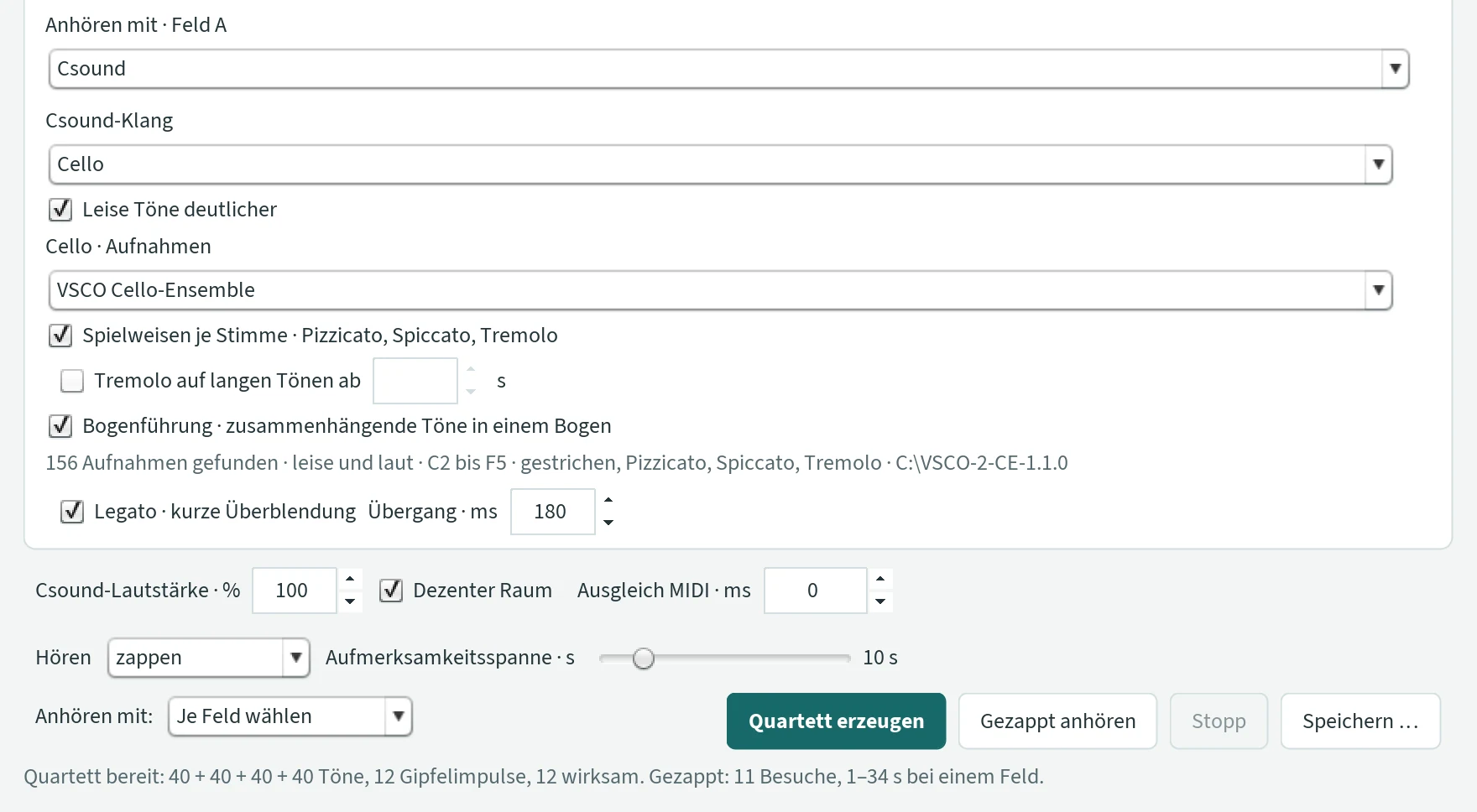
- Anhören mit (listen with)
- At the bottom of the window: MIDI, Csound, SWAM / external MIDI or Je Feld wählen (choose per field) – independent of the main window. With “Je Feld wählen”, every field shows Anhören mit · Feld A (B, C …), and each field sounds its own way: fields with Csound and fields with MIDI then play together.
- Sound of the field
- Depending on the kind, a MIDI instrument, a Csound sound or an external MIDI output; external voices need different ports or channels. As the Csound sound all sounds of the tab “Klang” are available, in score order: Autofonie, Sinus, FOF (with variant, including the mountain sounds with this field’s mountains), Lorenz, JCself-Sinus, Piccolo, Flöte, Klarinette, Horn, Trompete, Posaune, Pauke, Große Trommel, Gong, Klavier, Violine, Cello. Plus, as in the tab “Klang”, “Leise Töne deutlicher”, “Legato” and, for cello, trumpet and piano, the sound length. For an instrument from the VSCO library or the gong a line says how it is set in the tab “Klang” – playing styles, breath, synergy; for the gong tuning, damping, synergy and the recordings found –, because those ticks apply to all fields; if the VSCO or the Gong folder is missing, it says so there.
- Gong in a field
- A field with the Csound sound “Gong” plays Peter Heeren’s recordings like the main window, see Gong; its notes are damped at the next note of the field or ring out, according to the ticks of the tab “Klang”. A duet of horn and gong, both listening to each other, is one example.
- Cello · Aufnahmen (cello · recordings)
- In a field with the Csound sound “Cello”: built-in or VSCO Cello-Ensemble, then with Spielweisen je Stimme, Tremolo auf langen Tönen ab … s and Bogenführung for each field separately – as in the tab “Klang”, see Cello with VSCO recordings; in addition the Spielweise (playing style) of the field: wie unten · gestrichen · Pizzicato · Spiccato · Tremolo (as below · bowed · …), see Note follows the sounds. You choose the VSCO folder in the tab “Klang”.

Fields by JCself
You need not fill the fields by hand: the button Felder von JCself … (fields by JCself) at the top of the window lets JCself find the line-up itself – by the same principle by which it sets notes. The line-up is then itself a JCself piece: with your population, selection size and gamma, your excitation landscape, your form and your listener (all from the main window) JCself composes a short piece over the range of the fields, and every entry of that piece becomes a field:
| Note of the line-up piece | Field |
|---|---|
| Pitch | The range of the field: the fields share the whole range between their neighbours – where the notes lie close, the fields become narrow, where they lie far apart, wide (at least ± 3, at most ± 24 semitones). The field starts on its note; the fields stand in order of pitch, A is the lowest. |
| Duration | Shortest and longest duration: half to double. |
| Loudness | “Lautstärke von … bis”: one level below to one level above. |
| Voices of the entry | “Schwarm · mal”: an entry with eight voices becomes a field × 8 – at most what you allow in the frame; the offset is the mean distance of the voices in semitones. |
| Note at a peak | The field reacts at its peaks (cascade, transposition). |
| Sound | One from your palette, among those whose range holds the note – a gong where a gong sounds, a piccolo where a piccolo sounds, the electronic sounds everywhere –, by chance among these, the way JCself begins with chance. So with “Klang folgt den Tönen”; with “Ton folgt den Klängen” it is the other way round, see Note follows the sounds. |
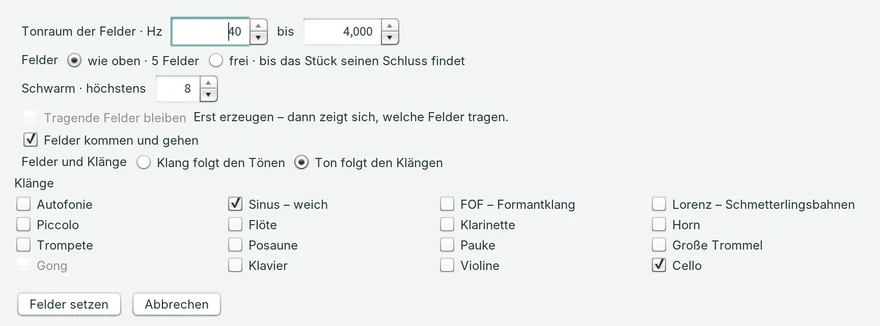
What stays in your hand is the frame – it stands in the small window the button opens, and JCself remembers it:
- Tonraum der Felder · Hz (range of the fields)
- The whole range the fields may lie in, from … to. JCself measures it in octaves: a low octave gets as many fields as a high one. Default 40 to 4000 Hz; lower, say 30 to 700 Hz, gives a dark, massive ensemble.
- Felder (fields)
- wie oben · 8 Felder (as above): as many fields as the window has. frei · bis das Stück seinen Schluss findet (free – until the piece finds its end): the line-up piece composes until it fades out (fading and ending) – as many entries, as many fields; the number is then its own. Fewer than four entries give no ensemble; the window says so, and everything stays as it was.
- Schwarm · höchstens (swarm · at most)
- How large a swarm may become, 1 to 200. Default 8.
- Tragende Felder bleiben (the fields that carry stay)
- See below, The fields that carry stay. Disabled before the first generating.
- Felder kommen und gehen (fields come and go)
- The line-up changes within the piece itself, see below, Fields come and go. Off at first.
- Felder und Klänge (fields and sounds)
- Klang folgt den Tönen (sound follows the notes): every entry of the line-up piece becomes a field, and a sound is sought for its note (the table above). Ton folgt den Klängen (note follows the sounds): every field is an instrument first, see below, Note follows the sounds. JCself remembers the choice.
- Klänge (sounds)
- The palette: which sounds JCself may take, with ticks – only those your computer has; the instruments of the VSCO library and the gong are grey until their folders are chosen. MIDI is not on offer: the fields by JCself sound through Csound. Default: every sound that is there.
Felder setzen (set the fields) composes the line-up piece and rebuilds the window with the fields JCself made, without closing; the time grid of the fields is free, “Anhören mit” is set to Csound, the coupling of the window – coupling, neighbours on each side, notes per field, influence – stays as you have it. The status line says: “Felder von JCself: 8 Felder aus 8 Einsätzen, 8 Schwärme. Bitte erzeugen.” (8 fields from 8 entries, 8 swarms – please generate). After that everything is as before: you can change every field by hand, “Ensemble erzeugen” composes with these fields. No rule from outside – no “there must be a bass”, no formal arc from the composer; only weight, selection and chance at the start.
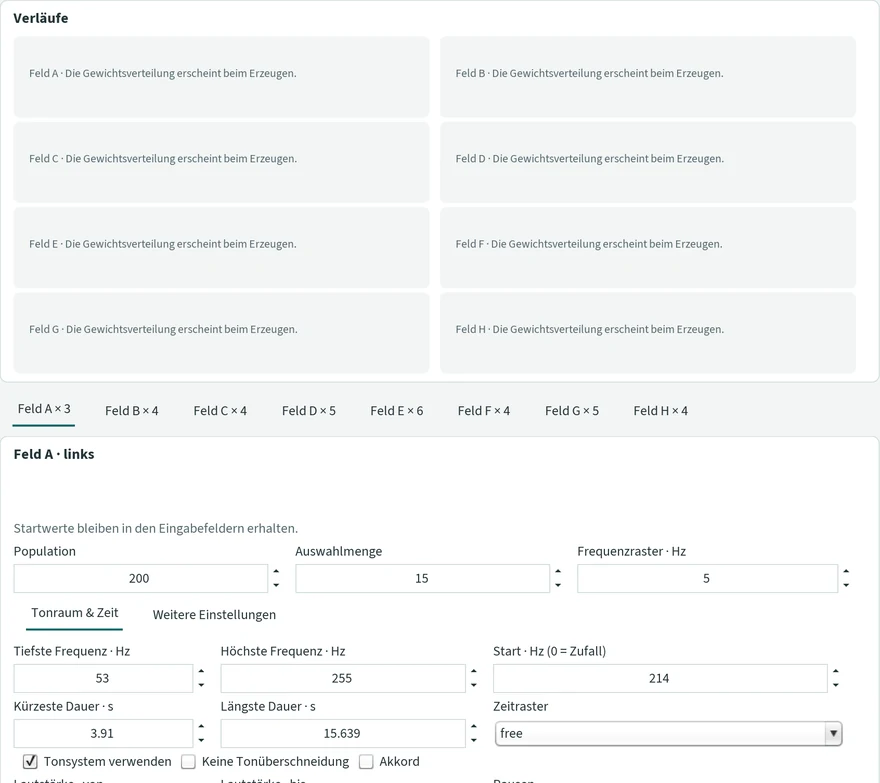
The loudness of the fields comes from the line-up piece, that is from “Lautstärke von … bis” in the main window: if that says ppp to f, the fields tend to be quiet; for a loud ensemble set the main window to p to fff beforehand. A FOF field by JCself gets Montefofia, one of the mountain sounds. The fields by JCself compose freely, without a tuning system – like the line-up piece –, the copies of a swarm stay within the range of the fields, and the piano JCself sets in its register, 55 to 880 Hz.
What carries
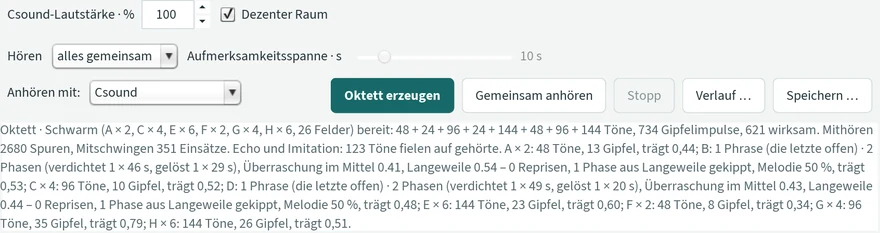
After “Ensemble erzeugen” the status line shows behind every field trägt 0,57 (carries 0.57) – a measure from 0 to 1 made of what the ensemble itself reports: how often the field reaches peaks (against the field with the most), how much the others hear of it – listening in, swinging along – (against the field heard most), and what the listener says (surprise high, boredom low). For a swarm the mean of its copies counts. Quiet, long fields usually carry little, fields with many peaks much.
The fields that carry stay
At the next “Felder von JCself …” the carrying counts: the tick Tragende Felder bleiben is on after generating, and the hint beside it says which fields stay – “Trägt mindestens das Mittel 0,53: B, E, G bleiben (3 von 8), die anderen verwehen.” (carries at least the mean 0.53: B, E, G stay (3 of 8), the others fade). The measure is the mean carrying of all fields: whoever reaches it carries. No number from outside – the ensemble measures itself against itself. With “Felder setzen” the fields that carry stay with every value they have, including those you changed by hand; the others fade, and JCself sets as many new ones as the window wants. The new fields again come from a line-up piece over the whole range; they share their ranges with their neighbours, the fields that stayed being neighbours like any other, their own ranges untouched. Afterwards all fields stand in order of pitch again; a field that stayed may get another letter. The status says: “Felder von JCself: 3 tragende Felder bleiben (trägt ≥ 0,53), 5 neu aus 5 Einsätzen, 2 Schwärme. Bitte erzeugen.” If all fields carry alike, all stay. Tick off: everything is set anew. After “Felder setzen” and after + or − the window has no carrying yet – the tick is disabled until you generate.

So a circle arises: fields by JCself → generate → the carrying ones stay, the others are set anew → generate … The ensemble seeks its own line-up, round by round, with your ear in between. In a trial with sixteen fields over 40 to 4000 Hz eleven stayed after the first round; the five that faded were the quiet, long ones – and four of the new ones JCself set in the depths, where nothing had been before.
Fields come and go
With the tick Felder kommen und gehen the line-up changes within the piece itself: when generating, JCself first composes the line-up piece to its end – with your form, that is with phases and phrases – and then lets it run beside the ensemble. At the end of each of its phrases the field that carries least goes (What carries, measured during the piece), and a new field comes where the line-up piece is playing just then – with the note, the duration, the loudness and the swarm of that entry, its range between the fields that stand there. A field that goes ends with its own phrase, at the latest 30 seconds later. It goes only when as many fields play as the window has, and only one that has said its first phrase to the end or played 30 seconds. With the end of the line-up piece all end. The runs of the fields no longer limit then: a field plays until it goes. Tick off: everything as before.
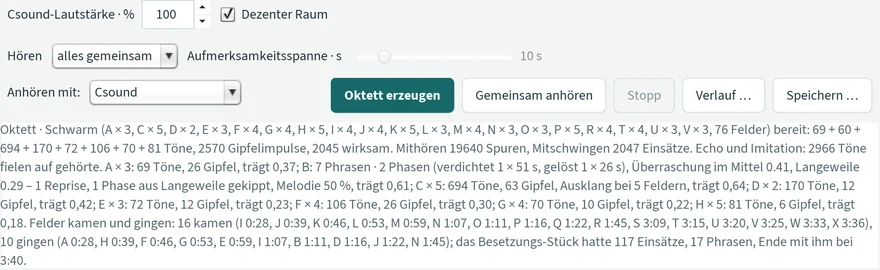

While JCself works, the status line says “JCself komponiert das Besetzungs-Stück – die Felder kommen und gehen …” (JCself composes the line-up piece – the fields come and go); afterwards it names who came and went when, and Verlauf … shows the fields that came behind those of the window, with “kam 0:27, ging 1:03” (came, went). The window keeps its starting fields: at the next generating it begins with them again, and the line-up piece runs anew. The tick also holds for fields you set by hand. The form of the main window sets the pace of the changes: in condensed phases it changes every few seconds, in released ones not for a minute. In an octet over 30 to 700 Hz, 13 fields came in four minutes, 9 went, at the end all.
Note follows the sounds
With Klang folgt den Tönen (sound follows the notes) – as it was until now – the line-up piece is composed, every entry becomes a field, and a sound is sought for its note; several fields can have the same sound. With Ton folgt den Klängen (note follows the sounds) every field is an instrument first: JCself takes the sounds of the palette, each at most once at a time, as far as the palette reaches; if the VSCO cello with its folder is chosen in the tab “Klang”, cello pizzicato, spiccato and tremolo come as instruments of their own; if that still is not enough, the registers are split – “Gong tief” and “Gong hoch” (low, high), then low, middle, high, then “Lage 1 … 4” –, until every field has an instrument of its own. Which field gets which instrument JCself draws by lot, so that every sound occurs once before any occurs twice. Then the line-up piece composes, and every instrument takes the first entry within its register: from it the start note, duration, loudness and swarm; its range lies between the fields that stand there and within the register. If an instrument finds no entry in its register, it takes the one closest to it. The registers: gong 66–1484 Hz (the recordings), cello 65–1047, piano 55–880, bass drum 30–120, timpani 65–220, horn 62–698, trombone 82–587, trumpet 165–988, clarinet 147–1568, flute 262–2093, violin 196–3136, piccolo 587–4186; sine, FOF, Autofonie and Lorenz everywhere – each as far as the range of the fields reaches.

The status names the instruments: “Felder von JCself: 5 Felder aus 122 Einsätzen. Ton folgt den Klängen: A Cello, B Cello Spiccato, C Cello Pizzicato, D Cello Tremolo, E Sinus – weich. Bitte erzeugen.” Tragende Felder bleiben goes along: the fields that stay keep their instrument, the new ones get instruments the ones that stay do not have. With Felder kommen und gehen a field that goes takes its instrument away, and a field that comes brings an instrument no field of the window has (by lot); once all are given out, they come round again in the order in which they were given. The coming instrument takes the first entry of the line-up piece after the phrase end that lies within its register; the status names it: “12 kamen (I Cello 0:27, J Gong 0:33, …), 7 gingen (G Cello Spiccato 0:27, …)”.
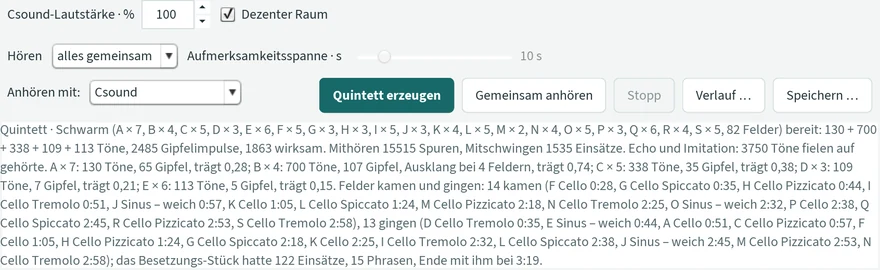
So that “Cello Pizzicato” can be an instrument, a cello field with the VSCO cello has the choice Spielweise (playing style): wie unten · gestrichen · Pizzicato · Spiccato · Tremolo (as below · bowed · pizzicato · spiccato · tremolo) (in the section “Klang” of the field, under “Cello · Aufnahmen”). “Wie unten” is what it was – the ticks “Spielweisen je Stimme” and “Tremolo auf langen Tönen” decide; a fixed playing style holds for every note of the field, the bowing stays with bowed notes. You can set it by hand for every field; the instruments by JCself get it when they are set. The fields that come take the cello of the tab “Klang” with its playing styles – with both choices.
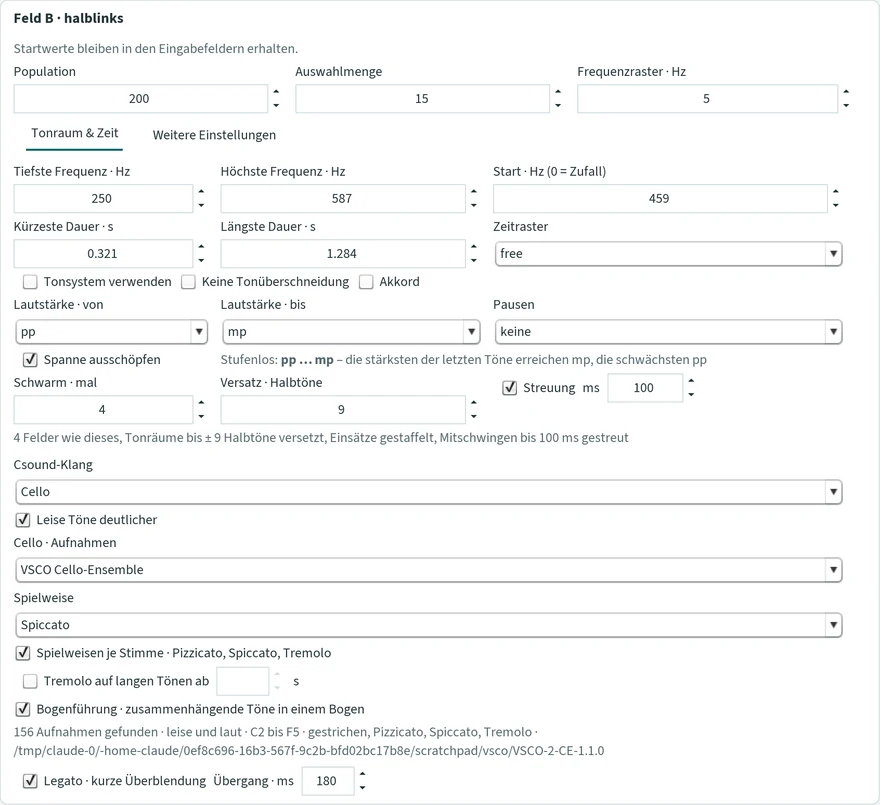
At the bottom of the window
- Csound-Lautstärke · % · Dezenter Raum (Csound volume · subtle room)
- Only with Csound: the overall volume of the Csound fields (0 to 200 %, default 100 %) and a small, warm reverberation for all Csound voices. MIDI stays unchanged.
- Ausgleich MIDI · ms (MIDI offset)
- Only when Csound and MIDI fields play together: the MIDI fields come this many milliseconds later, with negative values earlier (−500 to 500). Use it if the two do not sound quite simultaneously on your computer. Default 0.
- Hören · Aufmerksamkeitsspanne · s (listening · attention span)
- alles gemeinsam (all together): all fields sound together (default). zappen (zap): only one field can be heard at a time, see Zapping. The attention span only applies when zapping, 2 to 60 s, default 10 s.
- Duett erzeugen / Trio erzeugen / Quartett erzeugen … / Ensemble erzeugen (generate)
- Calculates all fields; afterwards JCself reports something like “Quartett bereit: 40 + 40 + 40 + 40 Töne, 12 Gipfelimpulse, 12 wirksam.” (quartet ready: … notes, 12 peak impulses, 12 effective), with a swarm “Quartett · Schwarm (A × 60, 63 Felder) bereit: …”, and behind every field how much it carries. When zapping, it adds how often the field changes, for example “Gezappt: 11 Besuche, 1–34 s bei einem Feld.” (zapped: 11 visits, 1–34 s with one field)
- Gemeinsam anhören / Gezappt anhören · Stopp (listen together / listen zapped · stop)
- Plays the fields, all together or zapped; “Stopp” stops.
- Verlauf … (course)
- Opens a window with the course view of every field: its notes, phases, phrases, curves, reprises and sentences, an echo field with the notes it plays. The window stays open until you close it or the ensemble window.
- Speichern … (save)
- “MIDI speichern …” (one track per field), “Csound-Datei …” (one common file with all Csound fields), “WAV speichern …” (the Csound fields and the internal MIDI instruments together; SWAM sounds in another program and is not included) and “Noten speichern (MusicXML) …”: every field as a part of its own (“Feld A · Horn in F”, “Feld B · Klarinette in B”) on one common time, with bars or without, set as in the main window (see Noten). When zapping, the three sound files contain only the notes that were heard; a field that was never heard is missing.
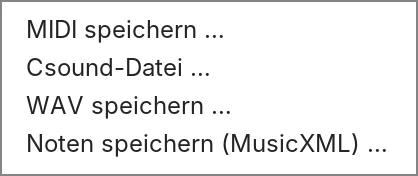
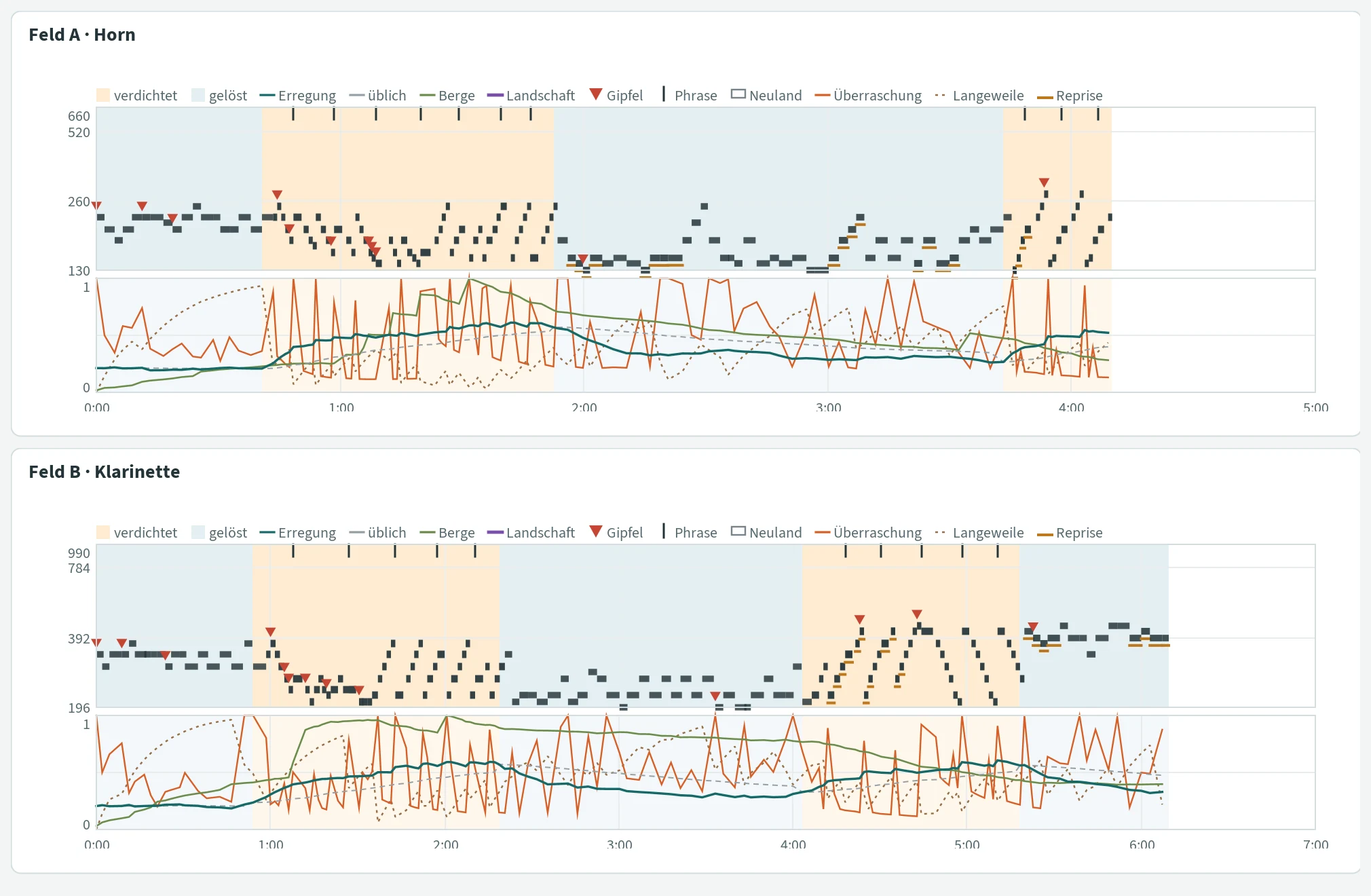
Zapping
With “Hören: zappen” you hear only one field at a time, as when zapping through TV channels; the others go on composing unheard. An imagined listener turns to the field that gets the most attention at the moment. Attention is caught by a field’s latest surprise – a larger leap than is usual in this field, an unusually strong note, an unusual duration – as well as by a peak hit or an impulse from another field; it fades over a few seconds. What counts is the surprise per note, not the number of notes: a field with many short notes does not attract more for that reason alone. The listener gets used to the field being heard; only a surprise above the usual refreshes the attention. A field not heard for a while is missed – the listener longs for it, and once there, stays a little longer. On top of that the attention fluctuates a little. Changes happen at the beginning of a note, at the earliest after two seconds; no field waits longer than three times the attention span, at least ten seconds – then it is heard at its next onset. Because all fields begin at the same time, the first visit goes to field A.
The Aufmerksamkeitsspanne (attention span) decides how quickly the listener gets used to a field: after about that many seconds without a surprise, the attention for the field being heard has dropped to roughly a third. Smaller: zap more often. Larger: stay longer with one field. With 10 s most visits last 2 to 15 seconds. Switching between “alles gemeinsam” and “zappen” and a different span take effect without generating again – so you hear the same composition once together and once zapped.
How long a field plays comes from its content: it ends when its mountains have blown away (Fading away), at the latest after “Töne je Feld”. A field with short notes therefore ends earlier than one with long notes; the zapping then follows the fields still playing.
Because only one field sounds at a time, a zapped piece is clearly quieter than all fields together. Conversely, a large ensemble played together becomes very dense and loud; then lower the Csound volume.
Sound settings such as legato, sound length, FOF variant, “Anhören mit” (also per field), cello recordings and playing styles, the ticks of the instruments in the tab “Klang”, volume, room, MIDI offset and “Hören” apply immediately to the existing result. Everything else, including the Csound sound and the MIDI instrument, requires generating again. The result is kept only while the window is open: save what you want to keep before you close it. The settings are kept, separately for duet, trio and each number of fields of the ensemble (quartett.properties … ensemble-24.properties); the last number and the frame for the fields by JCself are kept in ensemble.properties.
Menus and templates
Menu “Datei” (file)
- Csound-Datei wählen … (choose Csound file)
- Sets the name and location under which the next “Erzeugen” writes the Csound file (and “MIDI speichern” the MIDI file). Nothing is written yet.
- Template laden (load template)
- Loads a template (
.jct). If you have changed something since the start, JCself first asks whether you want to save the current settings as a template. - Template speichern (save template)
- Saves the current settings as a template. Suggested name “Vorlage.jct”; JCself adds the extension
.jct. - Beenden (quit)
- Asks for confirmation (“Yes” / “No”) and saves the settings. The same goes for the window’s close button and, on the Mac, ⌘Q.
Menu “Optionen” (options)
- Anzeige 2D · Anzeige 3D
- How the display is drawn, see 3D display.
- Hintergrundbild … (background picture)
- See background picture.
- Instrumente Auswählen (choose instruments)
- Selects “Anhören mit: MIDI · Instrumente” and opens the tab “Klang”.
- Effekte … (effects)
- The window “Effekte · Gewichtungsgipfel”, like “Einstellungen …” in the tab “Form”.
- Sprachen (languages)
- German or English, effective after a restart. Only older parts of the program are translated; most labels stay German. We recommend German – this manual uses the German labels.
- Über (about)
- Version and authors of JCself.
There are no keyboard shortcuts; while JCself is working, the menus are locked.
Templates
A template (Vorlage) records the settings of the tabs “Komposition” and “Form” – including fading and ending, phases, phrases, the values of the sentences, the listener, the breathing of time, the peak count and the following voice –, plus the MIDI instruments, the choice 2D/3D and the language. Not stored in the template are the tuning system, chord spacing, “Keine Tonüberschneidung”, “Melodie” and “Ausdruck”, the text of the sentences and the drawn excitation landscape (both belong to the window), and everything from the tab “Klang”, from duet, trio and ensemble and the background picture; these settings apply to all pieces and stay as they are when a template is loaded. Templates are text files and can be passed on. Older templates can still be loaded; what they do not know gets the default.
Settings and files
All settings are in the folder Gipfel-Daten. JCself saves most of them immediately when you change them. The basic settings of the tabs “Komposition” and “Form” (file jcself.sav) are saved when you quit – provided you have changed something since the start or since last loading or saving a template. If you load a template and change nothing afterwards, the next start therefore begins with the previous settings.
The folder also holds the text of the sentences (saetze.txt) and the drawn excitation landscape (verlauf-landschaft.properties) – both belong to the window, not to the template –, logs of the last run (jcself.log, komposition.log – which also says when and why a phase tipped, where a phrase ended, which motif the listener recognised and where a sentence ended), working copies of your own recordings (Klaenge) and the included instrument recordings (Csound-Klaenge). JCself deletes temporary files after use.
To continue working on another computer, copy the folder Gipfel-Daten along. Choose these again there: the Csound program, an own WAV recording, an own background picture, MIDI outputs, the VSCO folder (for the instruments and the cello) and the Gong folder.
VSCO via sforzando
This section is for advanced users. VSCO 2 Community Edition is a free collection of orchestral recordings; the free player sforzando plays them. JCself controls it via MIDI and chooses the playing technique – bowed, pizzicato, tremolo, mute – for each note by itself.
For the orchestral instruments there is a simpler way without sforzando and without a MIDI connection: tab “Klang” › Csound › Piccolo, Flöte, Klarinette, Horn, Posaune, Pauke, Große Trommel, Violine or Cello with “VSCO Cello-Ensemble”, see Instruments from the VSCO library. There, chords, tuning systems and justly tuned intervals also stay exact, and the instruments play by the synergy. All you need is the unpacked folder VSCO-2-CE-1.1.0 (step 1).
Setting up
- Install sforzando and download VSCO 2 Community Edition in the SFZ version 1.1.0. Unzip it in a fixed place. This creates the folder
VSCO-2-CE-1.1.0, the VSCO main folder (VSCO-Hauptordner). You do not put anything into this folder yourself. - Create a virtual MIDI connection (loopMIDI or the IAC driver) and choose it in sforzando as the MIDI input.
- In JCself, under “Klang”, choose the card “SWAM / VSCO”, as instrument for example “VSCO Cello-Ensemble”, the MIDI output and the pitch correction 0.
- Open “Artikulation & Dynamik …” (articulation & dynamics) and, with “Ordner wählen …” (choose folder), choose the folder
VSCO-2-CE-1.1.0. JCself remembers the folder; this is needed only once. - Leave the sound character on “Nach Anschlag” (by attack) and click “Klangdatei vorbereiten” (prepare sound file). JCself now writes a new file into the VSCO main folder by itself, without asking: for the cello ensemble
JCself-Cello-Art.sfz, for the other instrumentsJCself-Violine-Art.sfz,JCself-Trompete-Art.sfzandJCself-Klavier-Art.sfz. It combines the recordings of the individual playing techniques; the original VSCO files remain unchanged. First the window shows “Aufnahmen werden geprüft und Pegel angeglichen …” (checking recordings and matching levels), then, for example, “Bereit: JCself-Cello-Art.sfz – Diese Datei jetzt aus dem VSCO-Ordner auf Sforzando ziehen.” (ready … now drag this file from the VSCO folder onto sforzando). If no folder has been chosen yet, JCself reports “Bitte zuerst den VSCO-Hauptordner wählen.” (please choose the VSCO main folder first) - Drag this file from the folder
VSCO-2-CE-1.1.0onto the sforzando window. This is the only step done by hand: you do not need to copy or move anything. - Close the window “Artikulation & Dynamik” with OK and click “Anhören”.
The prepared file stays in the VSCO main folder. For another instrument, click “Klangdatei vorbereiten” once while that instrument is selected, and drag the new file onto sforzando.
Do NOT prepare a timbre SFZ (Klangfarben-SFZ) or load one into sforzando. Leave the sound character on “Nach Anschlag”. The other sound characters and the switches that depend on them (“Gehaltene Töne aus dem Dynamikverlauf entwickeln”, “Bogenphrasen aus dem Verlauf entwickeln”) need such a file and are therefore not described here.
Window “Artikulation & Dynamik”
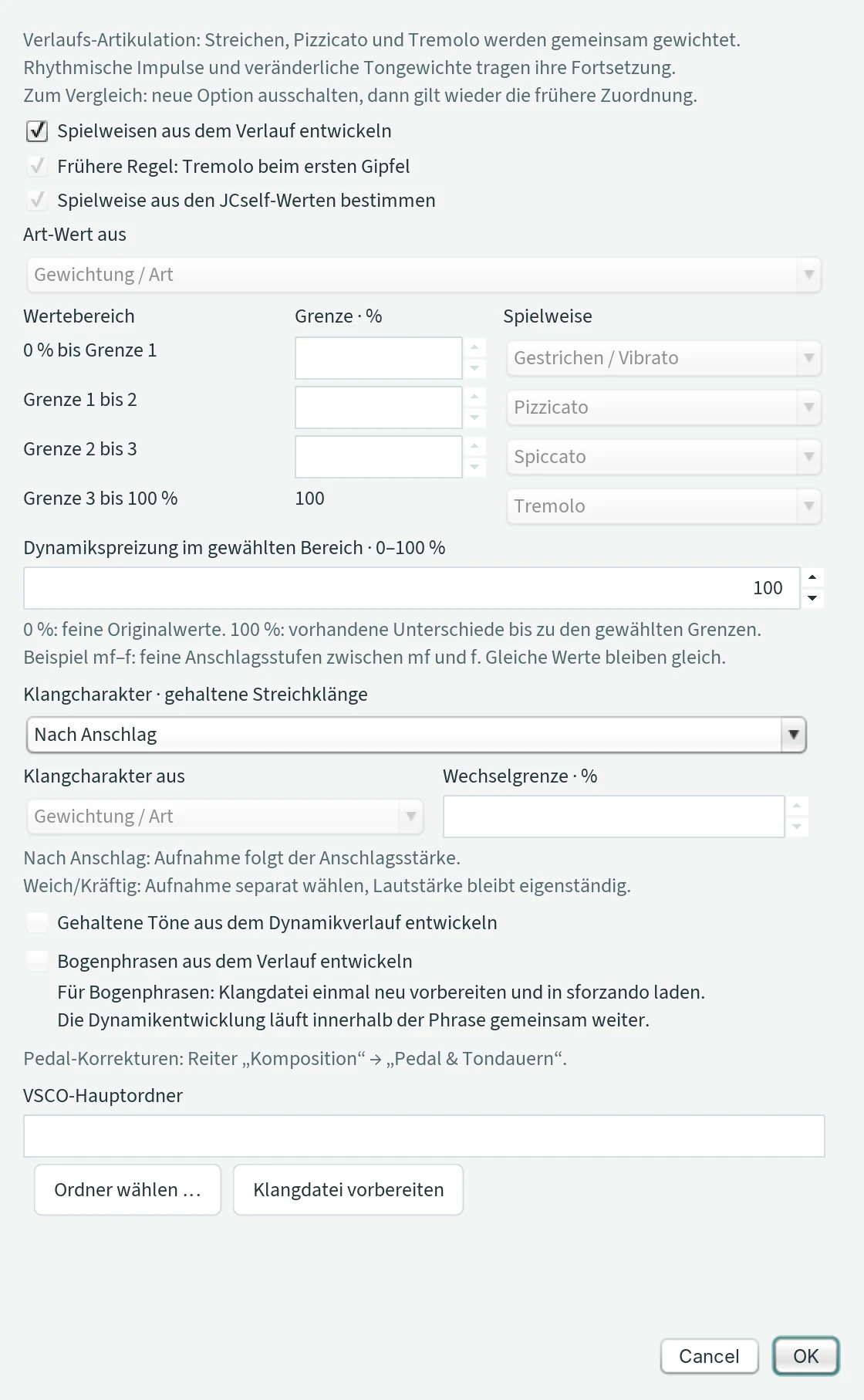
- Spielweisen aus dem Verlauf entwickeln (develop playing techniques from the course)
- Cello and violin only. For every note JCself chooses between bowed, pizzicato and tremolo, without a fixed quota: pizzicato becomes likely where the rhythm is regular and a note is short – against the pulse or against the last notes of its voice; tremolo on long notes where the weight landscape is in motion and where there is tension, at a new peak and at a surprise (a large leap, an unusual duration). The style chosen last persists a little; chords, overlapping notes and new beginnings after rests are bowed. In a piece with Peter’s settings about a tenth of the notes are plucked and an eighth tremolo. Until Update 92 the rule demanded gaps between the notes and motion – mostly only bowing came of it. The same choice applies to the instruments in Csound with “Spielweisen je Stimme” – cello ensemble and violin, and for the wind instruments as sustained and tongued; there each voice chooses for itself, every chord note too. Default on.
- Frühere Regel: Tremolo beim ersten Gipfel (earlier rule: tremolo at the first peak)
- Applies when the previous tick is off: a new peak is played tremolo, everything else bowed.
- Spielweise aus den JCself-Werten bestimmen (determine playing technique from the JCself values)
- Applies when both previous ticks are off, and for the trumpet. A value – under Art-Wert aus (technique value from): weighting, loudness, pitch or stereo position – is stretched to 0 to 100 % over the whole piece; the table assigns one playing technique to each of four ranges (limits 25, 50, 75 %). Without this tick, the first row always applies. The piano has only one playing technique.
- Dynamikspreizung · 0–100 % (dynamic spread)
- 0 %: the fine original values. 100 %: the existing differences are spread up to the limits of “Lautstärke · von / bis”.
- VSCO-Hauptordner · Ordner wählen … · Klangdatei vorbereiten
- See above.
The VSCO recordings cover only certain ranges; limit the range in JCself accordingly: cello ensemble C2–F5, solo violin G3–C7, trumpet E3–C6 (with mute from B♭3), piano A0–C8 (C4 = middle C). With pedal and legato, “Lücken schließen” holds string sounds until the next entry. “MIDI speichern” also works without a prepared file.
Questions and solutions
- A value is not accepted.
- Write decimals with a point (0.5), whole numbers without point or comma. Press Enter or leave the field. If the value is outside the permitted range, the old one stays.
- “Anhören” is grey.
- “Erzeugen” first; after the program starts there is no composition yet. While JCself is working, only “Abbruch” is available.
- “MIDI speichern” is grey.
- With MIDI, listen first. After generating again or changing “Pedal” and “Keine Tonüberschneidung”, listen again.
- “Erzeugen” asks “Diese Datei ersetzen?”
- JCself writes every new piece into the same Csound file. “Ja” (yes) replaces it; for a new name, use “Csound-Datei wählen …” in the menu “Datei” beforehand.
- Message “Zeitraster und Tondauer”.
- No value of the time grid lies between the shortest and longest duration. Choose a finer grid, a larger duration range or “free”.
- Csound is not found.
- Install Csound and, under “Klang › Csound”, choose with “Csound auswählen …” the file
csound.exe(in the subfolderbin) orcsound– not CsoundQt. - Nothing can be heard with MIDI.
- Check the computer’s volume. If JCself reports that the MIDI device cannot be opened, another program may be using the sound output; close it and restart JCself.
- A tuning system does not sound as it should.
- MIDI rounds to semitones. Listen with Csound or the own WAV sound.
- Chords cannot be heard.
- Switch on “Akkord · synergetisch” and generate again. From four voices on, no chord notes are added. With Soffofio and Cantofofo the fundamental stays fixed; chords cannot be heard as chords there. If the chord notes lie very low, for instance with the cello, “Akkordlage: weit · gespreizt” and “Leise Töne deutlicher” make them clearer.
- There are many rests at the beginning.
- Notes in new territory never become rests; many rests come from a high number under “Pausen” (each counts like one more level). Choose a smaller number, say 1, or “keine”.
- The piece ends before the runs are reached.
- That is the ending (Ausklang): the mountains have faded, see Verwehen und Ausklang. The line in the section names after how many runs. If the piece is to become longer, reduce “Verwehen je Einsatz” or “Ausklang · unter % der Höhe”; with 0 % fading it always runs to the upper limit.
- The piece ends before the text is over.
- The runs (tab “Komposition”) do not suffice: the line under the text says how long the piece will be – for the “Erlkönig” at 1 s per syllable about 8:30, that is around 900 runs. The line about the piece then says “12 von 18 Sätzen gesprochen” (12 of 18 sentences spoken).
- The text has no effect.
- The tick “Sätze · aus dem Text” must be set, and the text field must not be empty. The sentences act at the next “Erzeugen”, not on an existing piece. A drawn excitation landscape rests while a text is there.
- The drawing has no effect.
- The tick “Die Zeichnung wirkt auf die Phasen” must be set, the phases must be on, and the text field under “Sätze” must be empty. Beyond the drawn end nothing acts – draw as long as the piece will be.
- The melodies only go back and forth, or there are only leaps.
- Both are set by “Melodie · %” of the listener: 50 % gives lines and leaps, 100 % long lines, 0 % the choice of notes from the weight distribution alone. Melodic pieces end earlier because narrow regions fade faster – less fading per entry or a longer recovery time gives longer pieces.
- The pieces sound different from earlier updates, with the same settings.
- Since Update 90 the lengthened closing note of a phrase, the louder notes of a reprise, the legato in a line and the accents of a text reach the finished composition; in Updates 86 to 89 these changes were lost when the composition was read back. Without phases, phrases, listener and text everything is as before.
- The piece finds no ending – it runs to the upper limit.
- The runs are too few: with 150 runs the piece mostly does not reach the ending (the line then says “lief bis zur Obergrenze … die Berge stehen bei 74 %”). Allow more runs, for example 600; they are only the upper limit now.
- The mountains in the display do not disappear.
- The display always shows the mountains relative to the highest one, which always reaches full height. The fading shows in other regions coming up and the peak moving, and in the line under “Verwehen und Ausklang”.
- An instrument reports “Kein VSCO-Ordner gewählt” or does not sound.
- The instruments need the unpacked folder
VSCO-2-CE-1.1.0: in the tab “Klang” at the instrument, “VSCO-Ordner wählen …”. Once chosen, it applies to all instruments. See Instruments from the VSCO library. - “Der VSCO-Ordner „H:\VSCO-2-CE-1.1.0“ ist auf diesem Rechner nicht vorhanden.” (the VSCO folder is not present on this computer)
- The settings came along from another computer, where VSCO was on a drive that does not exist here. In the tab “Klang”, “VSCO-Ordner wählen …” and choose the folder on this computer; in the Duett, Trio and Ensemble JCself offers the folder dialog right away. Without a valid folder the cello plays its built-in recording – then there are no playing styles. The same applies to the Gong folder.
- The piece begins quiet and dull, as if from far away.
- That is “Raum und Ferne nach der Synergie”: at the beginning the composition has little weight yet (Neuland), the music sounds distant and comes nearer when its regions gain weight. Less of it with a smaller value in the tab “Klang”; 0 switches it off, see room and distance.
- With “Felder kommen und gehen” the fields do not go for a long time – or very quickly one after another.
- The changes follow the phrases of the line-up piece, that is your form: in released phases the phrases are long, then nothing changes for a minute; in condensed ones every few seconds. Only a field goes that has said its first phrase to the end or played 30 seconds, and only when as many play as the window began with. Without phrases it changes every eight entries.
- With the Klangraum the timbres jump too much – or they stay in one place.
- The timbre follows the procedure like the pitch: a large random weighting and a small weighting width let it jump, a small random weighting and a large weighting width keep it together – the weighting width counts relative to the range; in a field with a narrow range the timbre stays in one region by itself. Fewer sounds make the steps coarser, more make them finer.
- The fields that came sounded different from the starting fields (cello).
- Up to Update 100 they played the built-in cello even when the VSCO cello was chosen in the tab “Klang”; since Update 101 they take the cello of the tab “Klang” with its playing styles.
- The entries are not even, the tempo fluctuates.
- That is “Zeit atmen lassen”: where the music is calm the step stretches, where it is lively it presses on. The strength is in the tab “Form”; 0 % gives the time as before, see Zeit atmen lassen.
- Almost all notes are red.
- Without “Tonsystem verwenden” JCself chooses free frequencies; red means: more than 5 cents from the semitone, i.e. not tempered. The exact deviation stands above the note. With “Tonsystem verwenden” only notes outside the system are red. See Noten.
- The notation program shows boxes instead of quarter-tone accidentals.
- Not every program knows the quarter-tone accidentals of MusicXML; MuseScore and Dorico show them. The cent value above the note says in any case where the note lies.
- In the sheet music the first note of the melody voice is very long.
- The additional melody voice holds every note until its next one – that is how it sounds, too. Its notes are therefore long and tied.
- The VSCO cello plays almost only tremolo.
- Then “Tremolo auf langen Tönen” is switched on and almost all notes are longer than the length set. Switch it off or raise the length. Without this tick, tremolo only comes via “Spielweisen je Stimme”, see tremolo on long notes.
- A Csound file with a VSCO instrument does not play on another computer.
- It does not contain the recordings but refers to the VSCO folder. On the other computer,
VSCO-2-CE-1.1.0must be in the same place. - In the ensemble, Csound and MIDI do not sound at the same time.
- Use “Ausgleich MIDI · ms” to let the MIDI fields enter later (positive) or earlier (negative), in small steps, until they sound together.
- When zapping, a field is missing from the saved file.
- What is saved is what could be heard. A field the listener never visited is not included. With “Hören: alles gemeinsam” you save all fields.
- The piece is too loud or too quiet.
- With Csound, adjust the “Csound-Lautstärke · dB”; “Tiefe Töne gehörrichtig” makes sine sounds louder. “Leise Töne deutlicher” reduces the differences. In duet, trio and ensemble “Csound-Lautstärke · %” applies; a large ensemble is very loud when played together and clearly quieter when zapped.
- The gong does not sound, or it says “Bitte den Gong-Ordner wählen”.
- The sound “Gong” needs Peter Heeren’s recordings: unpack
jcself-gong.zipfrom the download page, put the folderGonganywhere and show it in the tab “Klang” › Gong with “Gong-Ordner wählen …” – the folder in whichGong.sfzlies. See Gong. - Most gong strokes are damped, only a few ring out.
- That is how the gong plays with “Abdämpfen”: the stroke is damped at the next note of its voice, as with the hand; the peaks, the end, the Neuland, quiet places and notes before a rest ring out. If all strokes are to ring out and pile up, untick “Abdämpfen” and generate again. The “Verlängerung der Töne” in the tab “Komposition” does not help here – and only works with “Pedal” anyway. See Gong.
- The canon sounds like a foreign body.
- Check in the section “Folgen” that “Hört mit” (50 %), “Mitklingen” (1 semitone) and “Mitschwingen” are set and that the row “Folgestimme” in the section “Phasen” is ticked: then the main voice hears the canon, falls onto its notes and entries, and it comes and goes with the form. If it is too close for you like that, set “Mitklingen” to 0. See Folgen.
- Csound reports “Invalid number of channels” and does not play (Mac).
- The Mac’s output device has only one channel, but JCself plays in stereo. Usually these are Bluetooth headphones that have switched to headset mode (telephone quality, mono) because a program is using their microphone – dictation, for example. Remedy: set “System Settings” › “Sound” › “Input” to the built-in microphone and switch the headphones off and on again; when they are in stereo mode, “Output” shows a balance slider. Or choose the speakers under “Output”. Then simply listen again; Csound queries the devices anew at every playback.
- The own sound is out of tune.
- Check the reference pitch: “Vorhören · A4” must sound like an A. Otherwise enter the reference pitch by hand.
- The Mac does not start JCself.
- See Installation on the Mac: is Java installed (the “x64” version for an Intel Mac, “aarch64” for a Mac with Apple silicon)? Allow the start file with right-click › “Open” or via “Privacy & Security”, or start in Terminal:
java -jarand the path tojcself-gipfel.jar. The JAR on its own, withoutjava -jar, reports “permission denied”. - Where does the file JCself-Cello-Art.sfz come from?
- JCself writes it into the VSCO main folder (
VSCO-2-CE-1.1.0) by itself as soon as you click “Klangdatei vorbereiten” under “Artikulation & Dynamik …”. The only thing you do by hand is drag it onto sforzando, see VSCO via sforzando. - A swarm sounds like a rhythmic noise.
- Its copies strike on the same millisecond. Check the tick “Streuung” in the field’s tab (on, 100 ms or more) and choose a free time grid, see Streuung. If it also clicks, it is usually the FOF variant Soffofio: choose another variant.
- A large swarm stutters while listening.
- A hundred Csound fields in real time are too many. “WAV speichern” renders the piece offline, in a few minutes; then listen to the file. Set “Raum und Ferne” in the tab “Klang” to 0 for large swarms.
- “Felder von JCself” sets quiet fields.
- The loudness comes from “Lautstärke von … bis” in the main window. Set a louder range there first, say p to fff, and set the fields once more. Or change the loudness of the fields by hand afterwards.
- The tick “Tragende Felder bleiben” is grey.
- The window knows no carrying yet: first “Ensemble erzeugen”, then “Felder von JCself …”. After “Felder setzen” and after + or − this starts over.
- The window does not rebuild when the number of fields changes (Mac).
- Since Update 97 the rebuild runs after the click, with fresh layout and painting. If the old picture still stays, close the window and open it again – the new number is saved. A note to us helps (contact).
- Where are my settings?
- In the folder
Gipfel-Datennext to the program, see working folder.
JCself · Idea: Peter Heeren · Concept: Peter Heeren and Nils Kay · Programming: Nils Kay